> ## Documentation Index
> Fetch the complete documentation index at: https://docs.tessact.ai/llms.txt
> Use this file to discover all available pages before exploring further.
# Org Admin Overview
> What organization admins should review first in Tessact across users, workspaces, storage, and admin operations.
## Overview
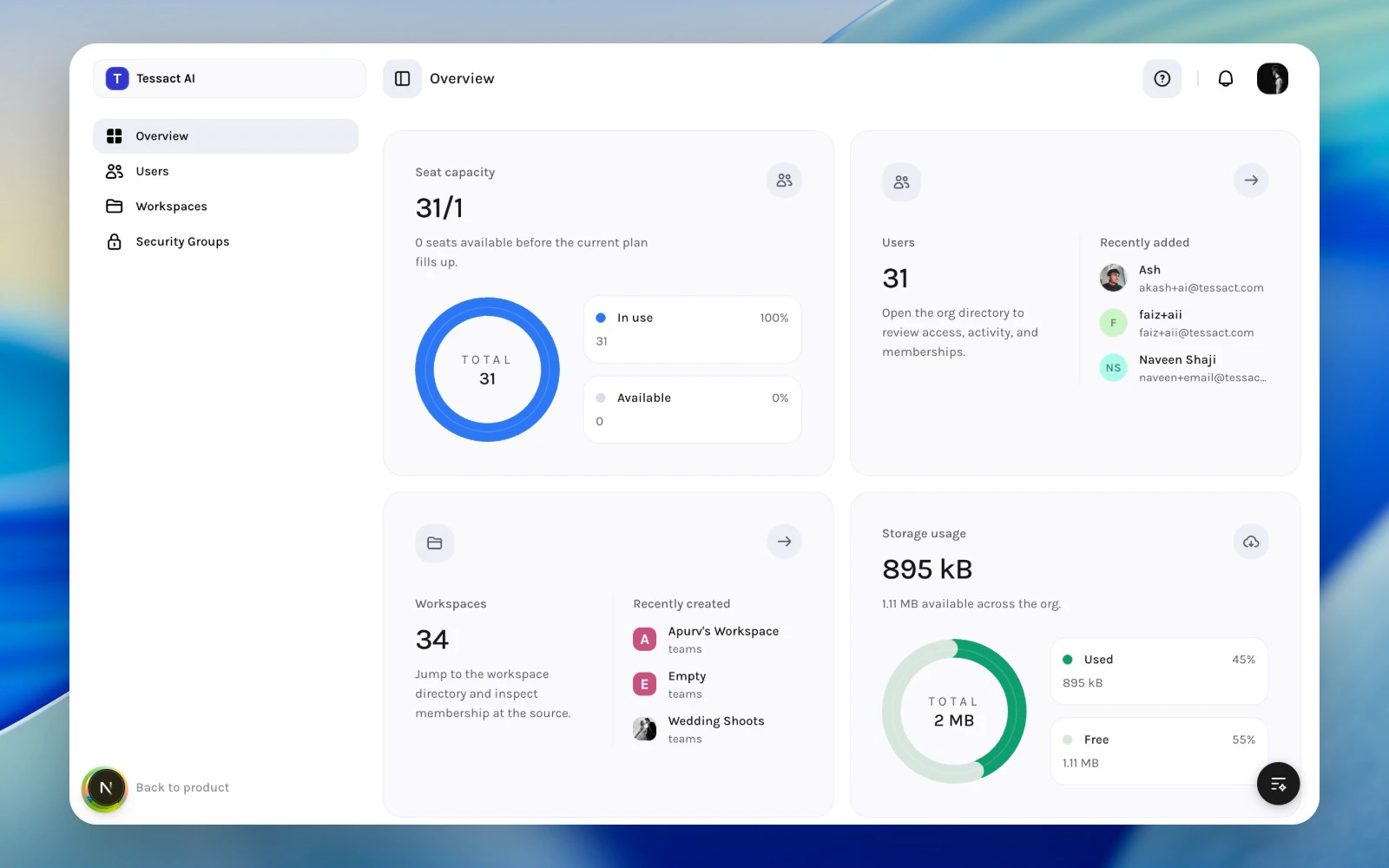
The **Overview** page is the landing surface for Tessact organization admins. It is designed to answer four questions quickly:
* How close is the org to its seat limit?
* How many users are active in the organization?
* How many workspaces need governance?
* How much storage is already consumed?
This page is not where admins make most changes. It is where they decide what needs attention next.
 ***
## What The Page Shows
The overview surface is built around four cards:
| Card | What it tells you | Why it matters |
| ----------------- | ------------------------------------------------------ | ---------------------------------------------------------------- |
| **Seat capacity** | Used seats versus total allowed seats | Helps you catch onboarding bottlenecks before invites fail |
| **Users** | Total users plus a recent-user preview | Sends you into the user directory for access and activity review |
| **Workspaces** | Total workspace count plus recently created workspaces | Helps you spot growth, sprawl, and ownership issues |
| **Storage usage** | Used storage versus org capacity | Signals when to review workspace limits or cleanup plans |
The **Users** and **Workspaces** cards are also navigation shortcuts into the directory pages where the operational work happens.
***
## How Admins Should Use It
Use the overview as the top of a regular admin review loop:
1. Check **seat capacity** before onboarding or large imports.
2. Open **Users** when access, activity, or role assignments need attention.
3. Open **Workspaces** when the org is creating too many workspaces or leaving old ones unmanaged.
4. Review **storage usage** before teams hit limits or request capacity changes.
This keeps the admin job operational. Tessact expects the overview to be a monitoring surface, not a settings dump.
The exact numbers come from live organization data. If a metric looks incomplete, the backend may still be calculating subscription or storage details for that org.
***
## What To Check First
For a lightweight weekly review:
* Look for **seat pressure** when the remaining seat count is low.
* Look for **unexpected user growth** in the Users card.
* Look for **workspace sprawl** if the workspace count is climbing without clear ownership.
* Look for **storage acceleration** rather than only absolute usage.
For a monthly governance review:
* Audit inactive or duplicate users.
* Review whether workspaces still have clear owners.
* Confirm storage usage still matches the plan and operating model.
***
## Best Practices
* Treat the overview as a triage surface, not the final destination.
* Use it at the start of onboarding, offboarding, or quarterly access reviews.
* Follow the metric cards into **Users** or **Workspaces** instead of trying to manage exceptions from memory.
* Pair seat and storage reviews with real workflow changes, not only billing discussions.
***
## Next Steps
See how Tessact expects admins to divide work across users, workspaces, and security controls.
Go from overview signals into day-to-day user administration.
***
## What The Page Shows
The overview surface is built around four cards:
| Card | What it tells you | Why it matters |
| ----------------- | ------------------------------------------------------ | ---------------------------------------------------------------- |
| **Seat capacity** | Used seats versus total allowed seats | Helps you catch onboarding bottlenecks before invites fail |
| **Users** | Total users plus a recent-user preview | Sends you into the user directory for access and activity review |
| **Workspaces** | Total workspace count plus recently created workspaces | Helps you spot growth, sprawl, and ownership issues |
| **Storage usage** | Used storage versus org capacity | Signals when to review workspace limits or cleanup plans |
The **Users** and **Workspaces** cards are also navigation shortcuts into the directory pages where the operational work happens.
***
## How Admins Should Use It
Use the overview as the top of a regular admin review loop:
1. Check **seat capacity** before onboarding or large imports.
2. Open **Users** when access, activity, or role assignments need attention.
3. Open **Workspaces** when the org is creating too many workspaces or leaving old ones unmanaged.
4. Review **storage usage** before teams hit limits or request capacity changes.
This keeps the admin job operational. Tessact expects the overview to be a monitoring surface, not a settings dump.
The exact numbers come from live organization data. If a metric looks incomplete, the backend may still be calculating subscription or storage details for that org.
***
## What To Check First
For a lightweight weekly review:
* Look for **seat pressure** when the remaining seat count is low.
* Look for **unexpected user growth** in the Users card.
* Look for **workspace sprawl** if the workspace count is climbing without clear ownership.
* Look for **storage acceleration** rather than only absolute usage.
For a monthly governance review:
* Audit inactive or duplicate users.
* Review whether workspaces still have clear owners.
* Confirm storage usage still matches the plan and operating model.
***
## Best Practices
* Treat the overview as a triage surface, not the final destination.
* Use it at the start of onboarding, offboarding, or quarterly access reviews.
* Follow the metric cards into **Users** or **Workspaces** instead of trying to manage exceptions from memory.
* Pair seat and storage reviews with real workflow changes, not only billing discussions.
***
## Next Steps
See how Tessact expects admins to divide work across users, workspaces, and security controls.
Go from overview signals into day-to-day user administration.