> ## Documentation Index
> Fetch the complete documentation index at: https://docs.tessact.ai/llms.txt
> Use this file to discover all available pages before exploring further.
# Security Groups Basics
> How Tessact security groups work in the current simplified admin model.
## Overview
**Security Groups** let admins define reusable membership cohorts at the organization level. In the current admin model, Tessact keeps this surface intentionally lightweight:
* create a group
* describe what it is for
* manage who belongs to it
* review default versus custom groups
This page is not a full policy builder. It is a clean membership model for admins who need reusable cohorts without heavy entitlement logic inside the same screen.
 ***
## What The Directory Shows
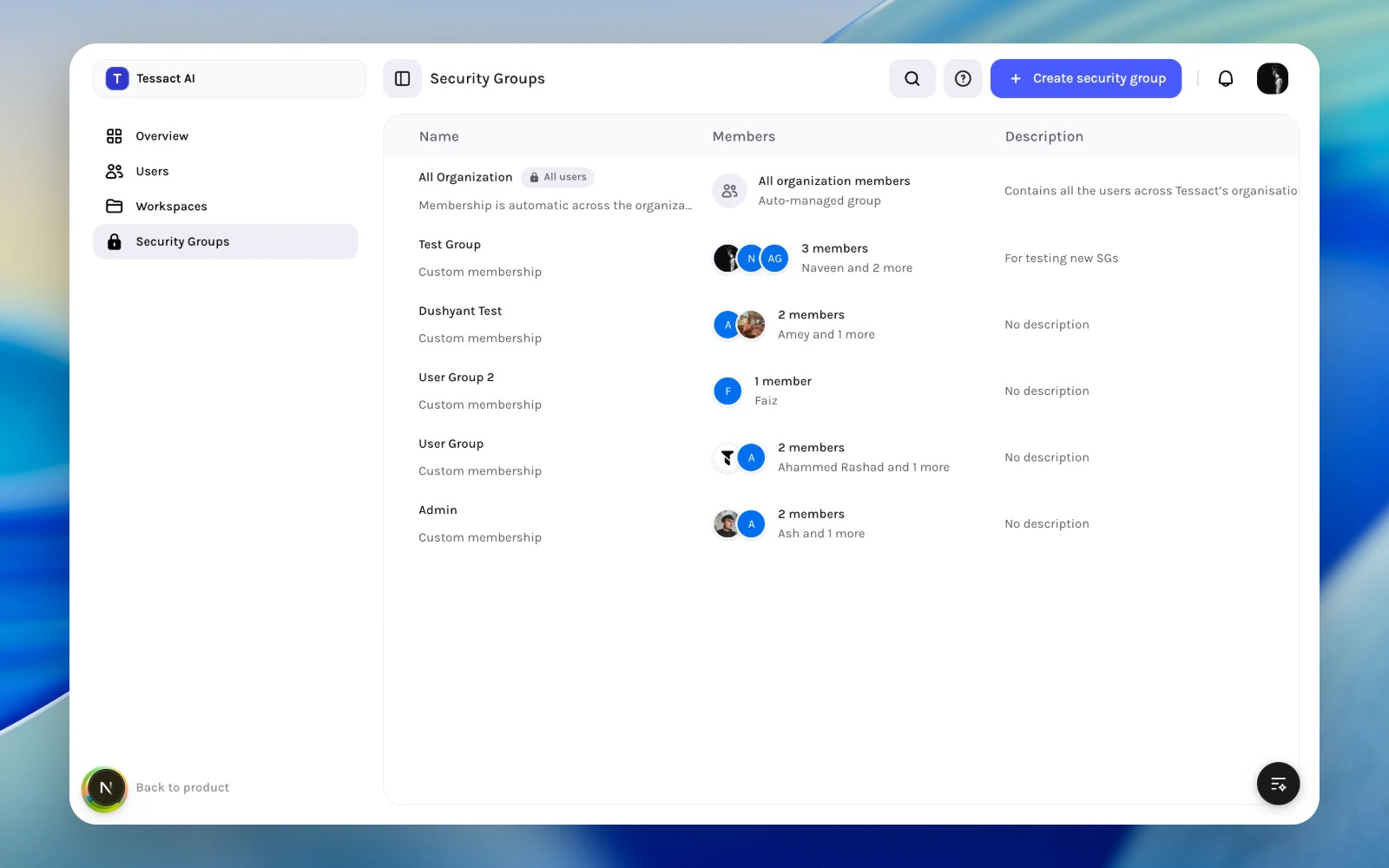
The security groups directory includes:
| Column | What it shows |
| --------------- | ---------------------------------------------------------- |
| **Name** | Group title plus whether it is the protected default group |
| **Members** | Member count and a quick preview of who belongs |
| **Description** | Why the group exists |
This is enough to answer the main governance questions:
* which groups exist?
* which ones are default and protected?
* which groups are custom?
* does each group still have a clear purpose?
***
## Default Versus Custom Groups
Tessact distinguishes between:
### Default group
The built-in **All users** style group is auto-managed by the organization. It represents the whole org and cannot be treated like a normal custom group.
### Custom groups
Custom groups are created by admins and should represent a purposeful cohort, such as:
* reviewers
* brand approvers
* regional operators
* restricted partner teams
Custom groups can be edited and deleted. Default groups stay protected.
***
## Create A Security Group
Use **Create security group** from the action bar.
The creation flow captures:
* **group name**
* **description**
After the group exists, Tessact takes you to the group page so you can manage membership there. This keeps creation and membership review separated into two clear steps.
Search the security groups directory before creating anything. This helps you avoid duplicate groups with overlapping names or unclear purposes.
Use **Create security group**, then give the group a clear operational name and a description that explains who belongs in it.
***
## What The Directory Shows
The security groups directory includes:
| Column | What it shows |
| --------------- | ---------------------------------------------------------- |
| **Name** | Group title plus whether it is the protected default group |
| **Members** | Member count and a quick preview of who belongs |
| **Description** | Why the group exists |
This is enough to answer the main governance questions:
* which groups exist?
* which ones are default and protected?
* which groups are custom?
* does each group still have a clear purpose?
***
## Default Versus Custom Groups
Tessact distinguishes between:
### Default group
The built-in **All users** style group is auto-managed by the organization. It represents the whole org and cannot be treated like a normal custom group.
### Custom groups
Custom groups are created by admins and should represent a purposeful cohort, such as:
* reviewers
* brand approvers
* regional operators
* restricted partner teams
Custom groups can be edited and deleted. Default groups stay protected.
***
## Create A Security Group
Use **Create security group** from the action bar.
The creation flow captures:
* **group name**
* **description**
After the group exists, Tessact takes you to the group page so you can manage membership there. This keeps creation and membership review separated into two clear steps.
Search the security groups directory before creating anything. This helps you avoid duplicate groups with overlapping names or unclear purposes.
Use **Create security group**, then give the group a clear operational name and a description that explains who belongs in it.
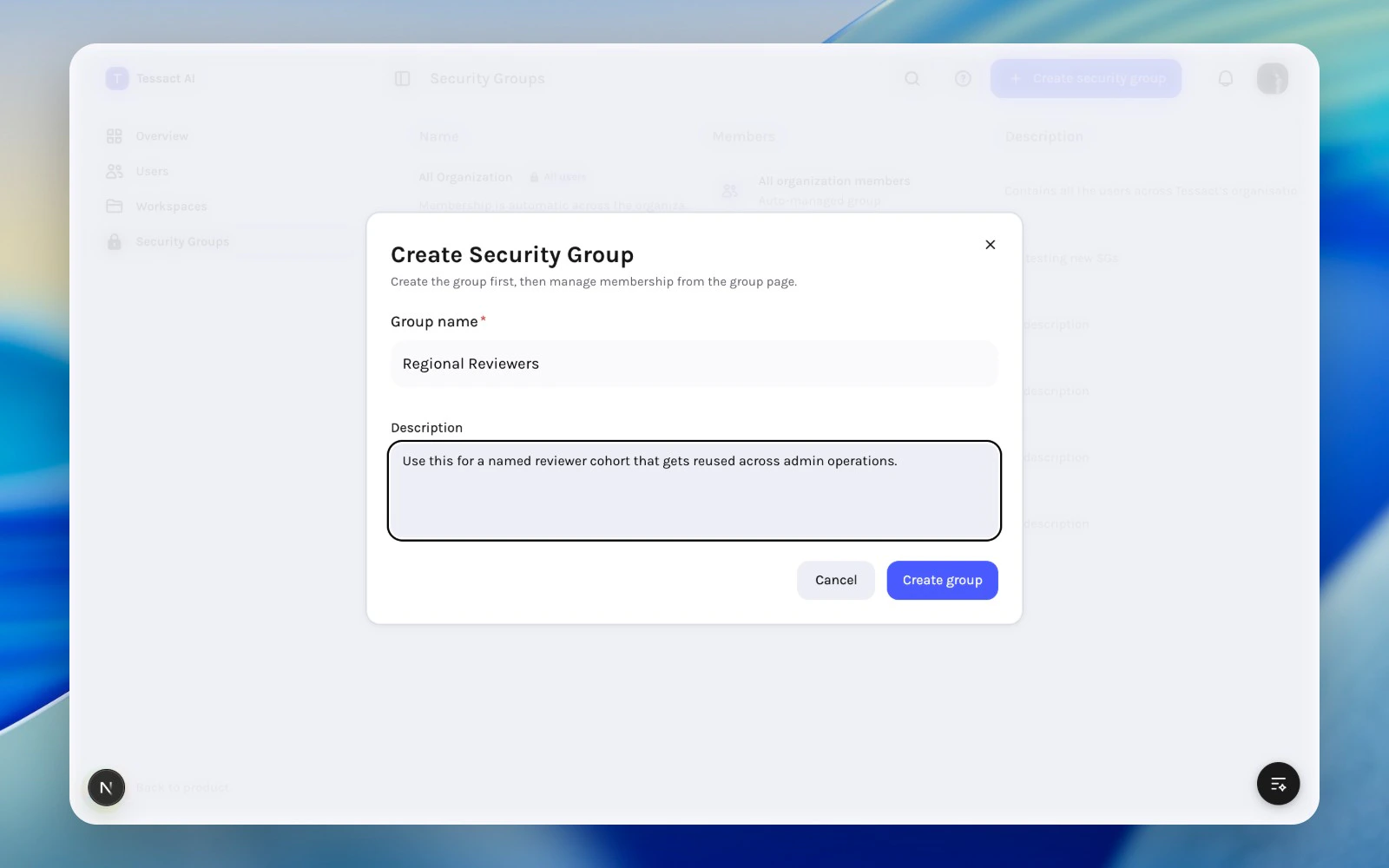 After creation, continue on the group detail page to add or remove members. Keep the description specific enough that another admin could maintain the same cohort later.
***
## Search And Review
Use the page search to quickly find:
* a known group by name
* groups that follow a naming convention
* stale or duplicate groups that need cleanup
Descriptions matter here. A group named `Reviewers` without a clear description ages badly. A group with a specific purpose is much easier to govern later.
***
## Best Practices
* Keep group names short and operational.
* Use the description to explain who belongs and why.
* Prefer a few durable groups over many one-off groups.
* Review whether a group duplicates an organization role before creating it.
* Treat the default group as infrastructure, not as a manually curated cohort.
***
## Next Steps
Review how admins should keep group membership clean over time.
Go deeper into the page for a single security group.
After creation, continue on the group detail page to add or remove members. Keep the description specific enough that another admin could maintain the same cohort later.
***
## Search And Review
Use the page search to quickly find:
* a known group by name
* groups that follow a naming convention
* stale or duplicate groups that need cleanup
Descriptions matter here. A group named `Reviewers` without a clear description ages badly. A group with a specific purpose is much easier to govern later.
***
## Best Practices
* Keep group names short and operational.
* Use the description to explain who belongs and why.
* Prefer a few durable groups over many one-off groups.
* Review whether a group duplicates an organization role before creating it.
* Treat the default group as infrastructure, not as a manually curated cohort.
***
## Next Steps
Review how admins should keep group membership clean over time.
Go deeper into the page for a single security group.