> ## Documentation Index
> Fetch the complete documentation index at: https://docs.tessact.ai/llms.txt
> Use this file to discover all available pages before exploring further.
# Workspace Governance
> How organization admins should review workspace ownership, activity, and risk from the Tessact admin directory.
## Overview
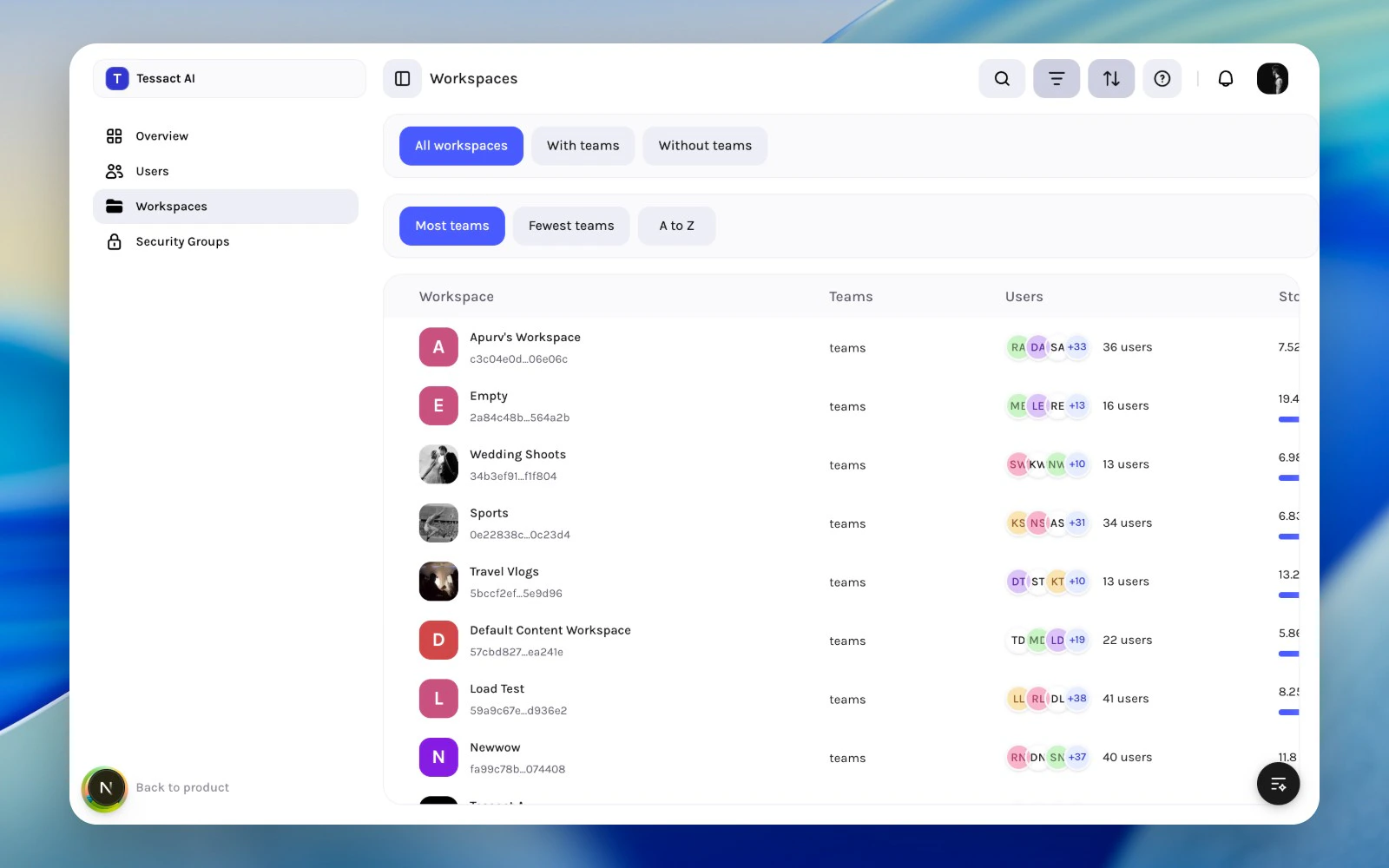
The **Workspaces** directory is where org admins review the workspace layer as a system, not just one workspace at a time. It answers three recurring questions:
* which workspaces are active and operational
* which ones look under-owned or under-used
* where storage and membership review should happen next
 ***
## What Governance Means In Tessact
In the current admin model, workspace governance is mostly about operational hygiene:
* keep workspace sprawl understandable
* review whether member lists still match real teams
* watch storage pressure before it becomes a problem
* use section-level settings only where they add clarity
Tessact keeps this lightweight on purpose. It does not expect admins to build an elaborate policy tree before they can manage a workspace safely.
***
## Guide: Review The Workspace Directory
Open **Admin → Workspaces** to review the full org-level workspace list instead of checking each workspace in isolation.
The directory supports quick segmentation such as **All workspaces**, **With teams**, and **Without teams**, plus sort options like **Most teams**, **Fewest teams**, and **A to Z**.
Use the table as triage. When a workspace looks risky, empty, overprovisioned, or unclear, open it and continue the review in **General**, **Members**, **Library**, or **Limits**.
***
## Signals Worth Investigating
Review a workspace more closely when:
* it has very few members and no clear owner
* it has storage growth that no longer matches its purpose
* it has no teams or looks abandoned
* it appears overstaffed relative to the work happening there
* the workspace name or identity is vague enough to confuse admins later
***
## Governance Rhythm
Use a simple cadence:
1. Weekly: scan the directory for new workspaces and unusual growth.
2. Monthly: review membership and storage in the workspaces that look most active or least clear.
3. Quarterly: archive, rename, or simplify workspaces that no longer reflect a real operating model.
***
## Best Practices
* Treat the directory as an org-level triage surface.
* Review risky workspaces from the top down before editing members.
* Prefer a few clearly named workspaces over a long tail of duplicates.
* Pair member reviews with storage reviews so governance stays practical.
***
## Next Steps
See how to read the workspace table and decide what to inspect next.
Move from org-level governance into the four core workspace sections.
***
## What Governance Means In Tessact
In the current admin model, workspace governance is mostly about operational hygiene:
* keep workspace sprawl understandable
* review whether member lists still match real teams
* watch storage pressure before it becomes a problem
* use section-level settings only where they add clarity
Tessact keeps this lightweight on purpose. It does not expect admins to build an elaborate policy tree before they can manage a workspace safely.
***
## Guide: Review The Workspace Directory
Open **Admin → Workspaces** to review the full org-level workspace list instead of checking each workspace in isolation.
The directory supports quick segmentation such as **All workspaces**, **With teams**, and **Without teams**, plus sort options like **Most teams**, **Fewest teams**, and **A to Z**.
Use the table as triage. When a workspace looks risky, empty, overprovisioned, or unclear, open it and continue the review in **General**, **Members**, **Library**, or **Limits**.
***
## Signals Worth Investigating
Review a workspace more closely when:
* it has very few members and no clear owner
* it has storage growth that no longer matches its purpose
* it has no teams or looks abandoned
* it appears overstaffed relative to the work happening there
* the workspace name or identity is vague enough to confuse admins later
***
## Governance Rhythm
Use a simple cadence:
1. Weekly: scan the directory for new workspaces and unusual growth.
2. Monthly: review membership and storage in the workspaces that look most active or least clear.
3. Quarterly: archive, rename, or simplify workspaces that no longer reflect a real operating model.
***
## Best Practices
* Treat the directory as an org-level triage surface.
* Review risky workspaces from the top down before editing members.
* Prefer a few clearly named workspaces over a long tail of duplicates.
* Pair member reviews with storage reviews so governance stays practical.
***
## Next Steps
See how to read the workspace table and decide what to inspect next.
Move from org-level governance into the four core workspace sections.