> ## Documentation Index
> Fetch the complete documentation index at: https://docs.tessact.ai/llms.txt
> Use this file to discover all available pages before exploring further.
# Workspace Admin Essentials
> How org admins should approach workspace setup, access review, library behavior, and limits once they open a workspace.
## Overview
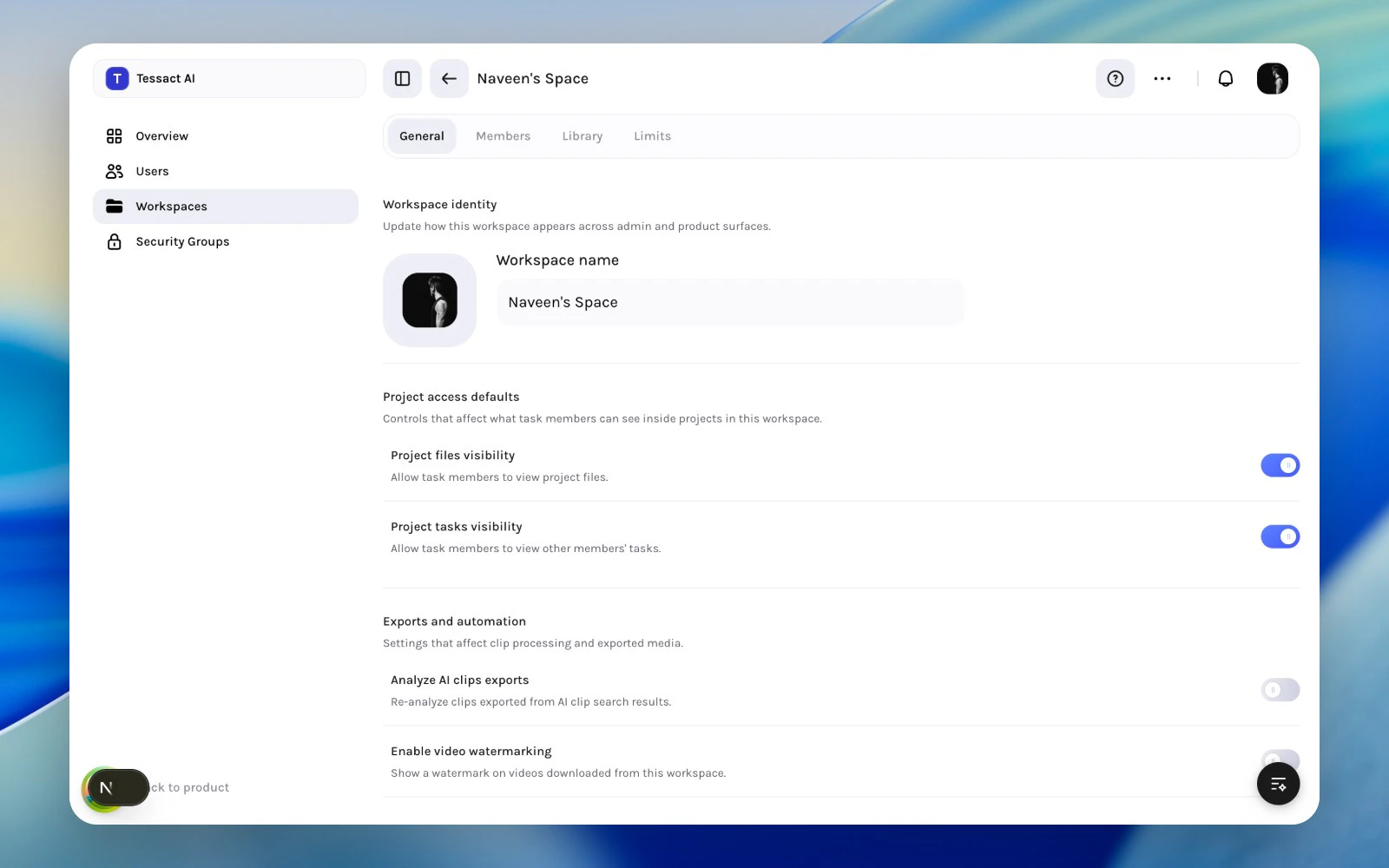
Once you open a workspace in admin, Tessact keeps the job focused on four sections:
* **General**
* **Members**
* **Library**
* **Limits**
This is the core operating model for workspace-level administration.
 ***
## What Each Section Is For
| Section | Primary admin job |
| ----------- | ----------------------------------------------------------- |
| **General** | Workspace identity plus access and export behavior |
| **Members** | Add, review, role-check, export, and remove workspace users |
| **Library** | File status visibility and the status catalog |
| **Limits** | Storage usage and workspace-level capacity policy |
The structure is intentionally narrow. Admins should not need to hunt through unrelated settings to manage a workspace safely.
***
## How To Approach A Workspace Review
Start with **General** so you can verify the workspace name, logo, and basic behavior settings.
Open **Members** to inspect the current cohort, workspace roles, and recent activity.
Use **Library** when status visibility or status design affects how teams track work in this workspace.
Use **Limits** to review storage pressure and whether the workspace should stay capped or unlimited.
***
## When To Stay At The Workspace Level
Stay in workspace admin when:
* the question is about one workspace's identity or behavior
* the concern is about member fit, not org-wide role design
* file-status behavior is specific to one workspace
* storage review needs workspace-level context
Go back to the org-level admin directory when the issue affects many workspaces at once.
***
## Best Practices
* Review the workspace in section order instead of changing settings ad hoc.
* Keep identity, access, library policy, and limits conceptually separate.
* Use the workspace surface for local decisions and the admin root for org-wide ones.
***
## Next Steps
Go directly into the General section and the settings it exposes.
See how library status design and capacity policy fit together.
***
## What Each Section Is For
| Section | Primary admin job |
| ----------- | ----------------------------------------------------------- |
| **General** | Workspace identity plus access and export behavior |
| **Members** | Add, review, role-check, export, and remove workspace users |
| **Library** | File status visibility and the status catalog |
| **Limits** | Storage usage and workspace-level capacity policy |
The structure is intentionally narrow. Admins should not need to hunt through unrelated settings to manage a workspace safely.
***
## How To Approach A Workspace Review
Start with **General** so you can verify the workspace name, logo, and basic behavior settings.
Open **Members** to inspect the current cohort, workspace roles, and recent activity.
Use **Library** when status visibility or status design affects how teams track work in this workspace.
Use **Limits** to review storage pressure and whether the workspace should stay capped or unlimited.
***
## When To Stay At The Workspace Level
Stay in workspace admin when:
* the question is about one workspace's identity or behavior
* the concern is about member fit, not org-wide role design
* file-status behavior is specific to one workspace
* storage review needs workspace-level context
Go back to the org-level admin directory when the issue affects many workspaces at once.
***
## Best Practices
* Review the workspace in section order instead of changing settings ad hoc.
* Keep identity, access, library policy, and limits conceptually separate.
* Use the workspace surface for local decisions and the admin root for org-wide ones.
***
## Next Steps
Go directly into the General section and the settings it exposes.
See how library status design and capacity policy fit together.