> ## Documentation Index
> Fetch the complete documentation index at: https://docs.tessact.ai/llms.txt
> Use this file to discover all available pages before exploring further.
# Workspace Role Assignments
> When to use each workspace role and how to keep role assignment understandable.
## Overview
Workspace roles answer one question: what should this person be allowed to do inside this workspace?
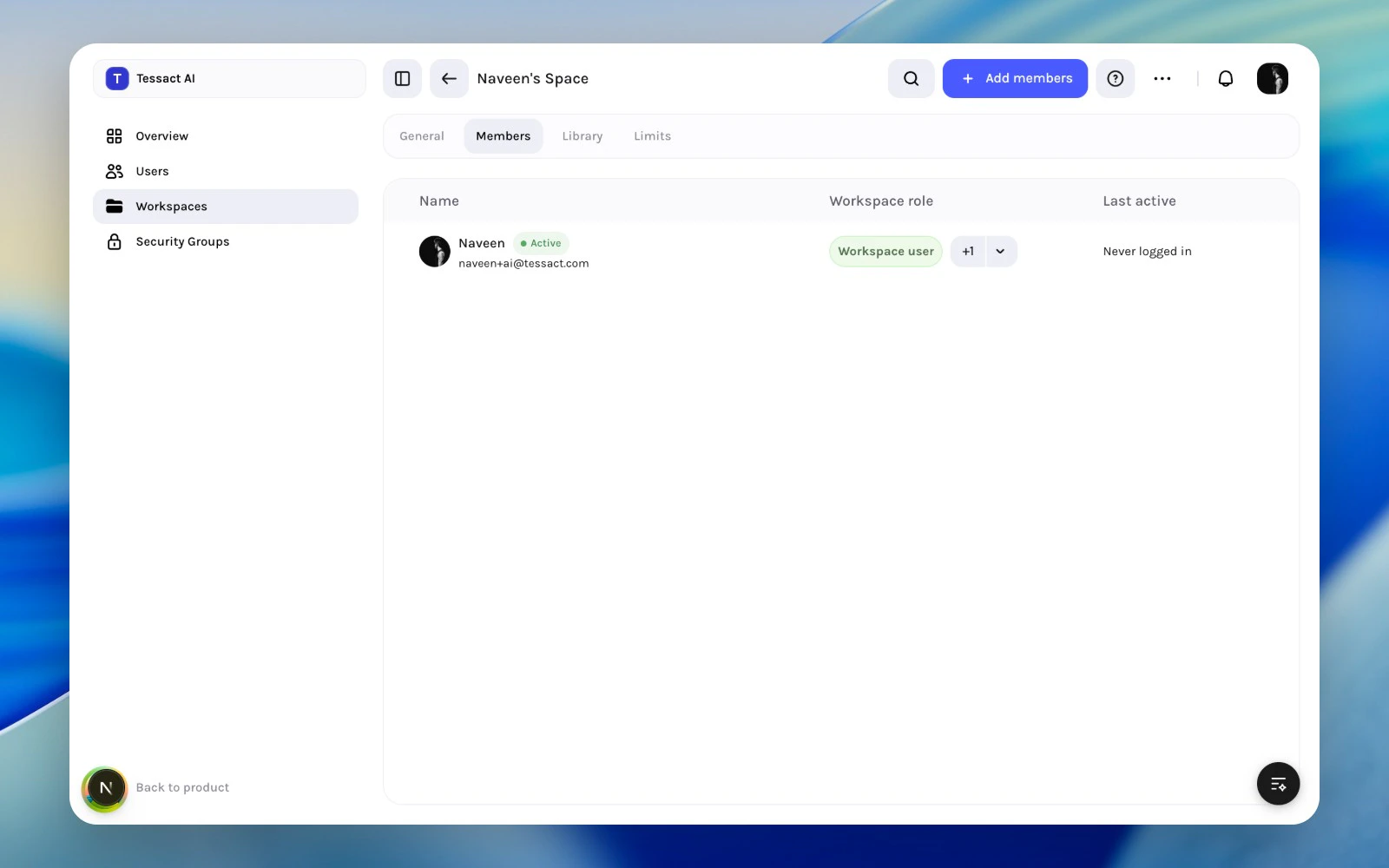
The **Members** tab is where admins review those assignments in context.
 ***
## Role Assignment Principles
Use workspace roles to express workspace-specific responsibility, not org-wide authority.
* give the lowest role that still matches the real job
* review roles when someone changes function inside the workspace
* avoid using workspace roles to compensate for unclear org roles
***
## When To Change A Workspace Role
Change the role when:
* a member becomes an active workspace operator
* a reviewer or collaborator no longer needs elevated access
* a temporary assignment ends
* a cleanup pass shows that role breadth no longer matches usage
***
## Guide: Keep Workspace Roles Clean
Review the role column alongside name and activity so the assignment stays tied to actual workspace usage.
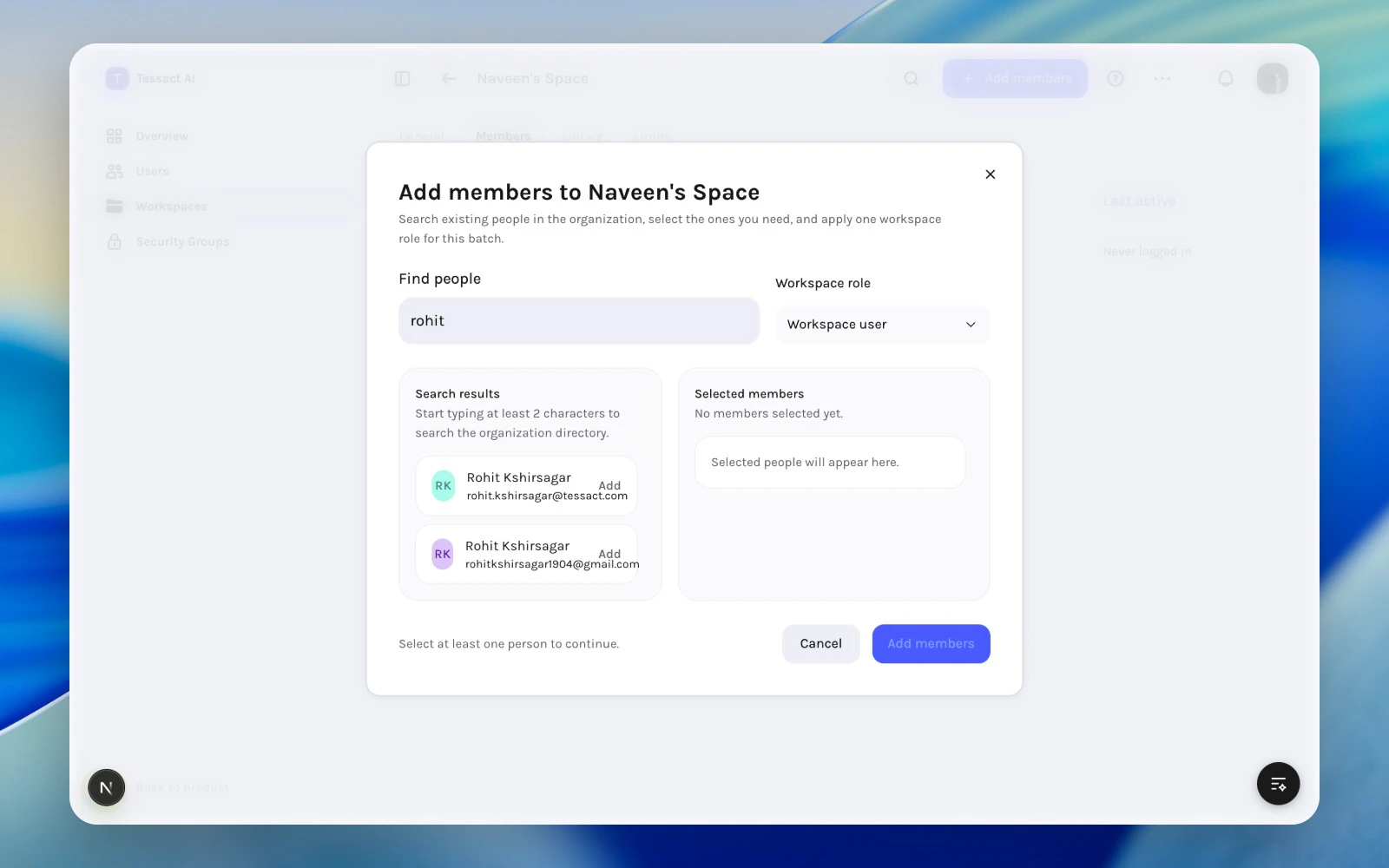
When adding members, choose the correct workspace role at the point of entry instead of adding first and fixing later.
***
## Role Assignment Principles
Use workspace roles to express workspace-specific responsibility, not org-wide authority.
* give the lowest role that still matches the real job
* review roles when someone changes function inside the workspace
* avoid using workspace roles to compensate for unclear org roles
***
## When To Change A Workspace Role
Change the role when:
* a member becomes an active workspace operator
* a reviewer or collaborator no longer needs elevated access
* a temporary assignment ends
* a cleanup pass shows that role breadth no longer matches usage
***
## Guide: Keep Workspace Roles Clean
Review the role column alongside name and activity so the assignment stays tied to actual workspace usage.
When adding members, choose the correct workspace role at the point of entry instead of adding first and fixing later.
 Roles should be one of the first things you revisit when a member looks dormant, overprovisioned, or no longer central to the workspace.
***
## Best Practices
* Keep elevated roles rare and reviewable.
* Align workspace role changes with real task ownership changes.
* Recheck roles whenever you review dormant access.
* Prefer role clarity over convenience.
***
## Next Steps
Return to the broader access review model inside a workspace.
Use removal when the user should not stay in the workspace at all.
Roles should be one of the first things you revisit when a member looks dormant, overprovisioned, or no longer central to the workspace.
***
## Best Practices
* Keep elevated roles rare and reviewable.
* Align workspace role changes with real task ownership changes.
* Recheck roles whenever you review dormant access.
* Prefer role clarity over convenience.
***
## Next Steps
Return to the broader access review model inside a workspace.
Use removal when the user should not stay in the workspace at all.