> ## Documentation Index
> Fetch the complete documentation index at: https://docs.tessact.ai/llms.txt
> Use this file to discover all available pages before exploring further.
# Content Library & Asset Management
> Organise, navigate, and perform bulk actions on large volumes of media with Tessact’s scalable Library.
## Overview
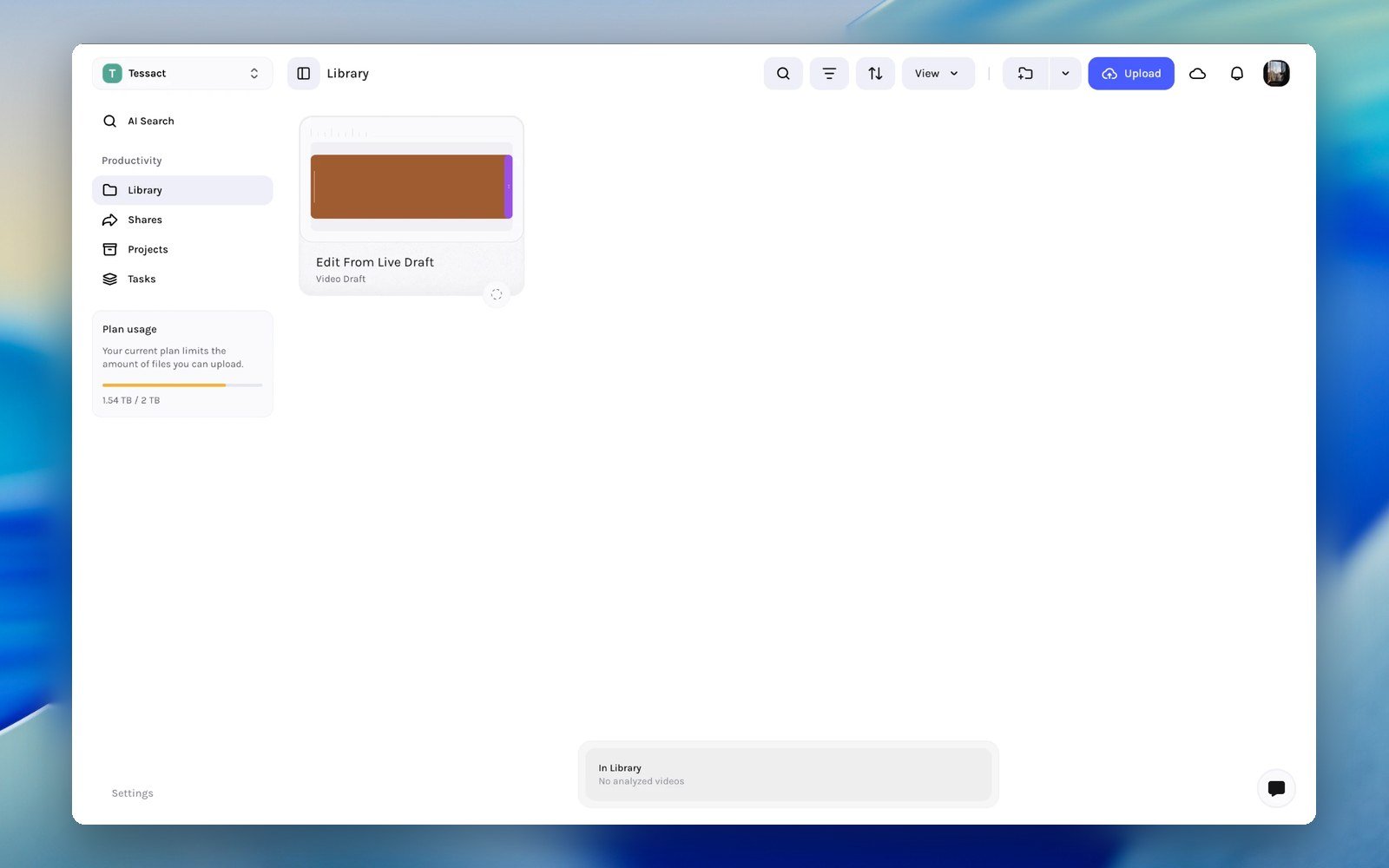
The **Library** is Tessact's main workspace for storing and operating on media. It brings together folders, uploads, metadata, review, and access controls in one place so teams can move from ingest to collaboration without switching tools.
 ***
## What You Can Do In The Library
* Browse folders and files in **grid** or **table** view.
* Upload assets directly into the current location.
* Search, filter, sort, and group assets using metadata.
* Open any asset into a dedicated detail page for **preview**, **comments**, **metadata**, and **technical information**.
* Update statuses, apply templates, and manage access without leaving the asset.
The Library is not just a browser. It is also where the core review workflow starts: open an asset from the Library to comment, inspect detections, and work with metadata.
***
## Selecting a View
Tessact offers two main presentation modes:
| View | Best for | Key controls |
| --------- | -------------------------------------------- | ----------------------------------------------------- |
| **Grid** | Visual browsing, marketing teams, thumbnails | Card orientation, thumbnail fit/fill, flatten folders |
| **Table** | Metadata-driven work, archivists, compliance | Column selection, pinning, custom metadata views |
Use the **View selector** in the Library header to switch between views. Tessact preserves your working layout and then reuses it as you move through the workspace.
***
### Grid View Options
***
## What You Can Do In The Library
* Browse folders and files in **grid** or **table** view.
* Upload assets directly into the current location.
* Search, filter, sort, and group assets using metadata.
* Open any asset into a dedicated detail page for **preview**, **comments**, **metadata**, and **technical information**.
* Update statuses, apply templates, and manage access without leaving the asset.
The Library is not just a browser. It is also where the core review workflow starts: open an asset from the Library to comment, inspect detections, and work with metadata.
***
## Selecting a View
Tessact offers two main presentation modes:
| View | Best for | Key controls |
| --------- | -------------------------------------------- | ----------------------------------------------------- |
| **Grid** | Visual browsing, marketing teams, thumbnails | Card orientation, thumbnail fit/fill, flatten folders |
| **Table** | Metadata-driven work, archivists, compliance | Column selection, pinning, custom metadata views |
Use the **View selector** in the Library header to switch between views. Tessact preserves your working layout and then reuses it as you move through the workspace.
***
### Grid View Options
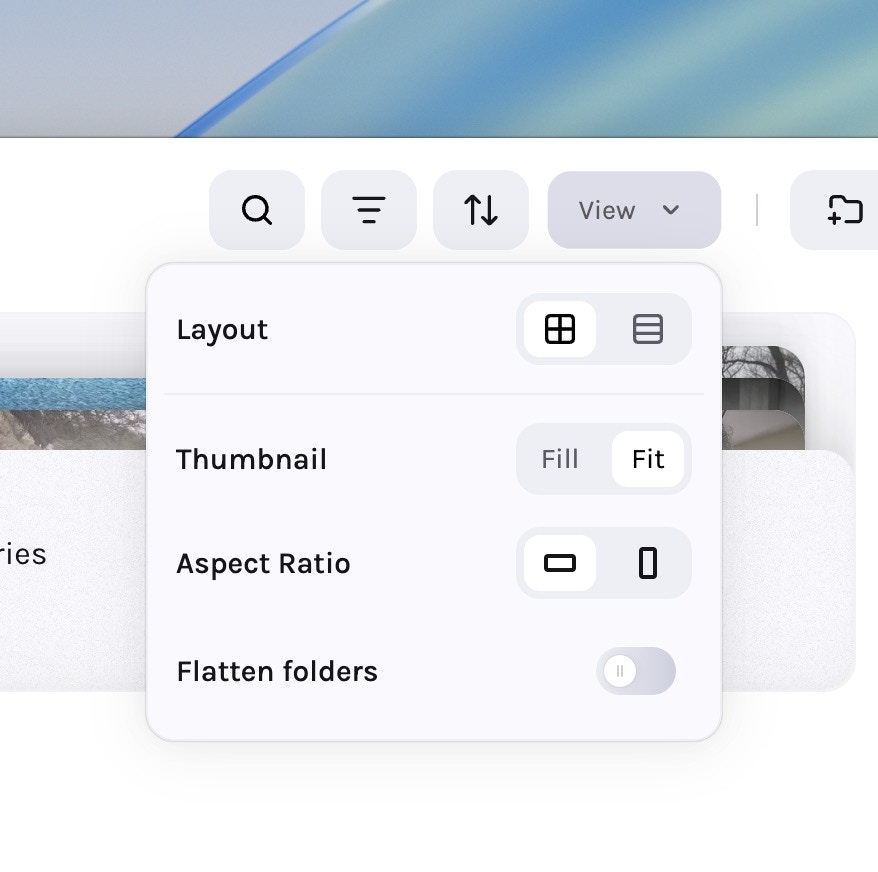 * **Vertical vs. Horizontal cards** — Optimise for portrait or landscape material.
* **Fit vs. Fill thumbnail** — Choose letterboxed accuracy or edge-to-edge crop.
* **Flatten folders** — Display every asset in the hierarchy as a single scrollable wall.
Flatten folders when you need to inspect everything inside a nested folder structure without drilling into each child folder.
***
### Table View Customisation
* **Vertical vs. Horizontal cards** — Optimise for portrait or landscape material.
* **Fit vs. Fill thumbnail** — Choose letterboxed accuracy or edge-to-edge crop.
* **Flatten folders** — Display every asset in the hierarchy as a single scrollable wall.
Flatten folders when you need to inspect everything inside a nested folder structure without drilling into each child folder.
***
### Table View Customisation
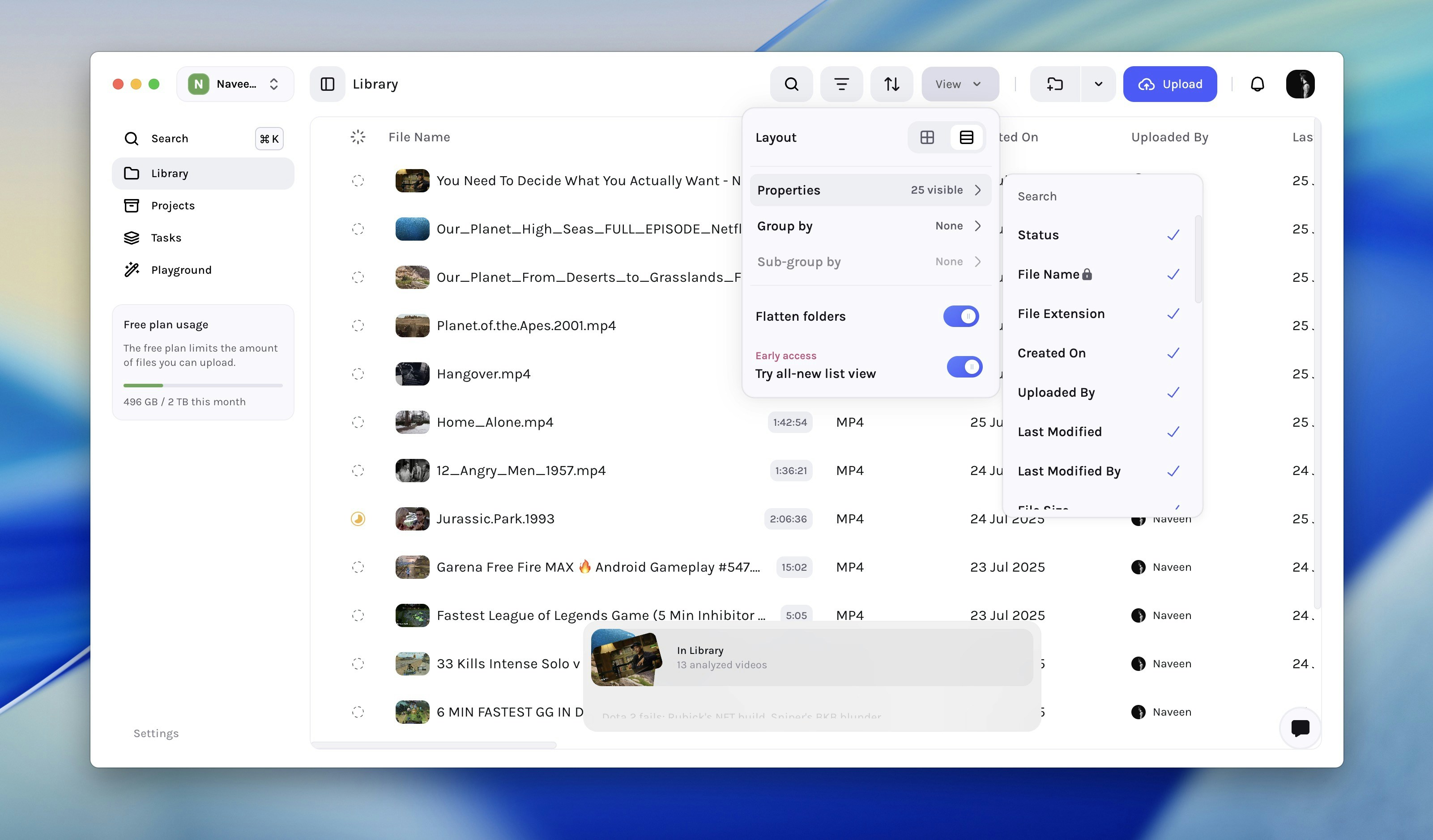 1. Select **View** → **Properties** to add metadata fields to the table.
2. Pin a column from its **⋯ context menu** to keep key fields visible while scrolling.
3. Reorder columns from the same menu to match each team's workflow.
4. Use the **Sort** and **Filter** controls in the top action bar to refine the current result set.
5. Group and sub-group rows by metadata when you need an editorial, operational, or compliance-driven view of the same assets.
The table can mix built-in fields such as name, creator, file type, and dates with custom metadata fields configured for your workspace.
***
## Sorting, Filtering, and Search
The action bar at the top of the Library is the main control surface for narrowing large result sets:
| Control | Behaviour |
| -------------- | ----------------------------------------------------------------------------------------------------------------------------- |
| **Search** | Search assets by name and other indexed fields visible in the Library workflow. |
| **Filter** | Add multiple filters across built-in fields, technical metadata, and custom metadata fields. |
| **Sort** | Add one or more sort criteria. The order inside the Sort bar defines precedence (primary, secondary, tertiary, etc.). |
| **Upload** | Upload new assets to the Library from your current device. For recommended file formats, see [Media Formats](/media-formats). |
| **New Folder** | Create a new folder in the current path. |
Common static filters include created date, modified date, creator, file type, codec, and extension. Tessact also exposes workspace-specific metadata fields in the same filtering flow, so operational teams do not need a separate search interface for custom schemas.
Filters and sorts carry across Grid and Table views, so you can refine in one layout and inspect in another.
***
## Folder Navigation
* Once you navigate into any folder in the library, the sidebar changes to show a tree view with the current folder selected.
* Toggle **Flatten folders** to surface every asset in descendant directories without changing sidebar context.
Open folders for strict hierarchy work. Use flattening when you need a campaign-wide or shoot-wide view without changing where you are in the tree.
***
## Open An Asset
Click any asset to open its dedicated detail page. Tessact then gives you a larger working surface with:
* **Preview** for video, audio, images, documents, or other supported file types
* **Comments** for review and threaded collaboration
* **Metadata** for custom fields, templates, and AI-assisted entry
* **Technical metadata** for codec, bitrate, duration, and file-level details
* **Access** controls when your role includes security permissions
For version stacks, Tessact can route you to a specific version while keeping the stack relationship intact.
***
## Bulk Actions & Context Menus
1. Select **View** → **Properties** to add metadata fields to the table.
2. Pin a column from its **⋯ context menu** to keep key fields visible while scrolling.
3. Reorder columns from the same menu to match each team's workflow.
4. Use the **Sort** and **Filter** controls in the top action bar to refine the current result set.
5. Group and sub-group rows by metadata when you need an editorial, operational, or compliance-driven view of the same assets.
The table can mix built-in fields such as name, creator, file type, and dates with custom metadata fields configured for your workspace.
***
## Sorting, Filtering, and Search
The action bar at the top of the Library is the main control surface for narrowing large result sets:
| Control | Behaviour |
| -------------- | ----------------------------------------------------------------------------------------------------------------------------- |
| **Search** | Search assets by name and other indexed fields visible in the Library workflow. |
| **Filter** | Add multiple filters across built-in fields, technical metadata, and custom metadata fields. |
| **Sort** | Add one or more sort criteria. The order inside the Sort bar defines precedence (primary, secondary, tertiary, etc.). |
| **Upload** | Upload new assets to the Library from your current device. For recommended file formats, see [Media Formats](/media-formats). |
| **New Folder** | Create a new folder in the current path. |
Common static filters include created date, modified date, creator, file type, codec, and extension. Tessact also exposes workspace-specific metadata fields in the same filtering flow, so operational teams do not need a separate search interface for custom schemas.
Filters and sorts carry across Grid and Table views, so you can refine in one layout and inspect in another.
***
## Folder Navigation
* Once you navigate into any folder in the library, the sidebar changes to show a tree view with the current folder selected.
* Toggle **Flatten folders** to surface every asset in descendant directories without changing sidebar context.
Open folders for strict hierarchy work. Use flattening when you need a campaign-wide or shoot-wide view without changing where you are in the tree.
***
## Open An Asset
Click any asset to open its dedicated detail page. Tessact then gives you a larger working surface with:
* **Preview** for video, audio, images, documents, or other supported file types
* **Comments** for review and threaded collaboration
* **Metadata** for custom fields, templates, and AI-assisted entry
* **Technical metadata** for codec, bitrate, duration, and file-level details
* **Access** controls when your role includes security permissions
For version stacks, Tessact can route you to a specific version while keeping the stack relationship intact.
***
## Bulk Actions & Context Menus
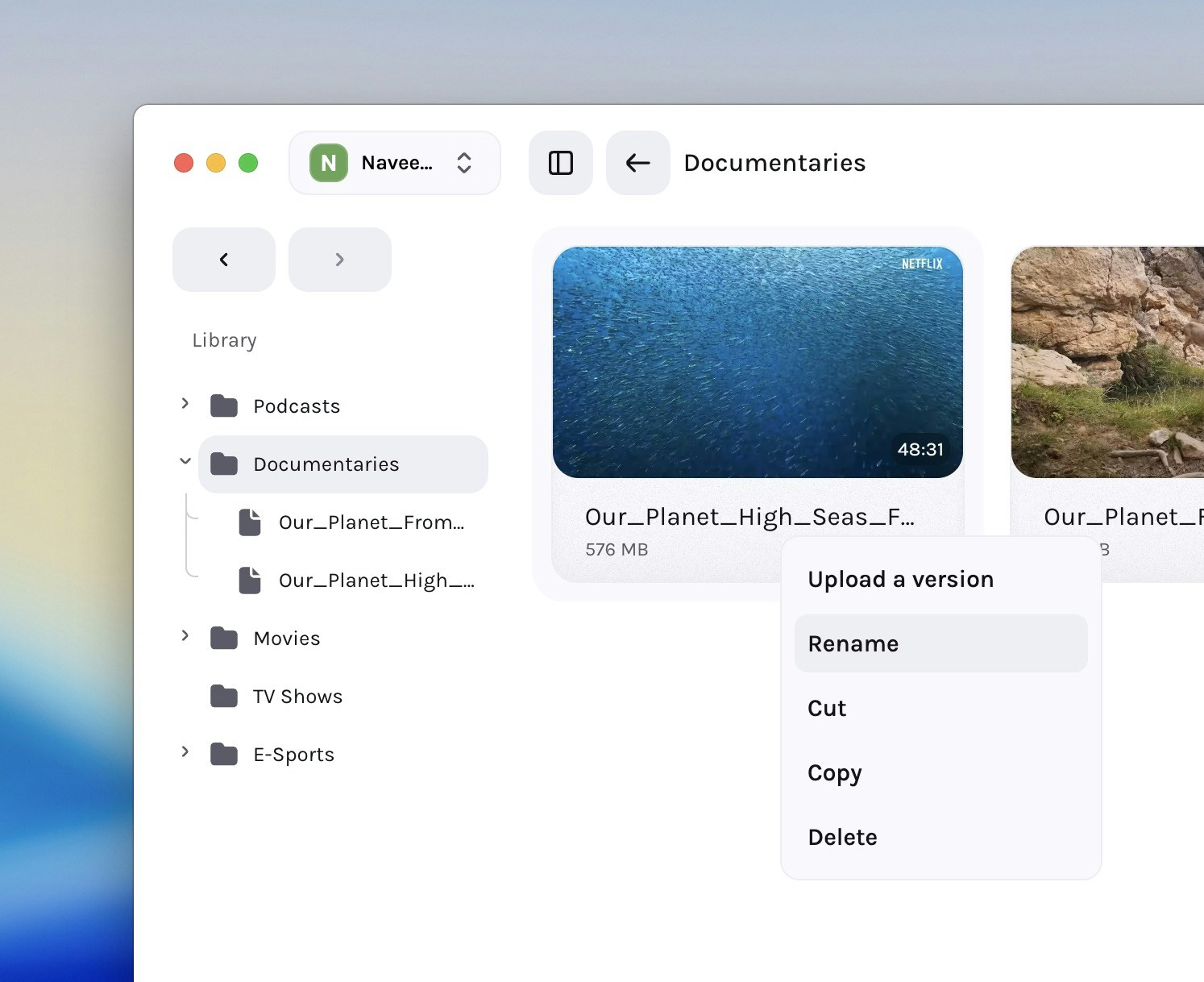 ### Multi-select operations
1. Select multiple assets via checkboxes or drag selection.
2. The select bar appears at the bottom of the screen with a few options:
| Action | Description |
| ---------------------- | ------------------------------------------------------------- |
| **Cut / Copy / Paste** | Move or duplicate assets within the Library. |
| **Delete** | Remove assets or folders from the current workspace location. |
| **Rename** | Update names without opening a separate editor. |
| **Select all** | Apply bulk actions across the current result set. |
| **Status updates** | Update custom file statuses directly from supported views. |
Right-click menus are useful for focused operations on one item. Multi-select is better when you need to move, review, or clean up many assets at once.
***
## Performance at Scale
* **Virtual scrolling** renders only visible rows/cards for smooth performance on huge libraries.
* **Progressive loading** keeps long folders usable while more content streams in.
* **Background fetching** keeps permissions, thumbnails, and sub-content data fresh as you browse.
* **Live status refresh** updates ingest and indexing progress while uploads and analysis are running.
***
## Next steps
Learn how comments, mentions, markers, and timed feedback work on asset pages.
Model editorial and approval stages directly inside the Library.
Jump from the Library into scene-aware search when keyword search is not enough.
Integrate external AWS S3 storage with your Library.
***
You can now navigate, customise, and perform bulk actions in the Library with confidence. Explore the links above to extend your workflow.
### Multi-select operations
1. Select multiple assets via checkboxes or drag selection.
2. The select bar appears at the bottom of the screen with a few options:
| Action | Description |
| ---------------------- | ------------------------------------------------------------- |
| **Cut / Copy / Paste** | Move or duplicate assets within the Library. |
| **Delete** | Remove assets or folders from the current workspace location. |
| **Rename** | Update names without opening a separate editor. |
| **Select all** | Apply bulk actions across the current result set. |
| **Status updates** | Update custom file statuses directly from supported views. |
Right-click menus are useful for focused operations on one item. Multi-select is better when you need to move, review, or clean up many assets at once.
***
## Performance at Scale
* **Virtual scrolling** renders only visible rows/cards for smooth performance on huge libraries.
* **Progressive loading** keeps long folders usable while more content streams in.
* **Background fetching** keeps permissions, thumbnails, and sub-content data fresh as you browse.
* **Live status refresh** updates ingest and indexing progress while uploads and analysis are running.
***
## Next steps
Learn how comments, mentions, markers, and timed feedback work on asset pages.
Model editorial and approval stages directly inside the Library.
Jump from the Library into scene-aware search when keyword search is not enough.
Integrate external AWS S3 storage with your Library.
***
You can now navigate, customise, and perform bulk actions in the Library with confidence. Explore the links above to extend your workflow.