> ## Documentation Index
> Fetch the complete documentation index at: https://docs.tessact.ai/llms.txt
> Use this file to discover all available pages before exploring further.
# Custom Library Statuses
> Model every review or delivery milestone in Tessact by defining the exact statuses your teams need.
## Overview
Custom statuses let you translate how your organisation tracks asset progress directly into Tessact’s Library. Instead of being limited to default labels, you can now define the precise stages your editors, compliance teams, or delivery partners recognise—plus the colours and icons that make those stages scannable at a glance.
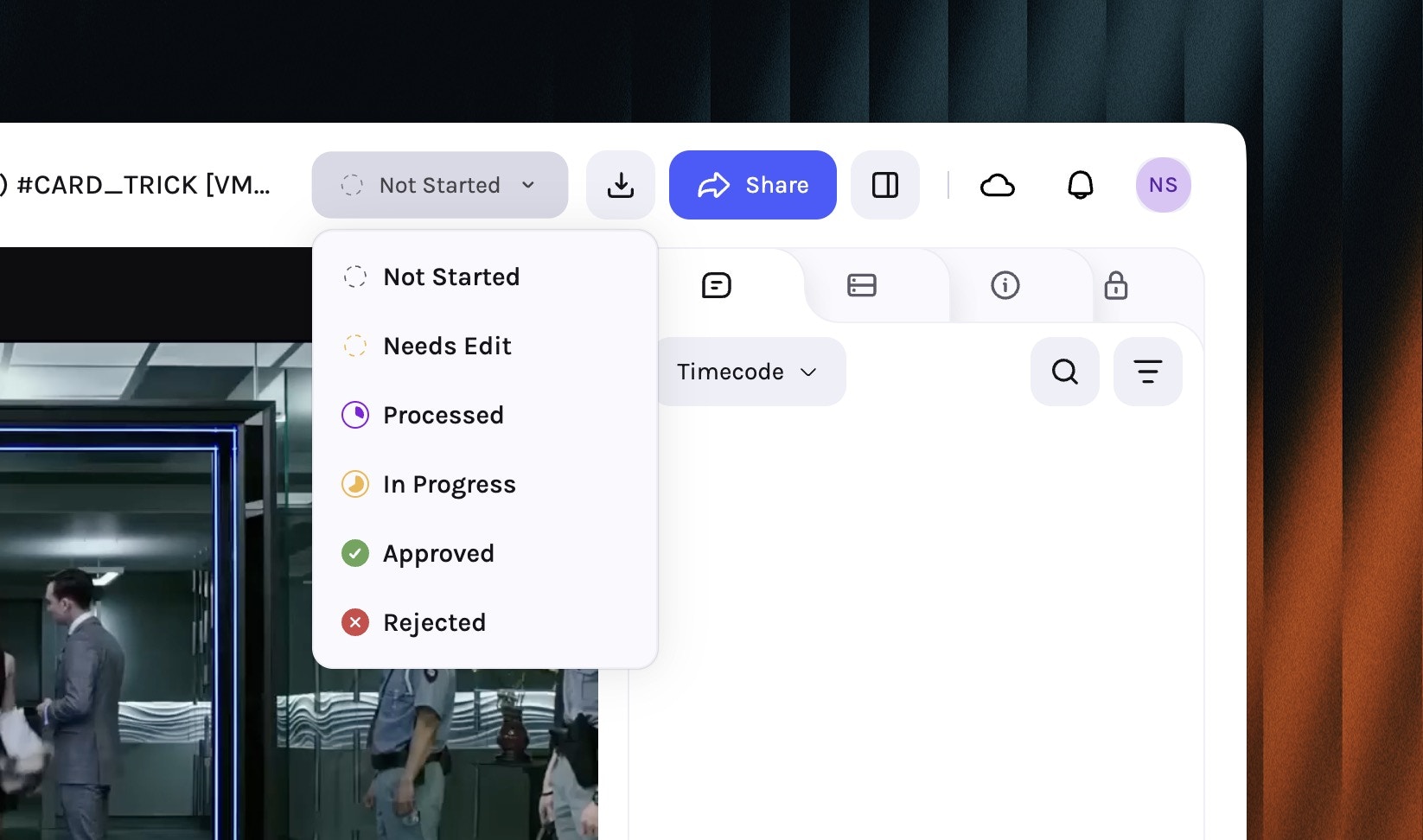 * **Clarity in context**: Status pills render next to every asset card/row so teams instantly know where work stands.
* **Filterable metadata**: Status becomes a first-class filter in Grid/Table views, quick search, and exports.
* **Automation-ready**: Every status value emits events you can capture via [Zapier integrations](/zapier-integration) or multi-agent [Workflows](/workflows) to move work forward automatically.
***
## Configure statuses in Settings → Library
Custom statuses live under **Settings → Library → Statuses**. Tessact stores the entire catalogue per workspace, so every team draws from the same canonical list.
Navigate to **Settings → Library** and open the **Statuses** panel to review existing options.
* **Clarity in context**: Status pills render next to every asset card/row so teams instantly know where work stands.
* **Filterable metadata**: Status becomes a first-class filter in Grid/Table views, quick search, and exports.
* **Automation-ready**: Every status value emits events you can capture via [Zapier integrations](/zapier-integration) or multi-agent [Workflows](/workflows) to move work forward automatically.
***
## Configure statuses in Settings → Library
Custom statuses live under **Settings → Library → Statuses**. Tessact stores the entire catalogue per workspace, so every team draws from the same canonical list.
Navigate to **Settings → Library** and open the **Statuses** panel to review existing options.
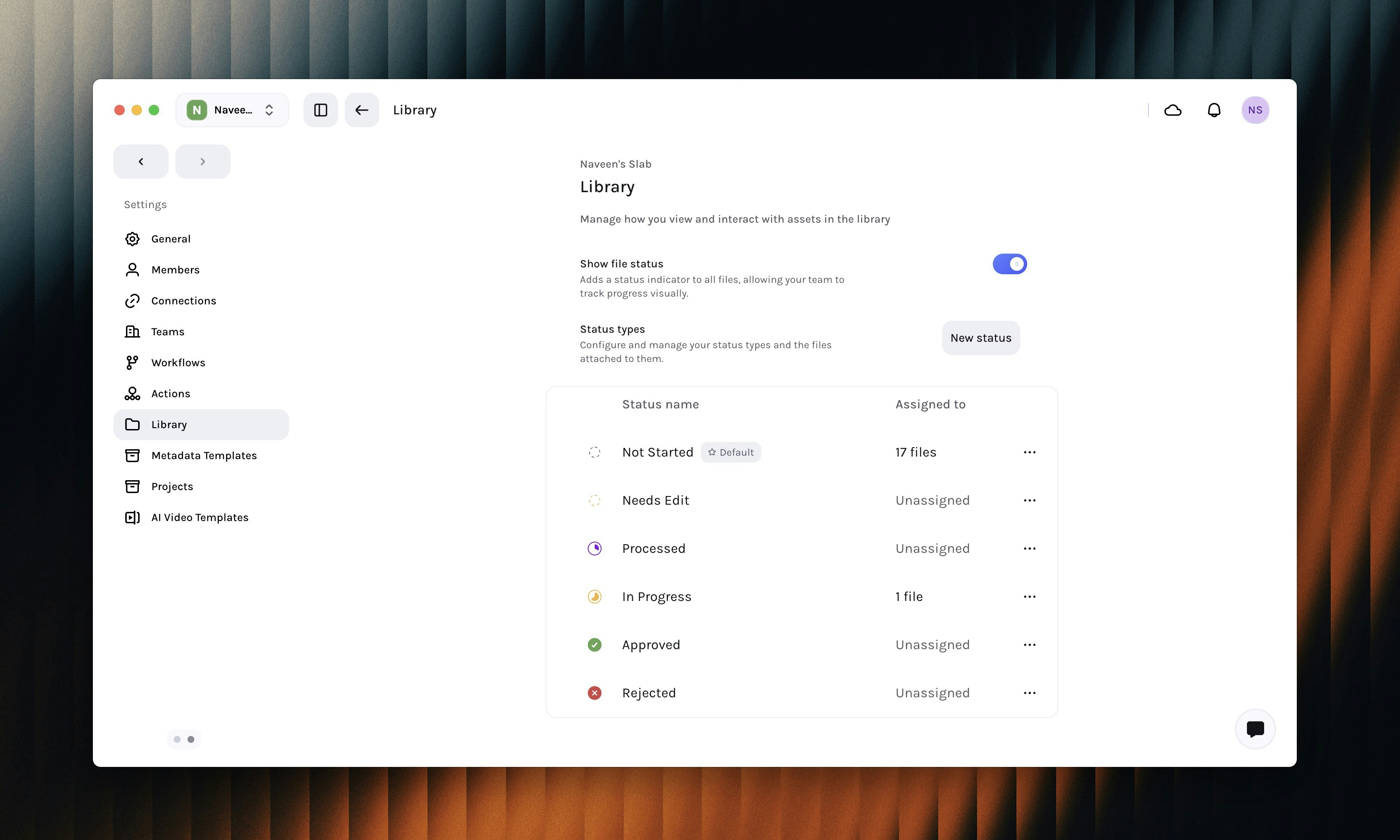 Click **New Status** to add another milestone to the catalogue. Give it a clear name, pick an icon, and choose a colour that contrasts with your other statuses.
 Turn on **Set as default** if every new asset should begin in this state. Drag the handle on the left of each status to reorder the list; that order flows through to pickers in the Library.
Click **Create status** (or **Save**) to publish changes. Use the **⋯** menu beside any status to rename, change colours/icons, or archive values you no longer need.
Archived statuses remain searchable for historical assets but disappear from new assignments, keeping reports intact.
Group related statuses by colour family (e.g., *Production* in blue, *QC* in orange, *Delivery* in green) so operators can skim long tables faster.
***
## Apply statuses inside the Library
Statuses are editable anywhere you work with assets:
Open an asset preview or details drawer and choose a new value from the **Status** dropdown. Changes apply instantly and log to the asset history.
Select multiple files in Grid/Table view, then use the **Update Status** action in the multi-select bar. Every selected asset adopts the new value in one click.
Right-click (or tap **⋯**) on any asset row/card to access **Change status** alongside rename, move, and share actions.
Only users with **Library edit** permissions (or higher) can change statuses. View-only roles still see the pills for awareness but cannot modify them.
***
## Automation, workflows, and notifications
Custom statuses become powerful once you wire them into downstream systems:
* **Workflow triggers**: Status changes can act as Inputs/Outputs in [Multi-Agent Workflows](/workflows). For example, emit *Promo.QC → Output: QC\_Passed* to automatically start a Publish step.
* **Zapier & webhooks**: The [Zapier connector](/zapier-integration) exposes **File status change** events, so you can branch automations based on your custom labels (e.g., ping localisation vendors when status becomes *Ready for Dubbing*).
* **Notifications & dashboards**: Saved searches, dashboard widgets, and SLA alerts can key off statuses, ensuring stakeholders only see the slices of work relevant to them.
Whenever you add a new status in Settings, it is instantly available in workflow wiring, API responses, exports, and third-party automations.
***
## Sample status recipes
| Stage | Suggested statuses | Why it helps |
| ------------------- | -------------------------------------------------------- | ----------------------------------------------------------------------------------- |
| **Ingest & prep** | *Ingesting*, *Needs metadata*, *Legal hold* | Differentiate files still processing from ones blocked for policy reasons. |
| **Editorial** | *Edit in progress*, *Needs review*, *Revision requested* | Mirrors creative checkpoints so producers can filter for tasks that require action. |
| **Compliance & QC** | *QC scheduled*, *QC hold*, *QC passed* | Keeps compliance managers aligned on where each asset sits in the queue. |
| **Distribution** | *Ready for dubbing*, *Ready for publish*, *Delivered* | Signals when downstream systems should pick up or archive assets. |
Use these as inspiration—each workspace can create any number of statuses that reflect real-world review and delivery moments.
***
## Governance best practices
* **Keep the list lean**: Aim for 6–10 active statuses so filters stay meaningful. Retire unused ones via the **⋯** menu.
* **Name with verbs**: Labels like *Needs edit* or *Ready to publish* make it obvious who should act next.
* **Document ownership**: Pair each status with an owner or team in your operating playbooks so hand-offs are clear.
* **Review quarterly**: As workflows evolve, revisit colours, order, and defaults to match current processes.
***
## Related guides
Learn how grid and table views expose status metadata across millions of assets.
Wire custom statuses into multi-step, multi-agent automations.
Use Zapier to notify teams or external systems whenever a status changes.
With custom statuses in place, your Library mirrors the exact lifecycle your teams already follow—making it easier to see blockers, automate repetitive hand-offs, and deliver assets faster.
Turn on **Set as default** if every new asset should begin in this state. Drag the handle on the left of each status to reorder the list; that order flows through to pickers in the Library.
Click **Create status** (or **Save**) to publish changes. Use the **⋯** menu beside any status to rename, change colours/icons, or archive values you no longer need.
Archived statuses remain searchable for historical assets but disappear from new assignments, keeping reports intact.
Group related statuses by colour family (e.g., *Production* in blue, *QC* in orange, *Delivery* in green) so operators can skim long tables faster.
***
## Apply statuses inside the Library
Statuses are editable anywhere you work with assets:
Open an asset preview or details drawer and choose a new value from the **Status** dropdown. Changes apply instantly and log to the asset history.
Select multiple files in Grid/Table view, then use the **Update Status** action in the multi-select bar. Every selected asset adopts the new value in one click.
Right-click (or tap **⋯**) on any asset row/card to access **Change status** alongside rename, move, and share actions.
Only users with **Library edit** permissions (or higher) can change statuses. View-only roles still see the pills for awareness but cannot modify them.
***
## Automation, workflows, and notifications
Custom statuses become powerful once you wire them into downstream systems:
* **Workflow triggers**: Status changes can act as Inputs/Outputs in [Multi-Agent Workflows](/workflows). For example, emit *Promo.QC → Output: QC\_Passed* to automatically start a Publish step.
* **Zapier & webhooks**: The [Zapier connector](/zapier-integration) exposes **File status change** events, so you can branch automations based on your custom labels (e.g., ping localisation vendors when status becomes *Ready for Dubbing*).
* **Notifications & dashboards**: Saved searches, dashboard widgets, and SLA alerts can key off statuses, ensuring stakeholders only see the slices of work relevant to them.
Whenever you add a new status in Settings, it is instantly available in workflow wiring, API responses, exports, and third-party automations.
***
## Sample status recipes
| Stage | Suggested statuses | Why it helps |
| ------------------- | -------------------------------------------------------- | ----------------------------------------------------------------------------------- |
| **Ingest & prep** | *Ingesting*, *Needs metadata*, *Legal hold* | Differentiate files still processing from ones blocked for policy reasons. |
| **Editorial** | *Edit in progress*, *Needs review*, *Revision requested* | Mirrors creative checkpoints so producers can filter for tasks that require action. |
| **Compliance & QC** | *QC scheduled*, *QC hold*, *QC passed* | Keeps compliance managers aligned on where each asset sits in the queue. |
| **Distribution** | *Ready for dubbing*, *Ready for publish*, *Delivered* | Signals when downstream systems should pick up or archive assets. |
Use these as inspiration—each workspace can create any number of statuses that reflect real-world review and delivery moments.
***
## Governance best practices
* **Keep the list lean**: Aim for 6–10 active statuses so filters stay meaningful. Retire unused ones via the **⋯** menu.
* **Name with verbs**: Labels like *Needs edit* or *Ready to publish* make it obvious who should act next.
* **Document ownership**: Pair each status with an owner or team in your operating playbooks so hand-offs are clear.
* **Review quarterly**: As workflows evolve, revisit colours, order, and defaults to match current processes.
***
## Related guides
Learn how grid and table views expose status metadata across millions of assets.
Wire custom statuses into multi-step, multi-agent automations.
Use Zapier to notify teams or external systems whenever a status changes.
With custom statuses in place, your Library mirrors the exact lifecycle your teams already follow—making it easier to see blockers, automate repetitive hand-offs, and deliver assets faster.