> ## Documentation Index
> Fetch the complete documentation index at: https://docs.tessact.ai/llms.txt
> Use this file to discover all available pages before exploring further.
# Crop visual layers
> Reveal a controlled source region without changing the layer's timeline interval.
Cropping changes the visible or rendered region inside a layer's box. For source-backed media it limits sampled source pixels; for text, solid, frame, and caption layers it clips the rendered layer. It is distinct from resizing, which changes the displayed box itself.
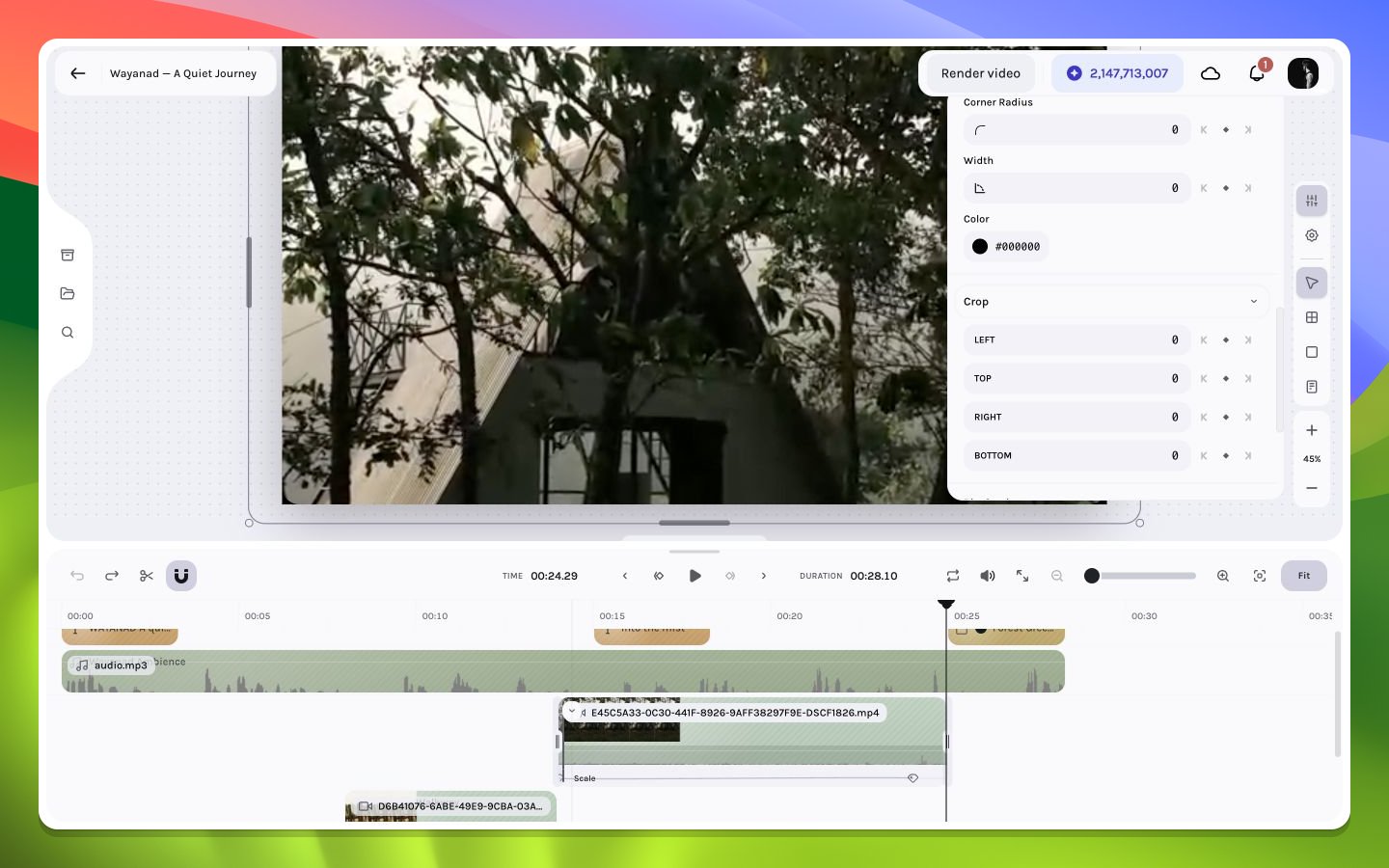 ## Crop workflow
Choose the video, image, GIF, text, solid, frame, or caption layer whose visible bounds need adjustment. Crop availability depends on the layer type and current context.
Expand the **Crop** section in the inspector. For an eligible non-text visual layer, double-clicking the layer can also enter direct crop mode; press `Escape` to exit.
Drag crop handles while watching the canvas. Preserve important faces, horizon lines, text-safe margins, and container boundaries.
Seek through the entire active interval. A crop that works at one source frame can cut off a moving subject later.
## Crop, fit, and fill
A media source and its layer can have different aspect ratios. A fit-style result preserves all source pixels but may leave unused space; a fill-style result covers the box but requires cropping. Every supported visual layer stores four crop-edge values. Static values reproduce one region, while crop keyframes can animate that region over time.
Direct crop interaction can temporarily preview negative edge values while the pointer is moving. Exiting crop mode normalizes/clamps the authored result. Frame-step the interval before and after exit rather than treating an in-gesture readout as final state.
## Common failure modes
Check layer dimensions and aspect-ratio locking. Cropping alone should not require non-proportional scaling.
Inspect the source over time. A static crop window does not automatically follow a moving subject.
Confirm the intended single layer is selected, the playhead is inside its interval, and the inspector's Crop section is available for that type.
Do not rely on an automatic subject-following workflow unless the current inspector explicitly exposes and successfully completes it. Frame-step the full clip after any crop.
## Crop workflow
Choose the video, image, GIF, text, solid, frame, or caption layer whose visible bounds need adjustment. Crop availability depends on the layer type and current context.
Expand the **Crop** section in the inspector. For an eligible non-text visual layer, double-clicking the layer can also enter direct crop mode; press `Escape` to exit.
Drag crop handles while watching the canvas. Preserve important faces, horizon lines, text-safe margins, and container boundaries.
Seek through the entire active interval. A crop that works at one source frame can cut off a moving subject later.
## Crop, fit, and fill
A media source and its layer can have different aspect ratios. A fit-style result preserves all source pixels but may leave unused space; a fill-style result covers the box but requires cropping. Every supported visual layer stores four crop-edge values. Static values reproduce one region, while crop keyframes can animate that region over time.
Direct crop interaction can temporarily preview negative edge values while the pointer is moving. Exiting crop mode normalizes/clamps the authored result. Frame-step the interval before and after exit rather than treating an in-gesture readout as final state.
## Common failure modes
Check layer dimensions and aspect-ratio locking. Cropping alone should not require non-proportional scaling.
Inspect the source over time. A static crop window does not automatically follow a moving subject.
Confirm the intended single layer is selected, the playhead is inside its interval, and the inspector's Crop section is available for that type.
Do not rely on an automatic subject-following workflow unless the current inspector explicitly exposes and successfully completes it. Frame-step the full clip after any crop.