> ## Documentation Index
> Fetch the complete documentation index at: https://docs.tessact.ai/llms.txt
> Use this file to discover all available pages before exploring further.
# Move, resize, and rotate
> Use direct manipulation for speed and inspector values for repeatability.
export const TechnicalTruth = () =>
Technical detail: visual state is evaluated for the current frame. Base layer properties, layout constraints, and keyframe tracks are resolved before the canvas is painted.
;
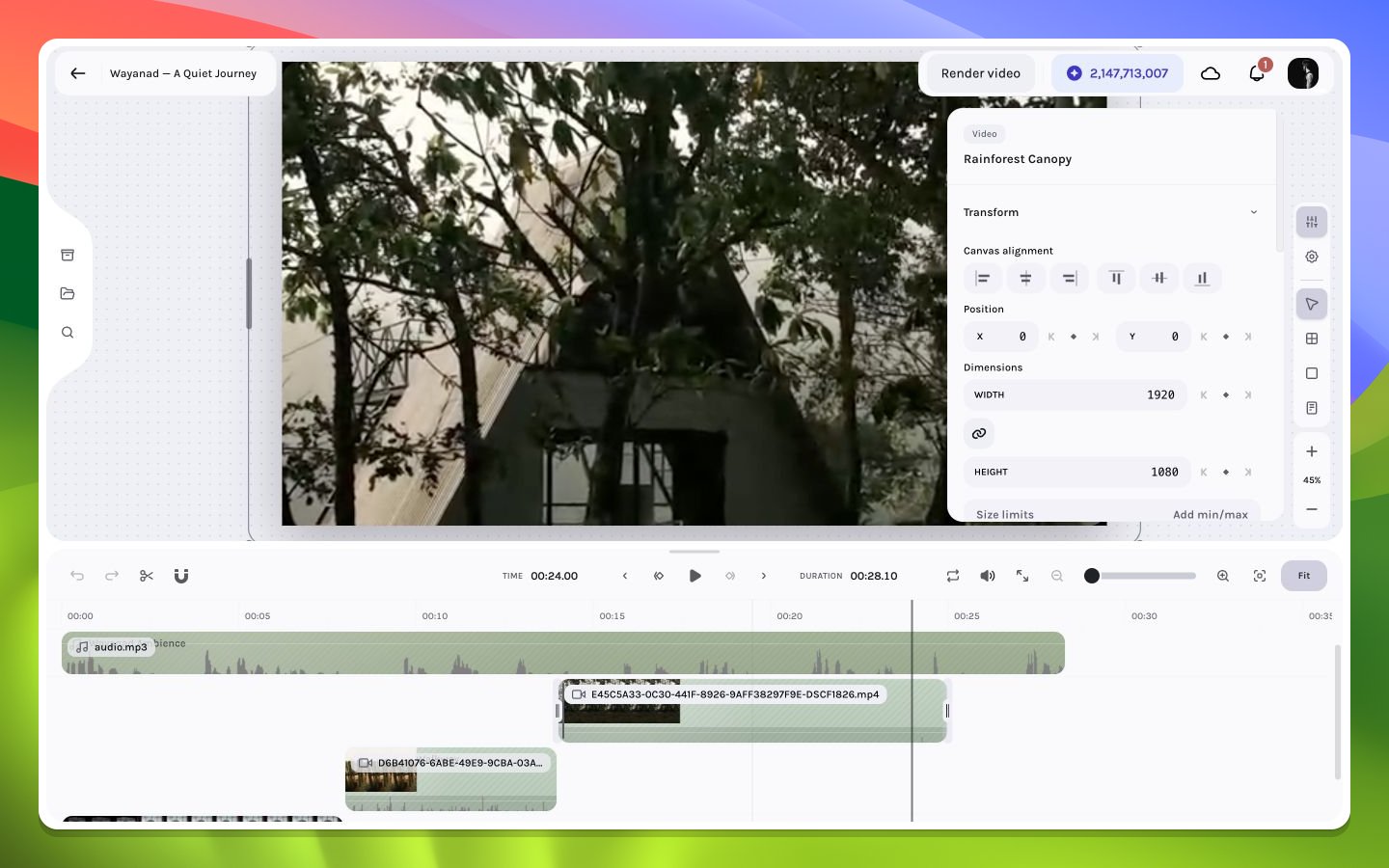
Position and dimensions can be edited directly on the canvas or numerically in the inspector. Rotation is inspector-only. All of these controls update the same underlying geometry and respect keyframe state at the current frame.
 ## Move
Drag inside a selected layer to reposition it. Hold **Shift** to lock movement to the dominant axis, **Ctrl** to suppress canvas snapping for the gesture, or **Option/Alt** at drag start to duplicate and move the copy. Alignment guides appear near composition edges and centers when snapping is active. For exact placement, edit horizontal and vertical position values in **Transform**.
Use `Cmd/Ctrl+Option/Alt+Arrow` to nudge selected visual layers by `1 px`; add **Shift** for `10 px`. Audio-only layers are excluded from canvas nudging.
## Resize
Use corner handles for two-axis resizing and edge handles for one-axis changes. **Keep Aspect Ratio** links width and height so changing one dimension derives the other. Disable it when the design intentionally stretches a solid or frame; use caution with images and video because non-proportional geometry can distort content.
## Rotate
Enter an angle in the inspector's **Rotation** field, or use **Rotate Right** for an exact 90° step. The canvas does not expose a rotation handle. Rotation occurs around the layer's transform origin and can make rendered pixels extend beyond the authored width/height box. Current canvas snapping ignores rotation and scale, using the crop-adjusted unrotated base box, so a guide does not guarantee that rotated pixels align.
## Animated geometry
If a geometry property already has a keyframe track, editing it at a different playhead frame upserts the value for that frame rather than silently flattening the track. When specific keyframes are selected, a geometry gesture can apply to those selected frame points. Always inspect the keyframe lane after a major canvas move.
## Numeric input techniques
Numeric controls support keyboard stepping and drag-to-adjust behavior. Their tooltips document precision modifiers: arrow keys step the value, **Shift** uses a larger step, and **Option/Alt** enables a fine decimal step where supported. Label scrubbing maps each `10 px` of pointer travel to one normal step; **Shift** multiplies that step by `10`, while **Option/Alt** divides it by `10`. Scrubbing previews without adding undo entries and commits once on pointer-up.
Typed numeric edits preview immediately, then finalize after roughly `500 ms` idle or at the end of arrow-key stepping. In this shared control, `Escape` commits a pending valid value and blurs just like `Enter`; it is not a revert gesture. Use Undo after the commit when you need the prior value.
See [transforms in depth](/editor/canvas/transforms), [snapping](/editor/editing/snapping), and [animatable properties](/editor/animation/animatable-properties).
## Move
Drag inside a selected layer to reposition it. Hold **Shift** to lock movement to the dominant axis, **Ctrl** to suppress canvas snapping for the gesture, or **Option/Alt** at drag start to duplicate and move the copy. Alignment guides appear near composition edges and centers when snapping is active. For exact placement, edit horizontal and vertical position values in **Transform**.
Use `Cmd/Ctrl+Option/Alt+Arrow` to nudge selected visual layers by `1 px`; add **Shift** for `10 px`. Audio-only layers are excluded from canvas nudging.
## Resize
Use corner handles for two-axis resizing and edge handles for one-axis changes. **Keep Aspect Ratio** links width and height so changing one dimension derives the other. Disable it when the design intentionally stretches a solid or frame; use caution with images and video because non-proportional geometry can distort content.
## Rotate
Enter an angle in the inspector's **Rotation** field, or use **Rotate Right** for an exact 90° step. The canvas does not expose a rotation handle. Rotation occurs around the layer's transform origin and can make rendered pixels extend beyond the authored width/height box. Current canvas snapping ignores rotation and scale, using the crop-adjusted unrotated base box, so a guide does not guarantee that rotated pixels align.
## Animated geometry
If a geometry property already has a keyframe track, editing it at a different playhead frame upserts the value for that frame rather than silently flattening the track. When specific keyframes are selected, a geometry gesture can apply to those selected frame points. Always inspect the keyframe lane after a major canvas move.
## Numeric input techniques
Numeric controls support keyboard stepping and drag-to-adjust behavior. Their tooltips document precision modifiers: arrow keys step the value, **Shift** uses a larger step, and **Option/Alt** enables a fine decimal step where supported. Label scrubbing maps each `10 px` of pointer travel to one normal step; **Shift** multiplies that step by `10`, while **Option/Alt** divides it by `10`. Scrubbing previews without adding undo entries and commits once on pointer-up.
Typed numeric edits preview immediately, then finalize after roughly `500 ms` idle or at the end of arrow-key stepping. In this shared control, `Escape` commits a pending valid value and blurs just like `Enter`; it is not a revert gesture. Use Undo after the commit when you need the prior value.
See [transforms in depth](/editor/canvas/transforms), [snapping](/editor/editing/snapping), and [animatable properties](/editor/animation/animatable-properties).