> ## Documentation Index
> Fetch the complete documentation index at: https://docs.tessact.ai/llms.txt
> Use this file to discover all available pages before exploring further.
# Make your first edit
> Complete a practical five-minute editing pass on a video draft.
export const FramePrecision = () =>
The editor evaluates timing in whole frames. Zoom into the timeline before a precise trim or keyframe move, then verify the result one frame at a time.
;
export const AutosaveNote = () =>
Editor changes are autosaved. After a substantial edit, allow a moment for synchronization before closing the tab or changing networks.
;
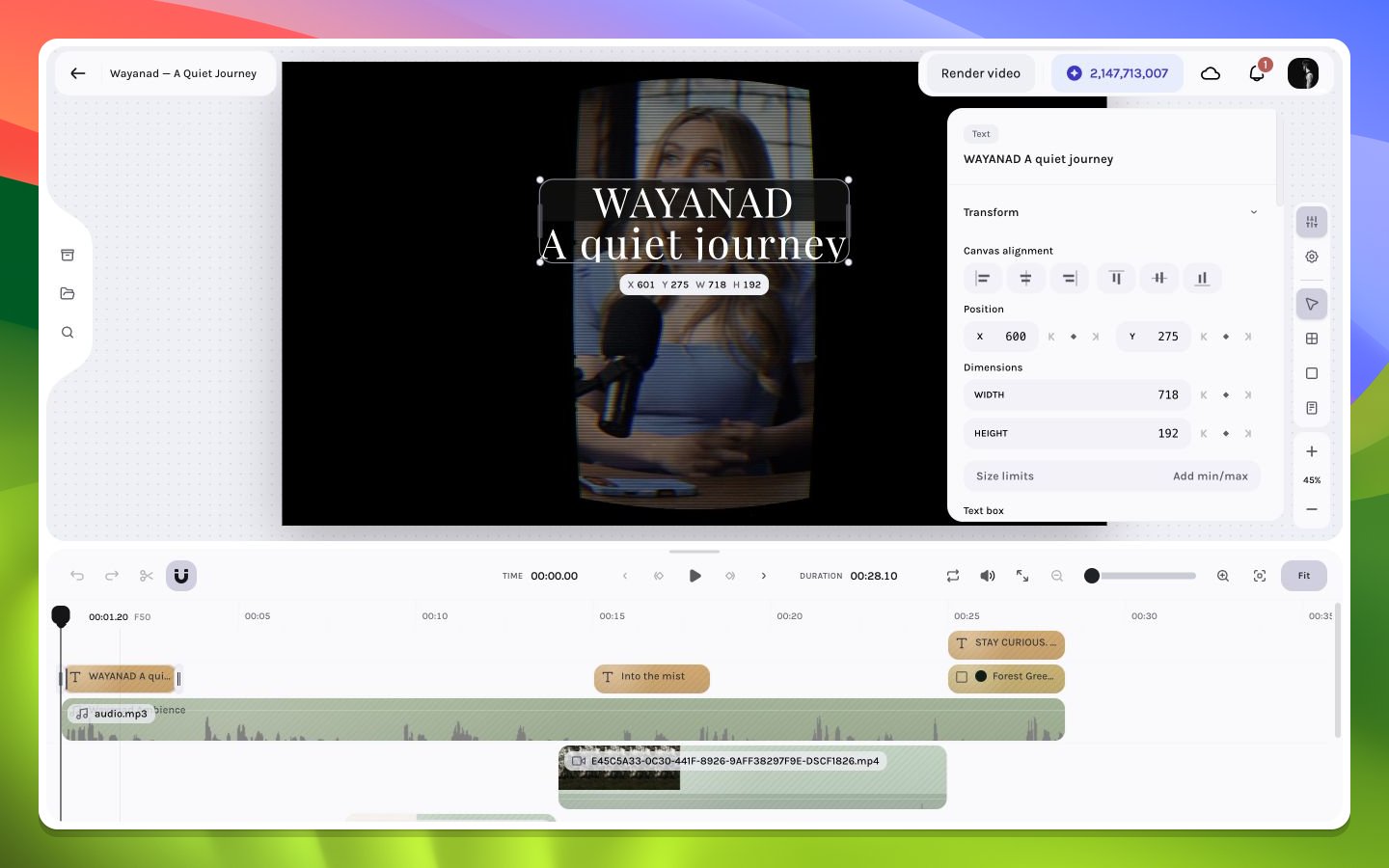
This walkthrough turns the loaded draft into a cleaner opening: tighten the first shot, add a title card, balance its audio, and preview the transition.
Click the opening video clip in the timeline. Drag its left trim edge inward until the first visible frame has settled camera motion. Use the frame-step controls to inspect the exact boundary.
Choose the **Text** tool from the right rail, click the canvas to insert a text layer, and enter a concise title. In the inspector, set a clear type hierarchy, then position it inside the title-safe region.
Add a **Solid** layer, size it as a compact lower band, and place it behind the text with the layer-order controls. Lower its opacity until the landscape remains visible.
In the timeline, move the text and solid so they begin after the opening shot settles. Trim both to the same end frame. Multi-select them when moving the pair so their relative timing stays intact.
Select the opening video or audio layer and adjust volume in its inspector. Then drag the timeline's fade-in handle to avoid an abrupt first sample.
Seek just before the title begins and play through its exit. Check at normal speed, then frame-step across the two boundaries to catch a one-frame flash or audio discontinuity.
 ## Quality checklist
* The first shot begins on an intentional frame, not mid-jolt.
* Text remains legible over both the brightest and darkest underlying pixels.
* The solid and title share the same active interval.
* The title does not touch composition edges at any point in its animation.
* Audio enters smoothly and never clips.
* Playback crosses each edit without a blank frame.
Continue with [core selection](/editor/editing/selection), [timeline trimming](/editor/timeline/trim), or [text inspector details](/editor/layers/text).
## Quality checklist
* The first shot begins on an intentional frame, not mid-jolt.
* Text remains legible over both the brightest and darkest underlying pixels.
* The solid and title share the same active interval.
* The title does not touch composition edges at any point in its animation.
* Audio enters smoothly and never clips.
* Playback crosses each edit without a blank frame.
Continue with [core selection](/editor/editing/selection), [timeline trimming](/editor/timeline/trim), or [text inspector details](/editor/layers/text).