> ## Documentation Index
> Fetch the complete documentation index at: https://docs.tessact.ai/llms.txt
> Use this file to discover all available pages before exploring further.
# Audio inspector
> Control an audio-only layer's gain, playback rate, timing, fades, and waveform feedback.
An audio layer has no visible canvas pixels, so the timeline and inspector are its primary editing surfaces. Select its row to expose **Audio** controls.
## Inspector controls
| Control | Effect |
| --------------------------- | -------------------------------------------------- |
| Volume / decibel adjustment | Changes the layer's base gain |
| Playback rate | Changes source-time mapping and perceived duration |
Timeline mute and fades complement these inspector values. The waveform provides a visual timing summary but is not itself an editable volume curve.
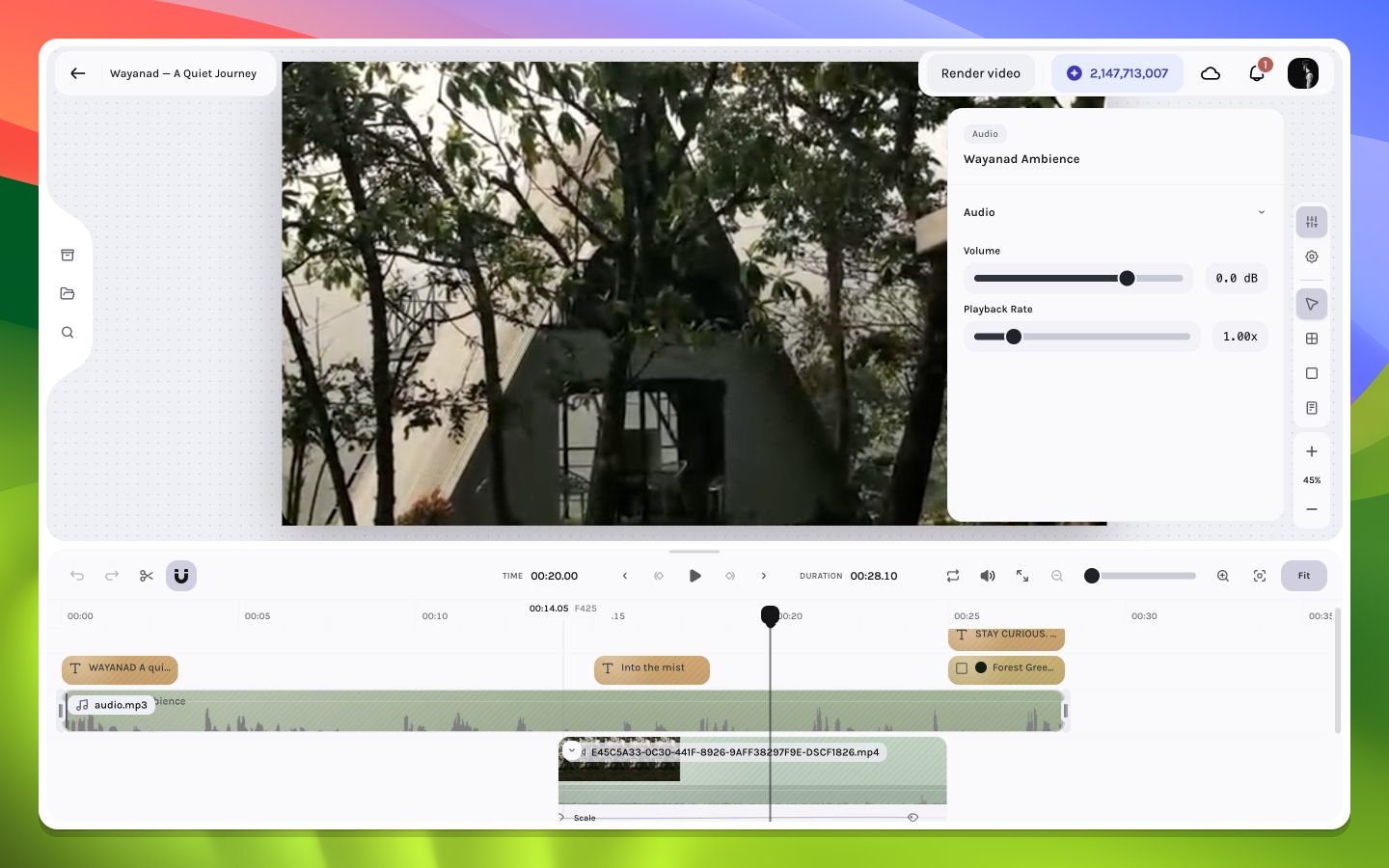 ## Playback-rate implications
The control ranges from `0.25×` to `5×` in `0.05×` steps. Increasing rate advances through source samples faster and never expands the layer: duration is capped by the current interval and remaining source. Decreasing rate consumes samples more slowly and tries to expand the interval, stopping at the nearest same-track collision and then at any parent bound. The update does not clamp existing fades or keyframes, so recheck sound-effect synchronization, music beats, fade duration, animation lanes, and the new source tail.
## Gain staging
Treat layer volume as one stage in the mix. Effective output also depends on fade gain, mute state, overlapping layers, and preview mute. Avoid compensating for a muted or faded layer by pushing base gain unnecessarily high.
## No canvas outline
Because audio-only layers do not render visual geometry, canvas clicks cannot reliably select them. Use the timeline row. A selected audio layer can remain active while the canvas shows only unrelated visual layers.
Name or arrange audio rows by role—narration, music, ambience, effects—so mute-based isolation remains understandable late in the edit.
See [Audio overview](/editor/audio/overview), [waveforms](/editor/audio/waveforms), and [fades](/editor/audio/fades).
## Playback-rate implications
The control ranges from `0.25×` to `5×` in `0.05×` steps. Increasing rate advances through source samples faster and never expands the layer: duration is capped by the current interval and remaining source. Decreasing rate consumes samples more slowly and tries to expand the interval, stopping at the nearest same-track collision and then at any parent bound. The update does not clamp existing fades or keyframes, so recheck sound-effect synchronization, music beats, fade duration, animation lanes, and the new source tail.
## Gain staging
Treat layer volume as one stage in the mix. Effective output also depends on fade gain, mute state, overlapping layers, and preview mute. Avoid compensating for a muted or faded layer by pushing base gain unnecessarily high.
## No canvas outline
Because audio-only layers do not render visual geometry, canvas clicks cannot reliably select them. Use the timeline row. A selected audio layer can remain active while the canvas shows only unrelated visual layers.
Name or arrange audio rows by role—narration, music, ambience, effects—so mute-based isolation remains understandable late in the edit.
See [Audio overview](/editor/audio/overview), [waveforms](/editor/audio/waveforms), and [fades](/editor/audio/fades).