> ## Documentation Index
> Fetch the complete documentation index at: https://docs.tessact.ai/llms.txt
> Use this file to discover all available pages before exploring further.
# Solid inspector
> Use a drawn color layer for backgrounds, bands, masks, dividers, and accents.
A solid is a lightweight draft-local rectangle. It needs no remote media and is therefore useful for reliable design primitives throughout the composition.
 ## Create and shape
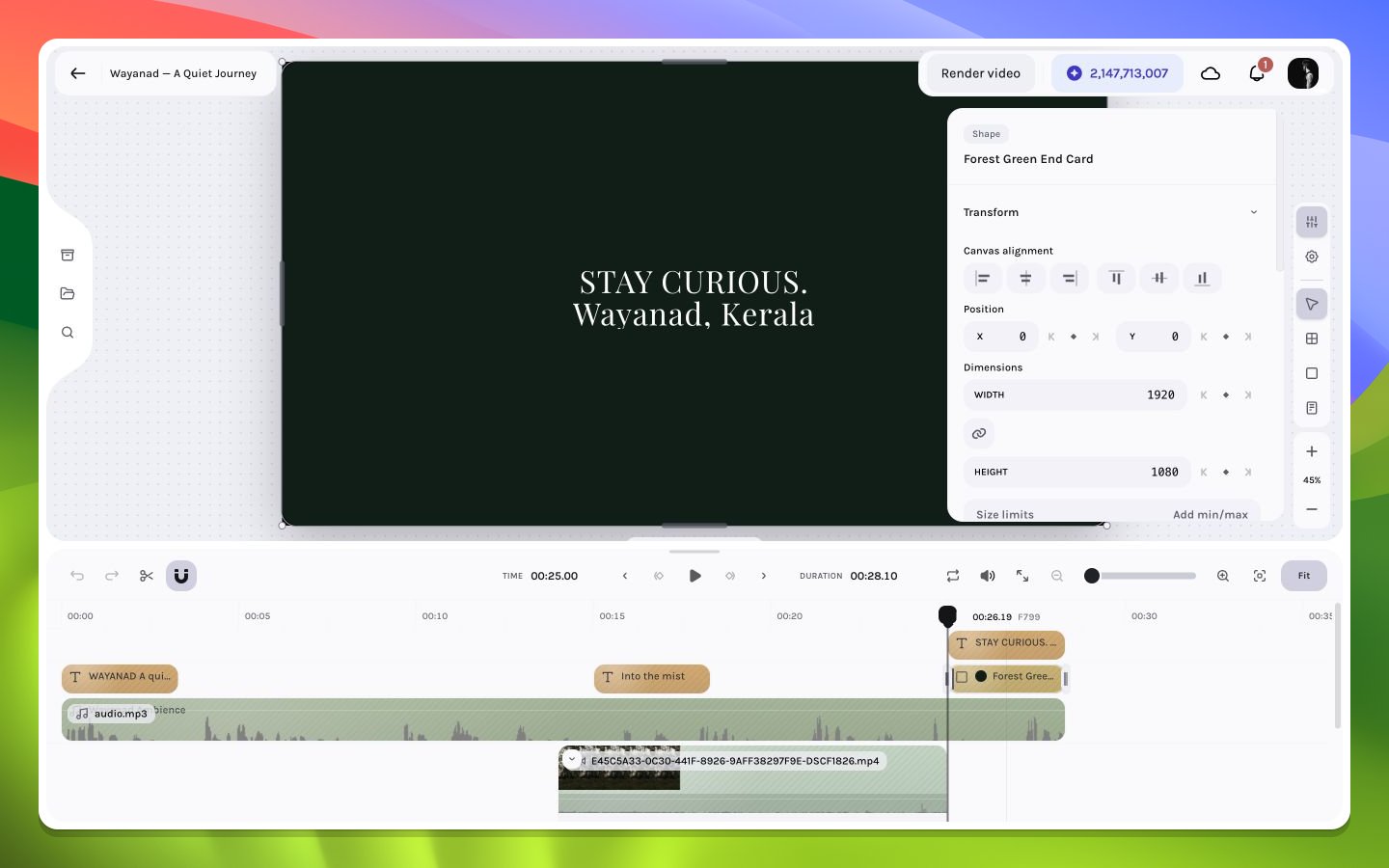
Choose the **Solid** tool from the right rail and drag on the canvas. Solid is a one-shot tool: releasing the pointer creates a `100`-frame layer at the playhead and automatically returns to **Select**; clicking without dragging creates nothing. The **Transform** section exposes alignment, position, dimensions, rotation, and scale. Use corner and edge handles for fast sizing, then refine the values numerically.
## Appearance
The solid's fill can be a solid color or two-stop linear gradient. Opacity, blend mode, border radius, stroke width, and solid-only stroke color define the rest of its visual role. A low-opacity dark solid can support text over video; a fully opaque composition-sized solid can become an end card; a narrow solid can act as a divider or progress accent.
## Crop
Crop can reduce the visible portion of the rectangle. For ordinary rectangle sizing, prefer dimensions; use crop only when its source-box semantics are part of the intended effect.
## Timing and animation
Solids can be timed like any layer. Supported transform, opacity, border-radius, stroke-width, crop-edge, and shadow parameters can be animated. Solids do not expose the layer-effects library. Because they have no media decoder, they are usually inexpensive compared with video or large images.
## Layer ordering
Place a backing solid below the text it supports and above the video it darkens. If the solid unexpectedly covers content, inspect layer order before reducing opacity.
Use consistent radii, colors, and padding across title modules. When several elements should remain responsive, parent them inside a [frame](/editor/canvas/frames) rather than manually coordinating separate top-level solids.
## Create and shape
Choose the **Solid** tool from the right rail and drag on the canvas. Solid is a one-shot tool: releasing the pointer creates a `100`-frame layer at the playhead and automatically returns to **Select**; clicking without dragging creates nothing. The **Transform** section exposes alignment, position, dimensions, rotation, and scale. Use corner and edge handles for fast sizing, then refine the values numerically.
## Appearance
The solid's fill can be a solid color or two-stop linear gradient. Opacity, blend mode, border radius, stroke width, and solid-only stroke color define the rest of its visual role. A low-opacity dark solid can support text over video; a fully opaque composition-sized solid can become an end card; a narrow solid can act as a divider or progress accent.
## Crop
Crop can reduce the visible portion of the rectangle. For ordinary rectangle sizing, prefer dimensions; use crop only when its source-box semantics are part of the intended effect.
## Timing and animation
Solids can be timed like any layer. Supported transform, opacity, border-radius, stroke-width, crop-edge, and shadow parameters can be animated. Solids do not expose the layer-effects library. Because they have no media decoder, they are usually inexpensive compared with video or large images.
## Layer ordering
Place a backing solid below the text it supports and above the video it darkens. If the solid unexpectedly covers content, inspect layer order before reducing opacity.
Use consistent radii, colors, and padding across title modules. When several elements should remain responsive, parent them inside a [frame](/editor/canvas/frames) rather than manually coordinating separate top-level solids.