> ## Documentation Index
> Fetch the complete documentation index at: https://docs.tessact.ai/llms.txt
> Use this file to discover all available pages before exploring further.
# Video inspector
> Reframe, style, retime, mix, and caption a video layer.
Select a video layer on the canvas or timeline to open its inspector. Standard sections are **Transform**, **Appearance**, **Crop**, **Playback**, **Face Tracking**, and—when the source has audio—**Audio** and caption generation. Face-tracking controls become available after an eligible uploaded video has finished processing.
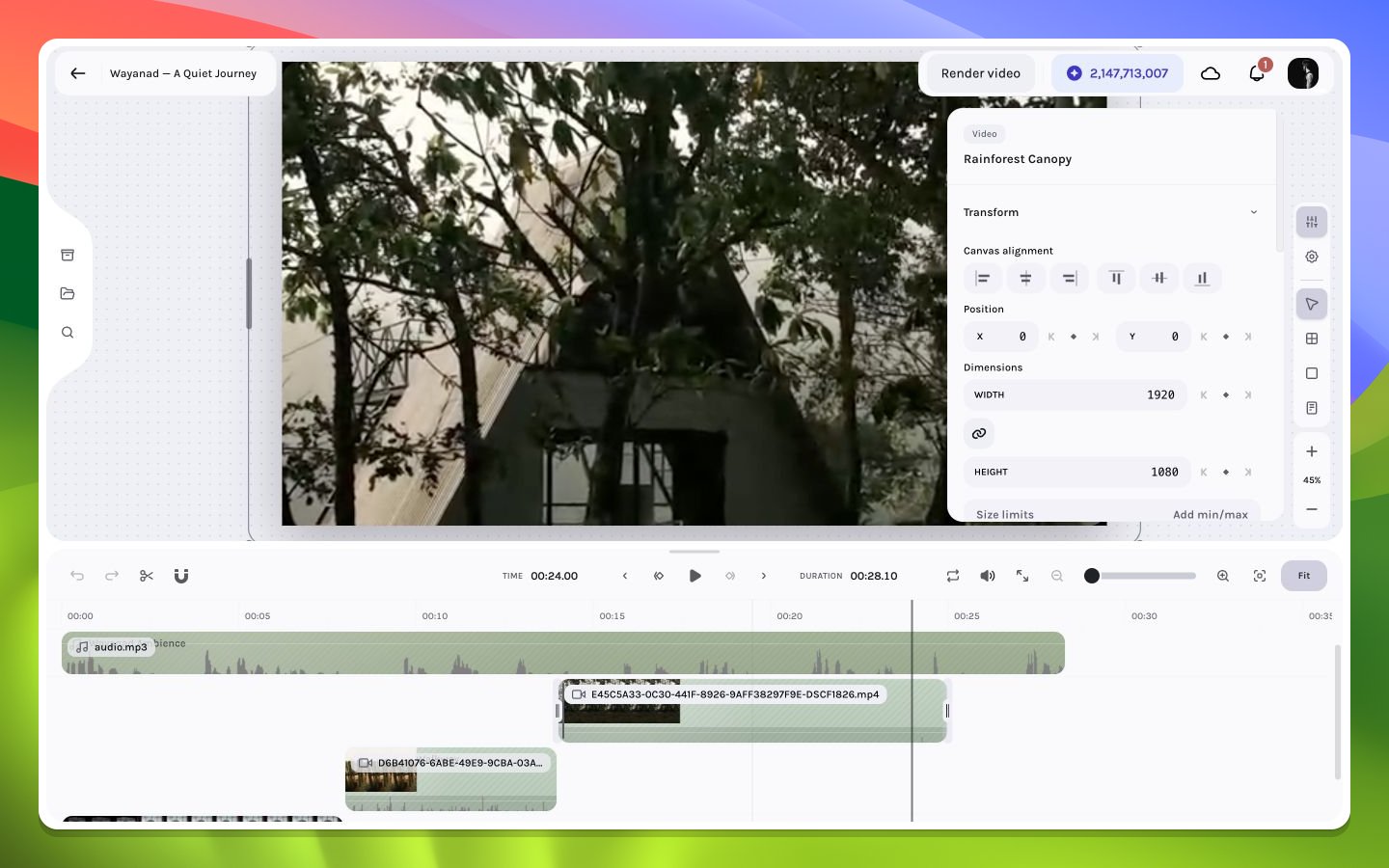 ## Transform
Alignment, position, dimensions, rotation, scale, and aspect-ratio behavior determine the layer box. Use numeric values for reproducible reframing and canvas handles for fast composition.
## Appearance
Opacity and blend mode determine how the video combines with layers beneath. Border radius, stroke width, and stroke color can turn a shot into an inset card or picture-in-picture treatment.
## Crop
Crop controls choose which source region appears in the layer box. Inspect the entire clip because a static crop can exclude a moving subject later.
## Playback
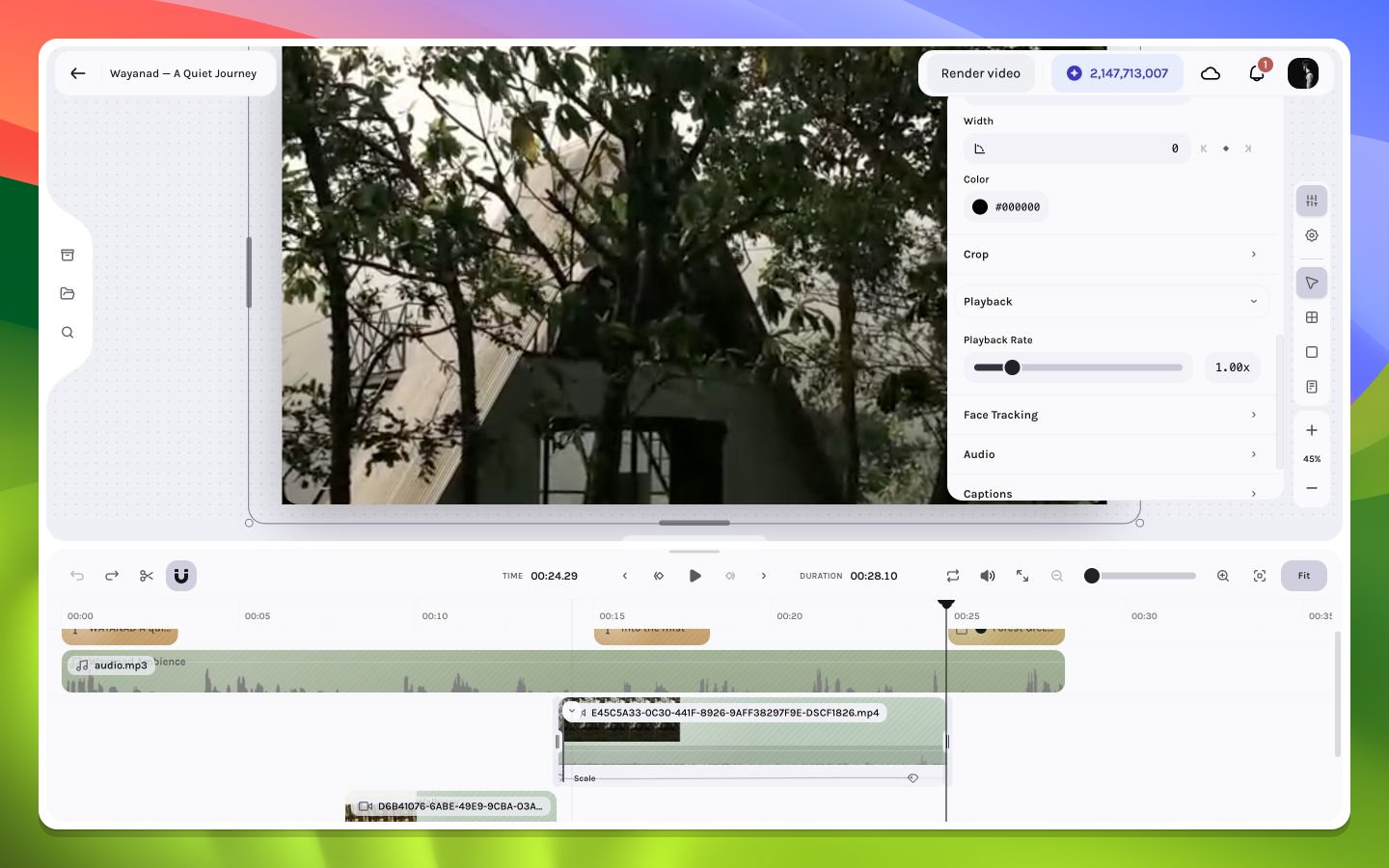
Playback rate ranges from `0.25×` to `5×` in `0.05×` steps. It maps layer-local time to source time and recalculates duration from remaining source. Increasing the rate never expands the clip: duration becomes the smaller of its current duration and remaining-source capacity. Decreasing the rate tries to expand toward remaining-source capacity but stops at the nearest same-track collision; nested items are then clamped to parent bounds.
Playback-rate changes do not automatically retime every dependent fade, keyframe, caption, or tracking segment. Recheck fades, animation, captions, and face tracking after any rate change. For the most predictable alignment, create captions and enable tracked reframing at `1×`; review and retime manually when using another speed.
Playback rate is hidden for a chunk-backed livestream group because the grouped item maps one timeline interval across multiple recorded source chunks. See [Livestream sources](/editor/media/livestream-sources).
## Transform
Alignment, position, dimensions, rotation, scale, and aspect-ratio behavior determine the layer box. Use numeric values for reproducible reframing and canvas handles for fast composition.
## Appearance
Opacity and blend mode determine how the video combines with layers beneath. Border radius, stroke width, and stroke color can turn a shot into an inset card or picture-in-picture treatment.
## Crop
Crop controls choose which source region appears in the layer box. Inspect the entire clip because a static crop can exclude a moving subject later.
## Playback
Playback rate ranges from `0.25×` to `5×` in `0.05×` steps. It maps layer-local time to source time and recalculates duration from remaining source. Increasing the rate never expands the clip: duration becomes the smaller of its current duration and remaining-source capacity. Decreasing the rate tries to expand toward remaining-source capacity but stops at the nearest same-track collision; nested items are then clamped to parent bounds.
Playback-rate changes do not automatically retime every dependent fade, keyframe, caption, or tracking segment. Recheck fades, animation, captions, and face tracking after any rate change. For the most predictable alignment, create captions and enable tracked reframing at `1×`; review and retime manually when using another speed.
Playback rate is hidden for a chunk-backed livestream group because the grouped item maps one timeline interval across multiple recorded source chunks. See [Livestream sources](/editor/media/livestream-sources).
 ## Audio and captions
When the video asset reports an audio track, the inspector exposes volume and caption generation. Audio mute, fades, and timeline waveform remain separate but related controls.
## Face tracking and vertical reframing
For an eligible uploaded and processed video, the **Face Tracking** section analyzes the selected source range and reports **Detecting**, **Ready**, **Unavailable**, or **Enabled**. Choose `9:16`, `4:5`, or `1:1`; enable only after segments are ready. Enabling is composition-wide: it changes canvas dimensions, can update the composition frame rate, refits the selected video to fill that canvas, and applies the detected horizontal tracking segments.
Read [Face tracking and automatic reframing](/editor/layers/video-face-tracking) before enabling it in a populated composition.
## Finish controls
Supported videos can also expose layer effects and multiple shadows. These are evaluated after media sampling and geometry, then composed with opacity and blend behavior.
Changing playback rate after captions, waveform-based edits, tracking, or tightly synchronized effects are timed can invalidate their alignment. The duration edit can also stop at a collision or parent edge. Review all dependent layers and the new final source frame.
See [video crop](/editor/editing/crop), [volume](/editor/audio/volume), and [captions](/editor/captions/create).
## Audio and captions
When the video asset reports an audio track, the inspector exposes volume and caption generation. Audio mute, fades, and timeline waveform remain separate but related controls.
## Face tracking and vertical reframing
For an eligible uploaded and processed video, the **Face Tracking** section analyzes the selected source range and reports **Detecting**, **Ready**, **Unavailable**, or **Enabled**. Choose `9:16`, `4:5`, or `1:1`; enable only after segments are ready. Enabling is composition-wide: it changes canvas dimensions, can update the composition frame rate, refits the selected video to fill that canvas, and applies the detected horizontal tracking segments.
Read [Face tracking and automatic reframing](/editor/layers/video-face-tracking) before enabling it in a populated composition.
## Finish controls
Supported videos can also expose layer effects and multiple shadows. These are evaluated after media sampling and geometry, then composed with opacity and blend behavior.
Changing playback rate after captions, waveform-based edits, tracking, or tightly synchronized effects are timed can invalidate their alignment. The duration edit can also stop at a collision or parent edge. Review all dependent layers and the new final source frame.
See [video crop](/editor/editing/crop), [volume](/editor/audio/volume), and [captions](/editor/captions/create).