> ## Documentation Index
> Fetch the complete documentation index at: https://docs.tessact.ai/llms.txt
> Use this file to discover all available pages before exploring further.
# Bin
> Review and reuse media already associated with the draft.
The Bin is the draft's working media inventory. It helps prevent duplicate uploads and provides a fast route back to source material already used—or prepared for use—in the sequence.
 ## Bin states
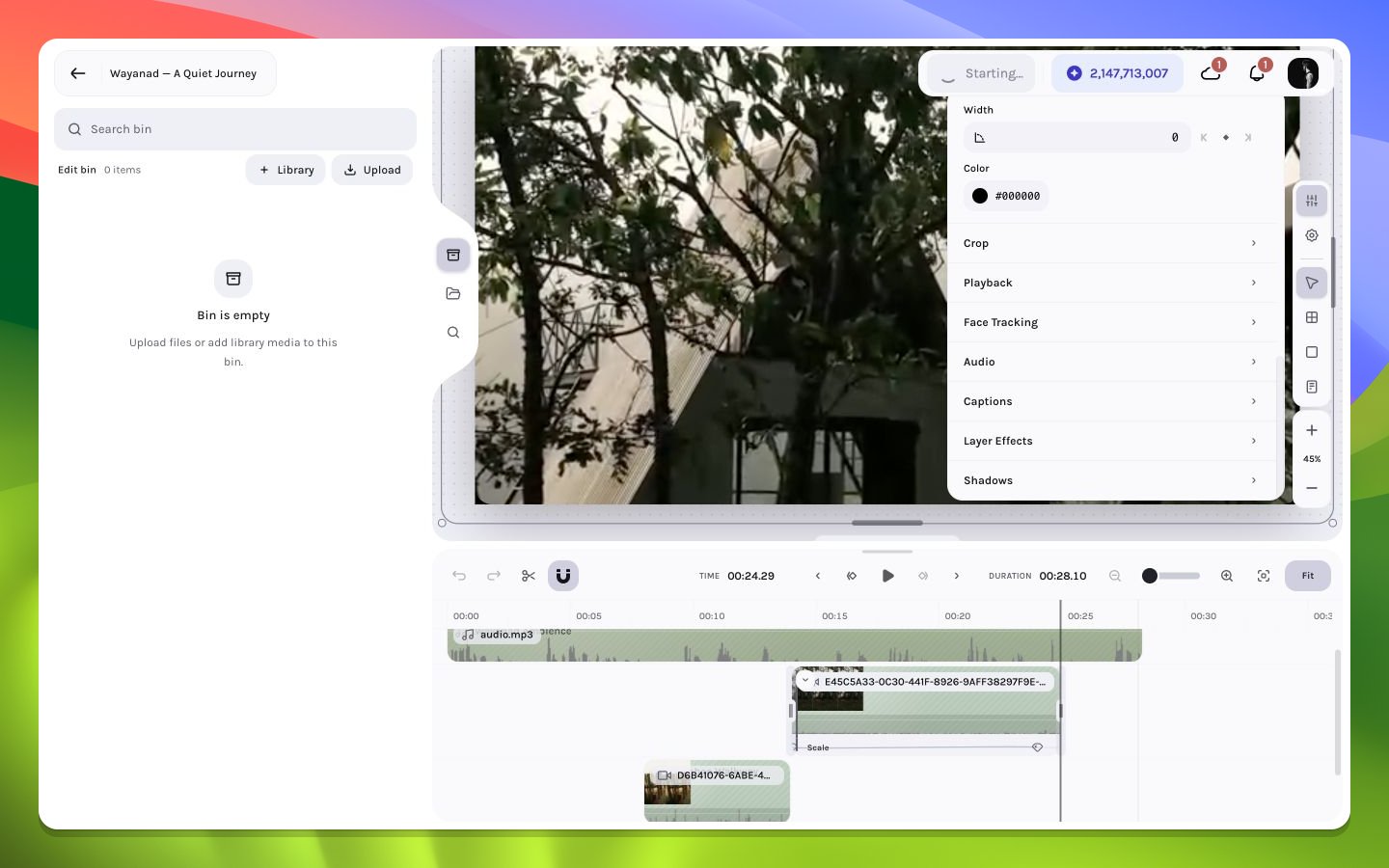
No media has been associated with the current draft yet, or the bin query returned no usable entries. Use **Library** from inside Bin to create associations, or choose **Upload** to add local files to the Bin.
Metadata and thumbnails are still being resolved. Avoid repeating the import until the request completes.
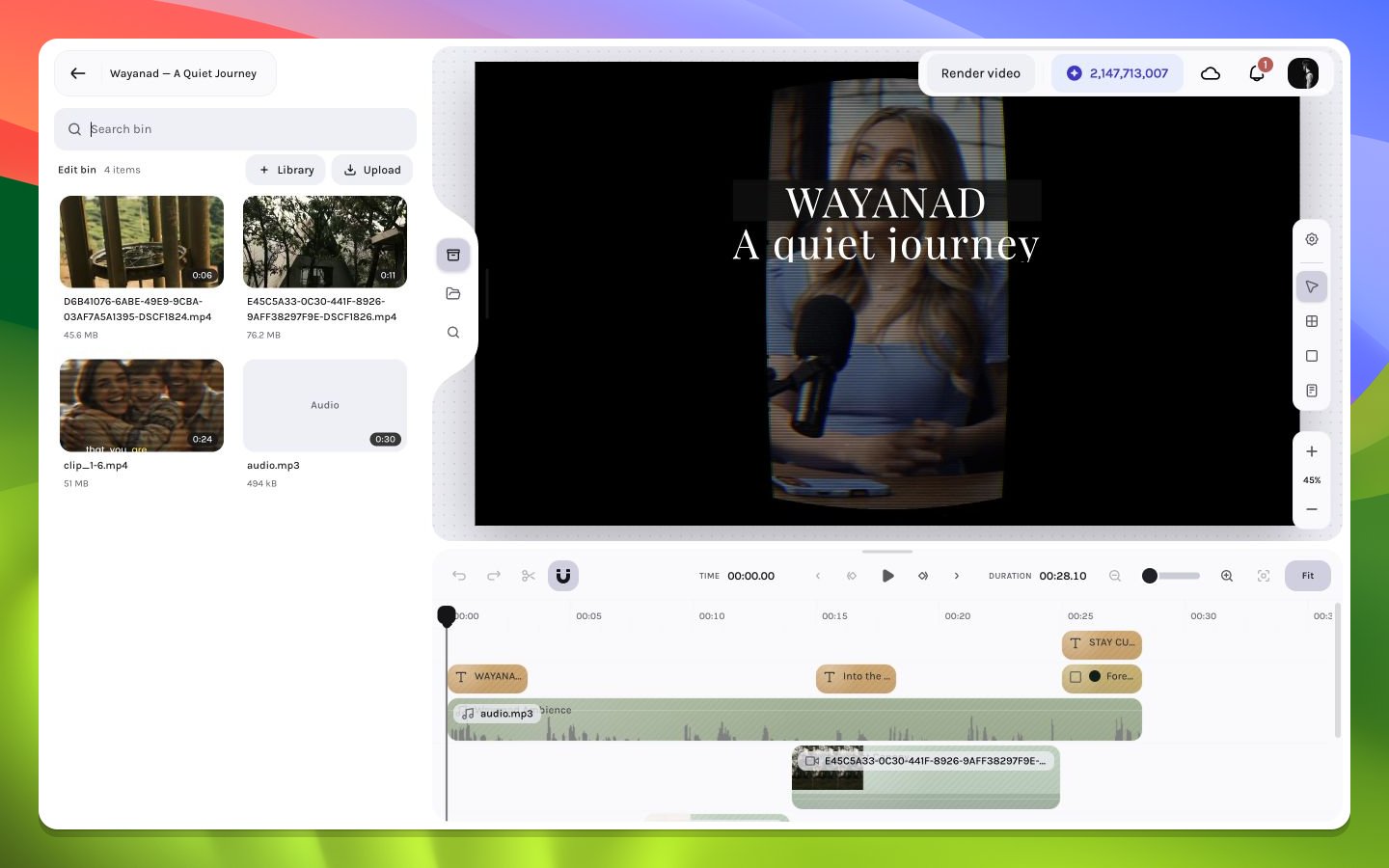
Cards show a thumbnail, name, size, and—where available—duration. Click, press `Enter`/`Space`, or use the card's add button to insert a new independent layer instance; drag the card for explicit canvas or timeline placement.
The asset can still be usable if metadata and source access succeed. Open or insert it, then verify canvas decoding.
## Bin states
No media has been associated with the current draft yet, or the bin query returned no usable entries. Use **Library** from inside Bin to create associations, or choose **Upload** to add local files to the Bin.
Metadata and thumbnails are still being resolved. Avoid repeating the import until the request completes.
Cards show a thumbnail, name, size, and—where available—duration. Click, press `Enter`/`Space`, or use the card's add button to insert a new independent layer instance; drag the card for explicit canvas or timeline placement.
The asset can still be usable if metadata and source access succeed. Open or insert it, then verify canvas decoding.
 ## Reuse without duplication
Inserting a Bin asset does not duplicate the underlying remote file. It creates a new editor layer referencing the same source. This is the preferred way to repeat a B-roll shot, music bed, texture, or title image while applying different timing and visual treatment.
## Find, organize, and add media
| Action | Result |
| --------------------------------------- | ------------------------------------------------------------------- |
| Search field | Filters the current Bin level by filename |
| `Cmd/Ctrl+F` while Bin is open | Focuses and selects the Bin search query |
| Open a folder | Shows that folder's files and child folders |
| Back button | Moves up one folder level |
| `Escape` in a folder | Moves up one level; at the root, closes Bin |
| **Library** | Opens a selection modal and associates selected files with this Bin |
| **Upload** | Uploads one or more image, video, or audio files into this Bin |
| Click / `Enter` / `Space` / plus button | Adds the card at the current playhead |
| Drag a card to the canvas | Adds it at pointer-projected composition coordinates |
| Drag a card to the timeline | Adds it at the pointer-derived frame and hovered track |
The Library flow opened from Bin is an association workflow: its button reads **Add to Bin**, existing entries are marked **In bin**, and livestream assets are excluded there. Open **Library** from the editor's left rail when the source should go directly to the timeline; that separate modal uses its insertion action rather than **Add to Bin**.
## Remove an association
Hover or focus a root Bin card and use its trash action, or open the card context menu and choose **Remove from bin**. This removes the Bin entry. It does not delete existing timeline layers and does not delete the workspace source file. A folder opened through the Bin can contain browsable descendants even when those descendants are not separate root associations.
A Bin card is not a media preview. Clicking it inserts immediately. Use its thumbnail and metadata for identification, then inspect the new layer on the canvas and timeline.
## Metadata to inspect
Use title and thumbnail together, then confirm type, duration, size, and dimensions where shown. Two files with the same name can represent different transcoded assets or versions. After insertion, use the layer inspector as the authority for editable instance properties.
Before importing from Library, search the Bin visually. Reusing the existing source keeps the project cleaner and simplifies later diagnosis.
See [Library import](/editor/media/library) and [upload](/editor/media/upload).
## Reuse without duplication
Inserting a Bin asset does not duplicate the underlying remote file. It creates a new editor layer referencing the same source. This is the preferred way to repeat a B-roll shot, music bed, texture, or title image while applying different timing and visual treatment.
## Find, organize, and add media
| Action | Result |
| --------------------------------------- | ------------------------------------------------------------------- |
| Search field | Filters the current Bin level by filename |
| `Cmd/Ctrl+F` while Bin is open | Focuses and selects the Bin search query |
| Open a folder | Shows that folder's files and child folders |
| Back button | Moves up one folder level |
| `Escape` in a folder | Moves up one level; at the root, closes Bin |
| **Library** | Opens a selection modal and associates selected files with this Bin |
| **Upload** | Uploads one or more image, video, or audio files into this Bin |
| Click / `Enter` / `Space` / plus button | Adds the card at the current playhead |
| Drag a card to the canvas | Adds it at pointer-projected composition coordinates |
| Drag a card to the timeline | Adds it at the pointer-derived frame and hovered track |
The Library flow opened from Bin is an association workflow: its button reads **Add to Bin**, existing entries are marked **In bin**, and livestream assets are excluded there. Open **Library** from the editor's left rail when the source should go directly to the timeline; that separate modal uses its insertion action rather than **Add to Bin**.
## Remove an association
Hover or focus a root Bin card and use its trash action, or open the card context menu and choose **Remove from bin**. This removes the Bin entry. It does not delete existing timeline layers and does not delete the workspace source file. A folder opened through the Bin can contain browsable descendants even when those descendants are not separate root associations.
A Bin card is not a media preview. Clicking it inserts immediately. Use its thumbnail and metadata for identification, then inspect the new layer on the canvas and timeline.
## Metadata to inspect
Use title and thumbnail together, then confirm type, duration, size, and dimensions where shown. Two files with the same name can represent different transcoded assets or versions. After insertion, use the layer inspector as the authority for editable instance properties.
Before importing from Library, search the Bin visually. Reusing the existing source keeps the project cleaner and simplifies later diagnosis.
See [Library import](/editor/media/library) and [upload](/editor/media/upload).