> ## Documentation Index
> Fetch the complete documentation index at: https://docs.tessact.ai/llms.txt
> Use this file to discover all available pages before exploring further.
# Import from Library
> Browse workspace media and turn a selected asset into a draft layer.
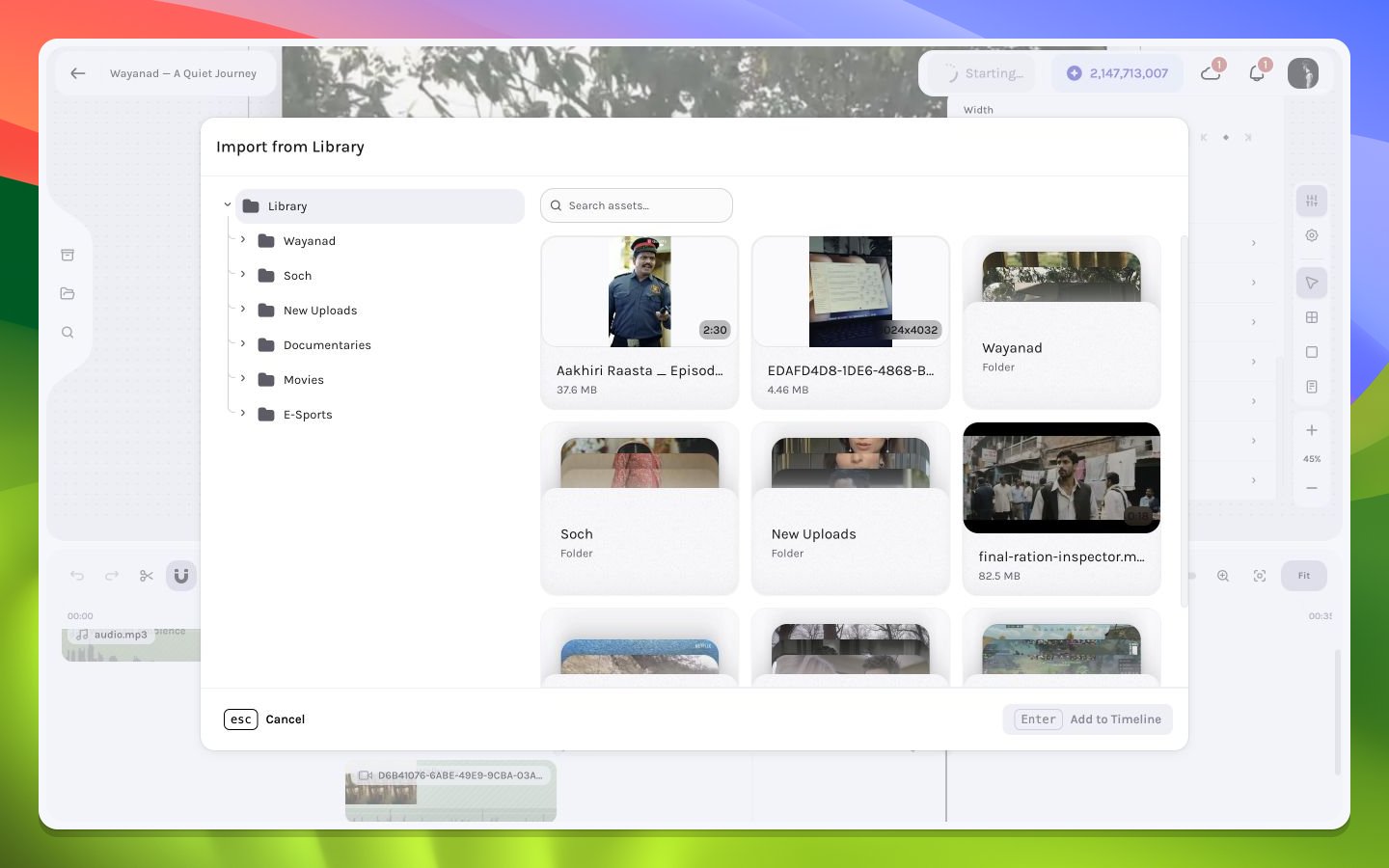
Library exposes media from the draft's active workspace inside the editor. Use it to bring existing workspace assets into your video draft without leaving the editing surface.
 ## Import workflow
Choose **Library** on the left rail. Confirm the workspace that owns the expected assets is active if they are missing.
Use the card thumbnail and visible metadata to distinguish similarly named shots, then toggle the intended card into the selection. Library cards do not open a media preview here, so verify motion and audio after insertion.
Seek to the intended insertion frame. Review nearby stack order and audio overlap.
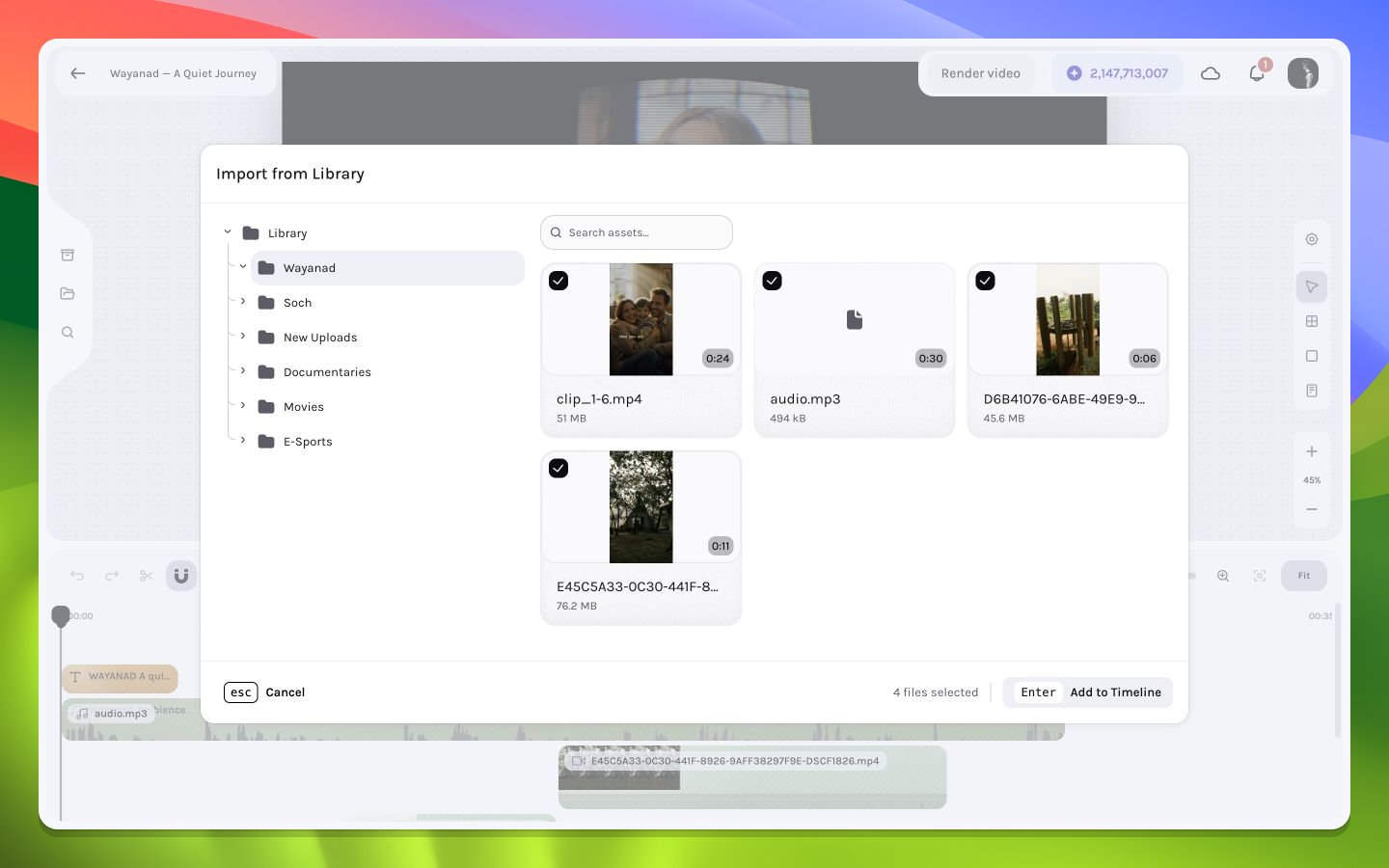
Select one or more files, then choose the modal's add action to insert them at the current playhead. `Enter` activates it only when that button has ordinary keyboard focus; the modal does not install a global Enter shortcut. Wait for asset details and source access to resolve before repeating the action.
Confirm the timeline interval, canvas pixels or waveform, source duration, and inspector type.
## Import workflow
Choose **Library** on the left rail. Confirm the workspace that owns the expected assets is active if they are missing.
Use the card thumbnail and visible metadata to distinguish similarly named shots, then toggle the intended card into the selection. Library cards do not open a media preview here, so verify motion and audio after insertion.
Seek to the intended insertion frame. Review nearby stack order and audio overlap.
Select one or more files, then choose the modal's add action to insert them at the current playhead. `Enter` activates it only when that button has ordinary keyboard focus; the modal does not install a global Enter shortcut. Wait for asset details and source access to resolve before repeating the action.
Confirm the timeline interval, canvas pixels or waveform, source duration, and inspector type.
 ## Remote asset resolution
Library cards initially show the asset information available in the workspace. When you insert one, the editor retrieves the media details it needs—including the media kind, dimensions, duration, playable source, and any selected source range—then creates the appropriate layer and prepares it for preview.
A visible thumbnail does not guarantee that the full media source is decodable in the browser. Always test playback after insertion.
See [media troubleshooting](/editor/troubleshooting/media) if metadata loads but the layer does not.
## Livestream sources
The Library can also show a livestream as a selectable source. If a finalized MP4 is ready, insertion prefers that single file. Otherwise the editor can insert the currently ready recording chunks as one grouped video source. Pending, recording, processing, and failure states can legitimately produce an informational or error notice instead of a new layer.
See [Livestream sources](/editor/media/livestream-sources) for status handling, timeline updates, and the grouped-source restrictions.
## Remote asset resolution
Library cards initially show the asset information available in the workspace. When you insert one, the editor retrieves the media details it needs—including the media kind, dimensions, duration, playable source, and any selected source range—then creates the appropriate layer and prepares it for preview.
A visible thumbnail does not guarantee that the full media source is decodable in the browser. Always test playback after insertion.
See [media troubleshooting](/editor/troubleshooting/media) if metadata loads but the layer does not.
## Livestream sources
The Library can also show a livestream as a selectable source. If a finalized MP4 is ready, insertion prefers that single file. Otherwise the editor can insert the currently ready recording chunks as one grouped video source. Pending, recording, processing, and failure states can legitimately produce an informational or error notice instead of a new layer.
See [Livestream sources](/editor/media/livestream-sources) for status handling, timeline updates, and the grouped-source restrictions.