> ## Documentation Index
> Fetch the complete documentation index at: https://docs.tessact.ai/llms.txt
> Use this file to discover all available pages before exploring further.
# Context menus
> Exact right-click behavior for timeline layers and empty canvas space.
Context menus expose operations near their target and make eligibility visible through enabled and disabled states. Right-click a timeline layer for editing commands; right-click empty canvas space to paste at a composition position.
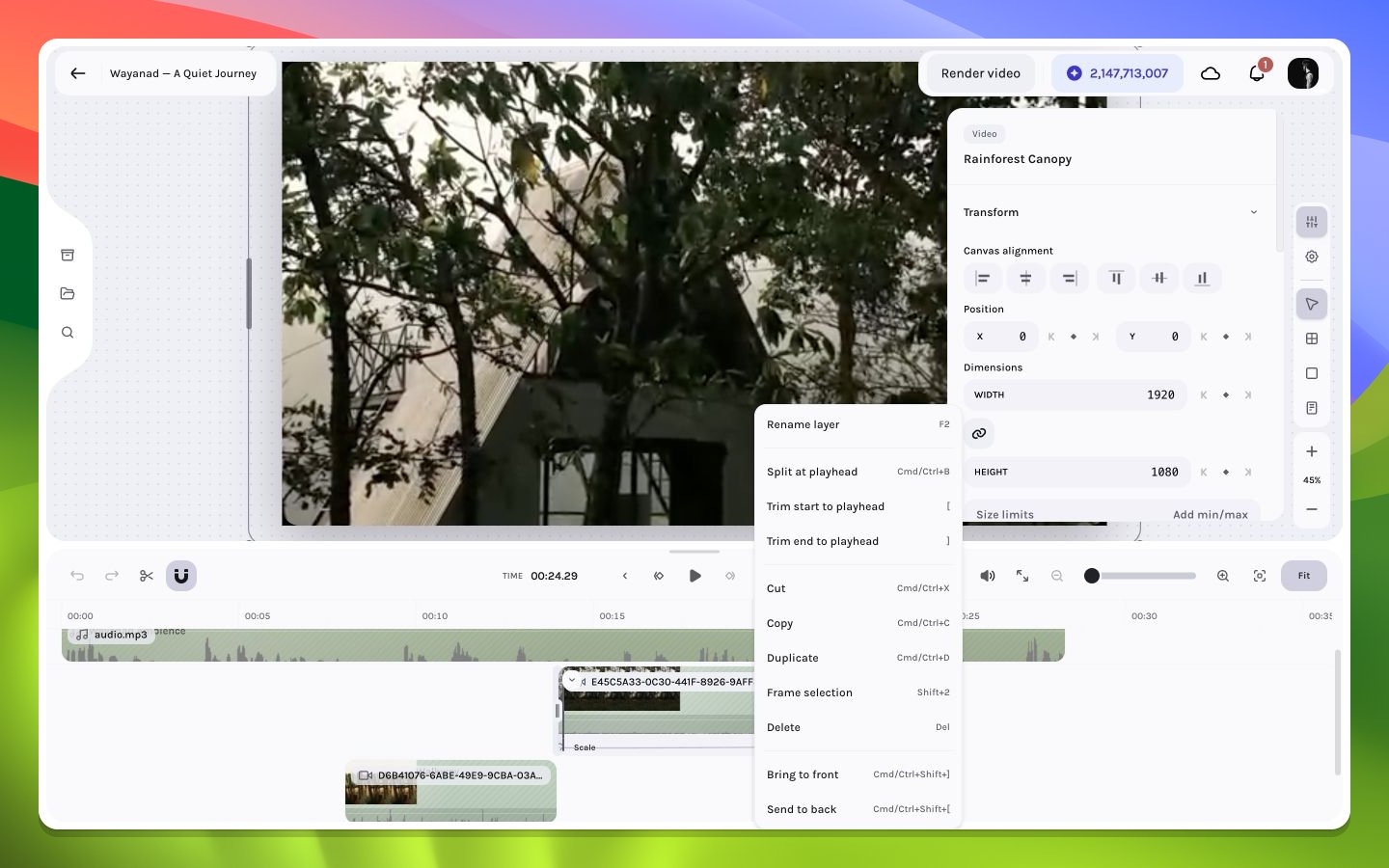 ## Timeline layer menu
The command target follows one precise rule:
* If several layers are selected and the right-clicked layer is part of that selection, copy, cut, duplicate, delete, frame, split, and trim operate on the selection.
* Otherwise, those commands target only the right-clicked layer.
* **Bring to front** and **Send to back** always target only the right-clicked layer.
* When a frame is included, **Copy**, **Cut**, **Duplicate**, and **Delete** expand to the descendants that belong to it. Split, trim, and Frame selection do not use that descendant expansion.
| Menu item | Keyboard equivalent | Availability and effect |
| ---------------------- | ------------------: | ------------------------------------------------------------------------------------- |
| Rename layer | `F2` | Exactly one renameable layer; starts inline timeline renaming |
| Split at playhead | `Cmd/Ctrl+B` | Enabled when the playhead lies strictly inside an eligible target |
| Trim start to playhead | `[` | Replaces the left boundary with the playhead while preserving source-time continuity |
| Trim end to playhead | `]` | Replaces the right boundary with the playhead |
| Cut | `Cmd/Ctrl+X` | Copies the expanded target set, then removes it |
| Copy | `Cmd/Ctrl+C` | Copies the target layers and their relationships for pasting within the editor |
| Duplicate | `Cmd/Ctrl+D` | Creates a new target set while preserving relative timing and geometry |
| Frame selection | `Shift+2` | Creates a frame around eligible selected visual layers at the relevant timeline frame |
| Delete | `Delete` | Removes the target set; deleting a frame includes its owned descendants |
| Bring to front | `Cmd/Ctrl+Shift+]` | Moves the clicked layer to the visual front of its applicable stacking context |
| Send to back | `Cmd/Ctrl+Shift+[` | Moves the clicked layer to the visual back of its applicable stacking context |
A disabled item is diagnostic information. Move the playhead inside the layer for a split or trim, select compatible visual layers for a frame, or leave a read-only state before retrying.
## Split and trim boundaries
At frame `p`, a layer with start `s` and duration `d` occupies the half-open interval `[s, s + d)`. The playhead must satisfy `s < p < s + d` for a normal interior split. The two outputs meet at the same boundary; no extra frame is inserted.
For trim commands:
* **Trim start to playhead** changes the composition start and advances the media source start by the matching source-time amount.
* **Trim end to playhead** shortens the visible duration without changing the source start.
* Frame, text, solid, and caption layers have no decoded media source, but their timeline boundaries follow the same composition-frame rules.
See [Trimming](/editor/timeline/trim), [Splitting](/editor/timeline/split), and [Timecode and frame math](/editor/reference/timecode-frame-math).
## Empty-canvas menu
Right-click a part of the composition with no layer under the pointer and choose **Paste here**. Placement is based on the corresponding point in the composition, regardless of the current preview zoom.
Clipboard interpretation follows this order:
1. A clipboard PNG is inserted as an image asset. It can use default asset placement rather than the clicked point, so reposition it after insertion when needed.
2. Layers copied within Tessact are recreated with their relationships and relative layout intact.
3. Plain text creates a centered text layer at the clicked composition point.
Inserted content starts at the current playhead. Browser clipboard permission is required for **Paste here**; if it is denied, grant access and use the ordinary paste shortcut.
Copied Tessact layers and plain text use the composition click point. Treat PNG placement as default-placement behavior, then position it manually. Ordinary `Cmd/Ctrl+V` is a reliable alternative for a PNG-only clipboard.
## Track-gutter menu
Right-click the empty gutter of a timeline track to open its track-scoped menu. Visual tracks offer **Hide track** or **Unhide track**; audio-capable tracks offer **Mute track** or **Unmute track**. These commands affect the whole row rather than only the clip nearest the pointer. Right-click the clip body instead when you want layer operations such as split, trim, copy, or delete.
## Canvas selection menu behavior
Right-clicking a visible layer resolves the timeline instance represented by that layer. Before applying a destructive command, check both the canvas outlines and timeline highlights: a multi-selection can include layers that are outside the current preview frame or visually covered by another layer.
Right-click targeting also seeks the playhead to the target's nearest visible edge when the playhead is outside its interval, unless the click preserves an existing multi-selection that already contains the layer. That automatic seek can change the frame consumed by Split, trim, or **Frame selection**. Read the time display after the menu opens before invoking a frame-sensitive action.
## Read-only and unavailable commands
Menus may still open while editing is unavailable. In that state, commands remain disabled or leave the draft unchanged. A menu also closes when selection, playback position, or collaboration status changes enough to invalidate its original target.
## Precision checklist
* Confirm the right-clicked layer belongs to the intended multi-selection.
* Confirm the playhead is inside every clip you intend to split or trim.
* Expand or inspect frames before a structural cut, duplicate, or delete.
* Use the timeline for layers that overlap exactly on the canvas.
* Undo immediately if a structural operation included more descendants than expected.
Learn how canvas and timeline selection stay synchronized.
Understand time placement, geometry, and frame descendants.
## Timeline layer menu
The command target follows one precise rule:
* If several layers are selected and the right-clicked layer is part of that selection, copy, cut, duplicate, delete, frame, split, and trim operate on the selection.
* Otherwise, those commands target only the right-clicked layer.
* **Bring to front** and **Send to back** always target only the right-clicked layer.
* When a frame is included, **Copy**, **Cut**, **Duplicate**, and **Delete** expand to the descendants that belong to it. Split, trim, and Frame selection do not use that descendant expansion.
| Menu item | Keyboard equivalent | Availability and effect |
| ---------------------- | ------------------: | ------------------------------------------------------------------------------------- |
| Rename layer | `F2` | Exactly one renameable layer; starts inline timeline renaming |
| Split at playhead | `Cmd/Ctrl+B` | Enabled when the playhead lies strictly inside an eligible target |
| Trim start to playhead | `[` | Replaces the left boundary with the playhead while preserving source-time continuity |
| Trim end to playhead | `]` | Replaces the right boundary with the playhead |
| Cut | `Cmd/Ctrl+X` | Copies the expanded target set, then removes it |
| Copy | `Cmd/Ctrl+C` | Copies the target layers and their relationships for pasting within the editor |
| Duplicate | `Cmd/Ctrl+D` | Creates a new target set while preserving relative timing and geometry |
| Frame selection | `Shift+2` | Creates a frame around eligible selected visual layers at the relevant timeline frame |
| Delete | `Delete` | Removes the target set; deleting a frame includes its owned descendants |
| Bring to front | `Cmd/Ctrl+Shift+]` | Moves the clicked layer to the visual front of its applicable stacking context |
| Send to back | `Cmd/Ctrl+Shift+[` | Moves the clicked layer to the visual back of its applicable stacking context |
A disabled item is diagnostic information. Move the playhead inside the layer for a split or trim, select compatible visual layers for a frame, or leave a read-only state before retrying.
## Split and trim boundaries
At frame `p`, a layer with start `s` and duration `d` occupies the half-open interval `[s, s + d)`. The playhead must satisfy `s < p < s + d` for a normal interior split. The two outputs meet at the same boundary; no extra frame is inserted.
For trim commands:
* **Trim start to playhead** changes the composition start and advances the media source start by the matching source-time amount.
* **Trim end to playhead** shortens the visible duration without changing the source start.
* Frame, text, solid, and caption layers have no decoded media source, but their timeline boundaries follow the same composition-frame rules.
See [Trimming](/editor/timeline/trim), [Splitting](/editor/timeline/split), and [Timecode and frame math](/editor/reference/timecode-frame-math).
## Empty-canvas menu
Right-click a part of the composition with no layer under the pointer and choose **Paste here**. Placement is based on the corresponding point in the composition, regardless of the current preview zoom.
Clipboard interpretation follows this order:
1. A clipboard PNG is inserted as an image asset. It can use default asset placement rather than the clicked point, so reposition it after insertion when needed.
2. Layers copied within Tessact are recreated with their relationships and relative layout intact.
3. Plain text creates a centered text layer at the clicked composition point.
Inserted content starts at the current playhead. Browser clipboard permission is required for **Paste here**; if it is denied, grant access and use the ordinary paste shortcut.
Copied Tessact layers and plain text use the composition click point. Treat PNG placement as default-placement behavior, then position it manually. Ordinary `Cmd/Ctrl+V` is a reliable alternative for a PNG-only clipboard.
## Track-gutter menu
Right-click the empty gutter of a timeline track to open its track-scoped menu. Visual tracks offer **Hide track** or **Unhide track**; audio-capable tracks offer **Mute track** or **Unmute track**. These commands affect the whole row rather than only the clip nearest the pointer. Right-click the clip body instead when you want layer operations such as split, trim, copy, or delete.
## Canvas selection menu behavior
Right-clicking a visible layer resolves the timeline instance represented by that layer. Before applying a destructive command, check both the canvas outlines and timeline highlights: a multi-selection can include layers that are outside the current preview frame or visually covered by another layer.
Right-click targeting also seeks the playhead to the target's nearest visible edge when the playhead is outside its interval, unless the click preserves an existing multi-selection that already contains the layer. That automatic seek can change the frame consumed by Split, trim, or **Frame selection**. Read the time display after the menu opens before invoking a frame-sensitive action.
## Read-only and unavailable commands
Menus may still open while editing is unavailable. In that state, commands remain disabled or leave the draft unchanged. A menu also closes when selection, playback position, or collaboration status changes enough to invalidate its original target.
## Precision checklist
* Confirm the right-clicked layer belongs to the intended multi-selection.
* Confirm the playhead is inside every clip you intend to split or trim.
* Expand or inspect frames before a structural cut, duplicate, or delete.
* Use the timeline for layers that overlap exactly on the canvas.
* Undo immediately if a structural operation included more descendants than expected.
Learn how canvas and timeline selection stay synchronized.
Understand time placement, geometry, and frame descendants.