> ## Documentation Index
> Fetch the complete documentation index at: https://docs.tessact.ai/llms.txt
> Use this file to discover all available pages before exploring further.
# Playhead and timecode
> Seek confidently between displayed time, whole frames, and exact edit boundaries.
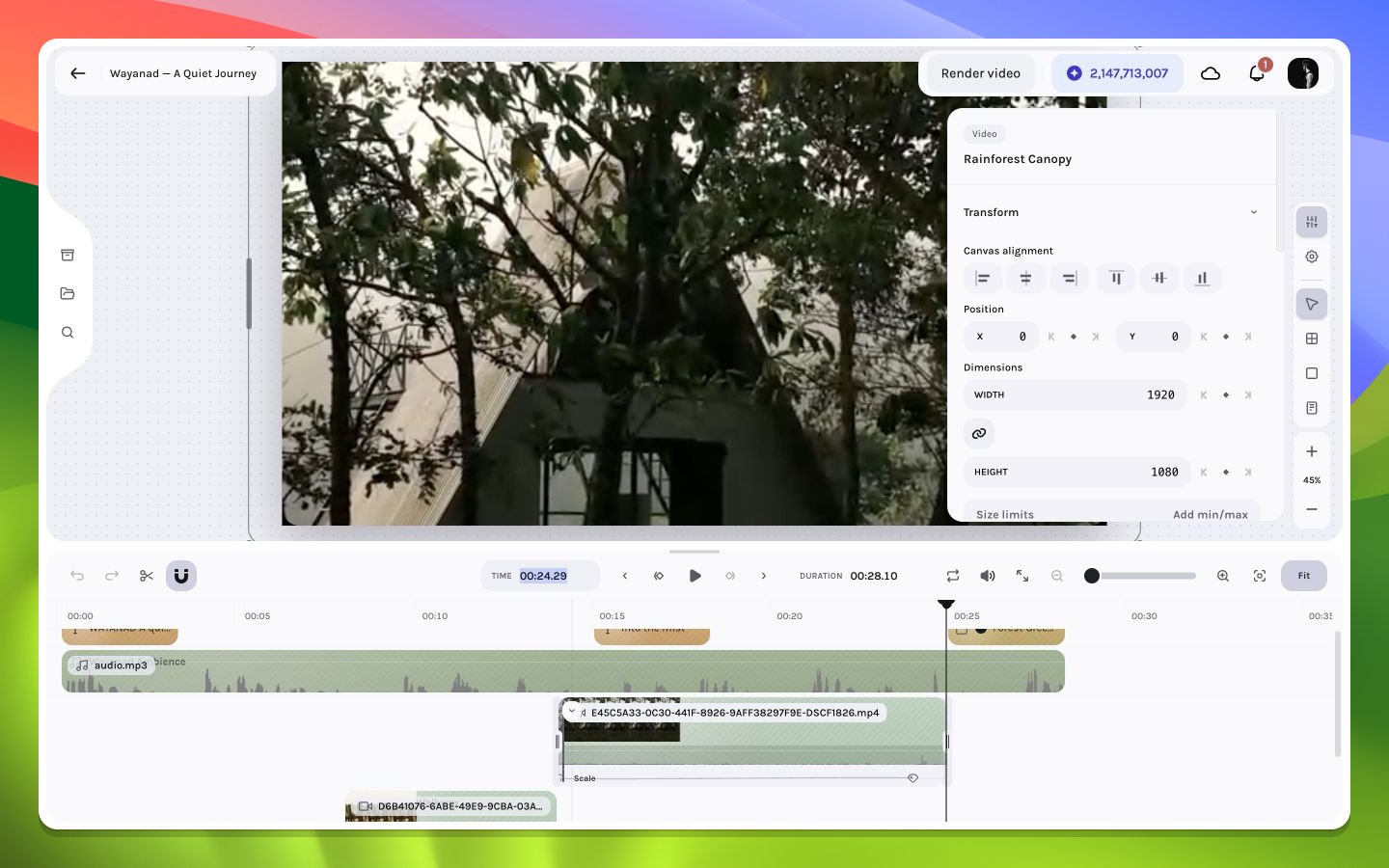
The playhead chooses the composition frame evaluated by the canvas, inspector animation values, captions, effects, and audio. Drag the playhead for exploratory seeking, click the timeline ruler or time surface to jump, or use transport controls for exact stepping.
 ## Timecode to frame
At frame rate `fps`, a time in seconds maps to a frame near:
```text theme={null}
frame = round(seconds × fps)
seconds = frame ÷ fps
```
Displayed timecode is a human-readable view of an integer frame. Because decimal seconds may not land exactly on a frame boundary, the editor normalizes navigation to a whole frame.
## Navigation methods
| Method | Best for |
| --------------------------- | ------------------------------ |
| Drag playhead | Fast visual scan |
| Click timeline ruler | Immediate coarse jump |
| Time display / jump control | Known destination |
| Previous or next frame | Boundary inspection |
| Previous or next keyframe | Animation review |
| Play | Rhythm, continuity, and motion |
## Current-time input grammar
Click the **Time** readout to replace it with an input. The parser accepts absolute positions and signed offsets:
| Input | Interpretation at 30 fps |
| ---------------------------------------- | ---------------------------------------------------- |
| `300`, `300f`, `300 frame`, `300 frames` | Absolute frame `300` |
| `2.5s`, `2.5 sec`, `2.5 seconds` | Absolute `75` frames |
| `1.5m`, `1.5 min`, `1.5 minutes` | Absolute `2,700` frames |
| `05:00.00` | `MM:SS:FF`: five minutes, frame `00` |
| `01:02:03` | `HH:MM:SS`: one hour, two minutes, three seconds |
| `01:02:03:12` | `HH:MM:SS:FF`: the same clock second plus frame `12` |
| `+1m` | One minute after the current frame |
| `-12f` | Twelve frames before the current frame |
Two-part clock input is `MM:SS` with an optional frame suffix on seconds; three-part input is `HH:MM:SS` with the same optional suffix. The suffix separated by `.`, `:`, or `;` is a frame count within the second, not a decimal fraction. It must be less than the rounded FPS. Minutes/seconds are range-checked where the grammar requires them.
Every result is rounded and clamped to `[0, durationInFrames - 1]`. An invalid value stays in the field and shows examples rather than seeking.
While editing, `Up`/`Down` steps the draft value by one frame and `Shift+Up`/`Shift+Down` steps by one rounded second. `Enter` or blur commits; `Escape` cancels and restores the existing playhead.
## Boundary inspection pattern
For a cut at frame `F`, inspect `F - 1`, `F`, and `F + 1`. The outgoing clip should own the expected last frame and the incoming clip the expected first frame, with no accidental gap or overlap artifact.
At an exclusive clip end, the layer is no longer active. Seeking to the number shown as its end can therefore display the next clip or the composition beneath it.
## Playback and editing focus
Seeking can also change which animated value the inspector displays. If an inspector control has a keyframe toggle and a track already exists, editing at the new playhead frame can update or create a point there. Seek deliberately before changing an animated property.
See [frame math](/editor/reference/timecode-frame-math) and [keyframe navigation](/editor/animation/keyframe-lanes).
## Timecode to frame
At frame rate `fps`, a time in seconds maps to a frame near:
```text theme={null}
frame = round(seconds × fps)
seconds = frame ÷ fps
```
Displayed timecode is a human-readable view of an integer frame. Because decimal seconds may not land exactly on a frame boundary, the editor normalizes navigation to a whole frame.
## Navigation methods
| Method | Best for |
| --------------------------- | ------------------------------ |
| Drag playhead | Fast visual scan |
| Click timeline ruler | Immediate coarse jump |
| Time display / jump control | Known destination |
| Previous or next frame | Boundary inspection |
| Previous or next keyframe | Animation review |
| Play | Rhythm, continuity, and motion |
## Current-time input grammar
Click the **Time** readout to replace it with an input. The parser accepts absolute positions and signed offsets:
| Input | Interpretation at 30 fps |
| ---------------------------------------- | ---------------------------------------------------- |
| `300`, `300f`, `300 frame`, `300 frames` | Absolute frame `300` |
| `2.5s`, `2.5 sec`, `2.5 seconds` | Absolute `75` frames |
| `1.5m`, `1.5 min`, `1.5 minutes` | Absolute `2,700` frames |
| `05:00.00` | `MM:SS:FF`: five minutes, frame `00` |
| `01:02:03` | `HH:MM:SS`: one hour, two minutes, three seconds |
| `01:02:03:12` | `HH:MM:SS:FF`: the same clock second plus frame `12` |
| `+1m` | One minute after the current frame |
| `-12f` | Twelve frames before the current frame |
Two-part clock input is `MM:SS` with an optional frame suffix on seconds; three-part input is `HH:MM:SS` with the same optional suffix. The suffix separated by `.`, `:`, or `;` is a frame count within the second, not a decimal fraction. It must be less than the rounded FPS. Minutes/seconds are range-checked where the grammar requires them.
Every result is rounded and clamped to `[0, durationInFrames - 1]`. An invalid value stays in the field and shows examples rather than seeking.
While editing, `Up`/`Down` steps the draft value by one frame and `Shift+Up`/`Shift+Down` steps by one rounded second. `Enter` or blur commits; `Escape` cancels and restores the existing playhead.
## Boundary inspection pattern
For a cut at frame `F`, inspect `F - 1`, `F`, and `F + 1`. The outgoing clip should own the expected last frame and the incoming clip the expected first frame, with no accidental gap or overlap artifact.
At an exclusive clip end, the layer is no longer active. Seeking to the number shown as its end can therefore display the next clip or the composition beneath it.
## Playback and editing focus
Seeking can also change which animated value the inspector displays. If an inspector control has a keyframe toggle and a track already exists, editing at the new playhead frame can update or create a point there. Seek deliberately before changing an animated property.
See [frame math](/editor/reference/timecode-frame-math) and [keyframe navigation](/editor/animation/keyframe-lanes).