> ## Documentation Index
> Fetch the complete documentation index at: https://docs.tessact.ai/llms.txt
> Use this file to discover all available pages before exploring further.
# Workspace overview
> Arrange the editor around the task you are doing now.
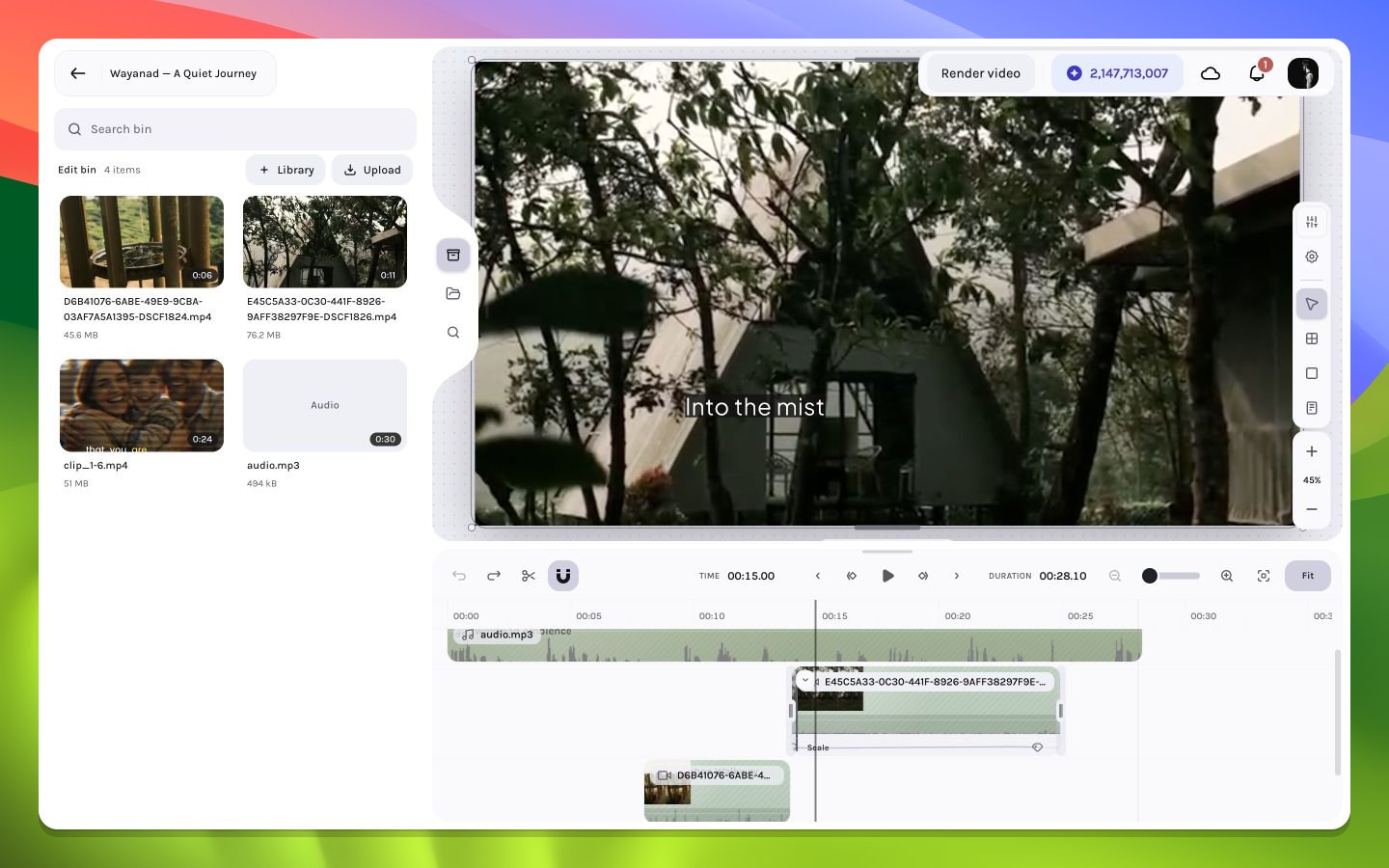
The editor is designed to shift between media-heavy, canvas-heavy, timing-heavy, and property-heavy work without changing pages. Use the rails to choose content, resize panel boundaries, collapse what is not currently useful, or open Library's selection modal for a focused import.
 ## Recommended arrangements
Give the timeline more height, keep **Bin** open while choosing reusable media, and close the fixed-width inspector when it is not needed. Open the Library modal only while selecting workspace assets. Filmstrips and waveforms become easier to read, while the canvas remains large enough to judge continuity.
Collapse the left media panel, open the inspector, and enlarge the canvas. This arrangement is ideal for transforms, frames, auto layout, grid layout, effects, and shadows.
Keep the inspector open and increase timeline height so keyframe lanes have room. Use a moderate canvas zoom that keeps motion paths visible around the composition.
Keep the canvas large enough to judge line breaks, the timeline tall enough to see caption intervals, and the caption inspector open for typography and motion.
## Focus follows the edit
Keyboard actions are interpreted in context. When a text field or numeric input has focus, ordinary typing and arrow-key stepping belong to that field. When the canvas or timeline has focus, selection, navigation, and editing shortcuts apply to the workspace. Click the intended region before using a shortcut with destructive consequences.
## Persistent and local state
Creative state—layers, timing, layout, captions, effects, animation, and composition settings—belongs to the draft. Workspace ergonomics such as rail choice, panel width, accordion expansion, and current focus are local interface concerns. Reopening a draft can therefore restore the creative result without reconstructing every temporary panel choice.
If the canvas feels cramped, collapse the left panel before reducing canvas zoom. You retain a larger visual evaluation area without changing composition coordinates.
Explore the [left rail](/editor/workspace/left-rail), [right inspector](/editor/workspace/right-inspector), [canvas](/editor/workspace/canvas), and [playback controls](/editor/workspace/playback-controls).
## Recommended arrangements
Give the timeline more height, keep **Bin** open while choosing reusable media, and close the fixed-width inspector when it is not needed. Open the Library modal only while selecting workspace assets. Filmstrips and waveforms become easier to read, while the canvas remains large enough to judge continuity.
Collapse the left media panel, open the inspector, and enlarge the canvas. This arrangement is ideal for transforms, frames, auto layout, grid layout, effects, and shadows.
Keep the inspector open and increase timeline height so keyframe lanes have room. Use a moderate canvas zoom that keeps motion paths visible around the composition.
Keep the canvas large enough to judge line breaks, the timeline tall enough to see caption intervals, and the caption inspector open for typography and motion.
## Focus follows the edit
Keyboard actions are interpreted in context. When a text field or numeric input has focus, ordinary typing and arrow-key stepping belong to that field. When the canvas or timeline has focus, selection, navigation, and editing shortcuts apply to the workspace. Click the intended region before using a shortcut with destructive consequences.
## Persistent and local state
Creative state—layers, timing, layout, captions, effects, animation, and composition settings—belongs to the draft. Workspace ergonomics such as rail choice, panel width, accordion expansion, and current focus are local interface concerns. Reopening a draft can therefore restore the creative result without reconstructing every temporary panel choice.
If the canvas feels cramped, collapse the left panel before reducing canvas zoom. You retain a larger visual evaluation area without changing composition coordinates.
Explore the [left rail](/editor/workspace/left-rail), [right inspector](/editor/workspace/right-inspector), [canvas](/editor/workspace/canvas), and [playback controls](/editor/workspace/playback-controls).