> ## Documentation Index
> Fetch the complete documentation index at: https://docs.tessact.ai/llms.txt
> Use this file to discover all available pages before exploring further.
# Preferences
> Customize your Tessact account with profile, appearance, notification, shortcut, and time settings.
## Overview
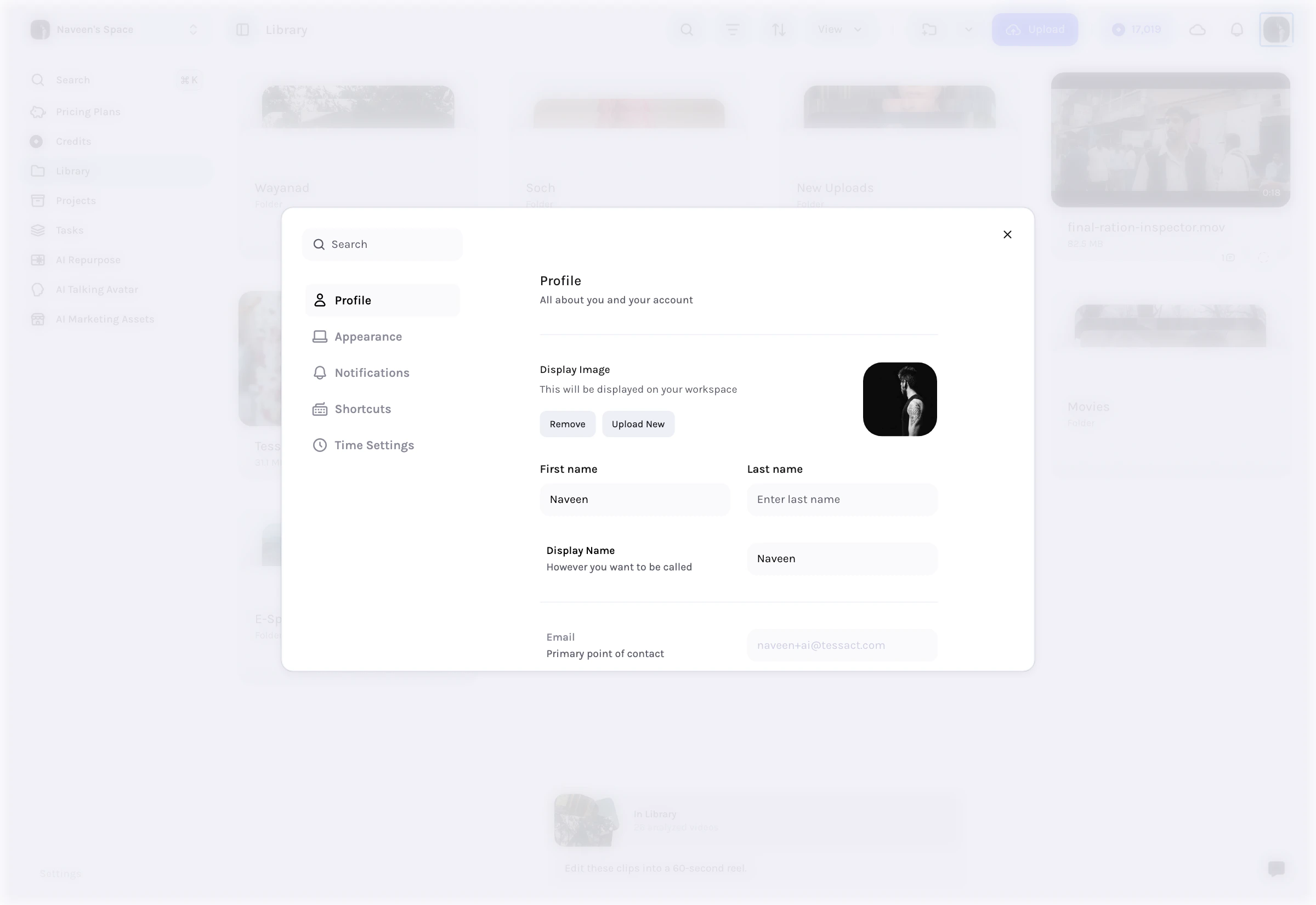
Preferences are Tessact's personal settings. They affect your own profile, interface defaults, notifications, and time formatting without changing the workspace for everyone else.
Open preferences from your avatar menu in the top-right area of the app. Tessact opens them in a modal so you can make changes without losing context.
 ***
## Open Preferences
You can open preferences in two common ways:
1. Click your **avatar** in the top-right corner.
2. Choose **Preferences** from the account menu.
Tessact also surfaces a shortcut for opening the modal directly from the user menu.
***
## Preference Tabs
The exact tabs depend on your plan, but Tessact organizes preferences into a small set of personal areas:
| Tab | What it controls |
| ----------------- | ------------------------------------------------------------------------------ |
| **Profile** | Your name, display image, contact details, timezone, and password reset access |
| **Appearance** | Theme, name display mode, and help bubble behavior |
| **Notifications** | In-app, browser, and email notification behavior |
| **Shortcuts** | Keyboard shortcut reference for navigating faster |
| **Time Settings** | Timezone, date format, month format, and time format |
In the current frontend, **Notifications** and **Shortcuts** are gated to Enterprise workspaces, while **Profile**, **Appearance**, and **Time Settings** are broadly available.
***
## Profile
The **Profile** tab handles identity and account information for the current user.
Here you can:
* Upload or remove your **display image**
* Edit **first name**, **last name**, and **display name**
* Review your **email**
* Add or change your **phone number**
* Set your **timezone**
* Trigger a **password reset**
Profile changes are personal. They affect how you appear inside comments, assignments, and other collaborative surfaces.
***
## Appearance
The **Appearance** tab controls how Tessact looks for you.
It includes:
* **Theme** selection: light, dark, or system
* **Name display** preference: display name or full name
* **Help bubble** toggle for quick success/support contact
These settings are especially useful in shared workspaces where users want a consistent personal UI without changing team-wide configuration.
***
## Notifications
When available, the **Notifications** tab controls where Tessact can reach you.
It includes controls for:
* **In-app notifications**
* **Browser or desktop notifications**
* **Email notifications**
* Module-level notification preferences for different kinds of product activity
This is personal delivery behavior, not workspace automation.
***
## Shortcuts
The **Shortcuts** tab is a reference surface rather than a configuration-heavy page.
It groups important commands such as:
* Sidebar toggles
* Navigation shortcuts
* Workspace switching
* Additional command shortcuts exposed by the app
This is useful for power users who rely on the command/search layer throughout Tessact.
***
## Time Settings
The **Time Settings** tab controls how dates and times appear to you across the product.
***
## Open Preferences
You can open preferences in two common ways:
1. Click your **avatar** in the top-right corner.
2. Choose **Preferences** from the account menu.
Tessact also surfaces a shortcut for opening the modal directly from the user menu.
***
## Preference Tabs
The exact tabs depend on your plan, but Tessact organizes preferences into a small set of personal areas:
| Tab | What it controls |
| ----------------- | ------------------------------------------------------------------------------ |
| **Profile** | Your name, display image, contact details, timezone, and password reset access |
| **Appearance** | Theme, name display mode, and help bubble behavior |
| **Notifications** | In-app, browser, and email notification behavior |
| **Shortcuts** | Keyboard shortcut reference for navigating faster |
| **Time Settings** | Timezone, date format, month format, and time format |
In the current frontend, **Notifications** and **Shortcuts** are gated to Enterprise workspaces, while **Profile**, **Appearance**, and **Time Settings** are broadly available.
***
## Profile
The **Profile** tab handles identity and account information for the current user.
Here you can:
* Upload or remove your **display image**
* Edit **first name**, **last name**, and **display name**
* Review your **email**
* Add or change your **phone number**
* Set your **timezone**
* Trigger a **password reset**
Profile changes are personal. They affect how you appear inside comments, assignments, and other collaborative surfaces.
***
## Appearance
The **Appearance** tab controls how Tessact looks for you.
It includes:
* **Theme** selection: light, dark, or system
* **Name display** preference: display name or full name
* **Help bubble** toggle for quick success/support contact
These settings are especially useful in shared workspaces where users want a consistent personal UI without changing team-wide configuration.
***
## Notifications
When available, the **Notifications** tab controls where Tessact can reach you.
It includes controls for:
* **In-app notifications**
* **Browser or desktop notifications**
* **Email notifications**
* Module-level notification preferences for different kinds of product activity
This is personal delivery behavior, not workspace automation.
***
## Shortcuts
The **Shortcuts** tab is a reference surface rather than a configuration-heavy page.
It groups important commands such as:
* Sidebar toggles
* Navigation shortcuts
* Workspace switching
* Additional command shortcuts exposed by the app
This is useful for power users who rely on the command/search layer throughout Tessact.
***
## Time Settings
The **Time Settings** tab controls how dates and times appear to you across the product.
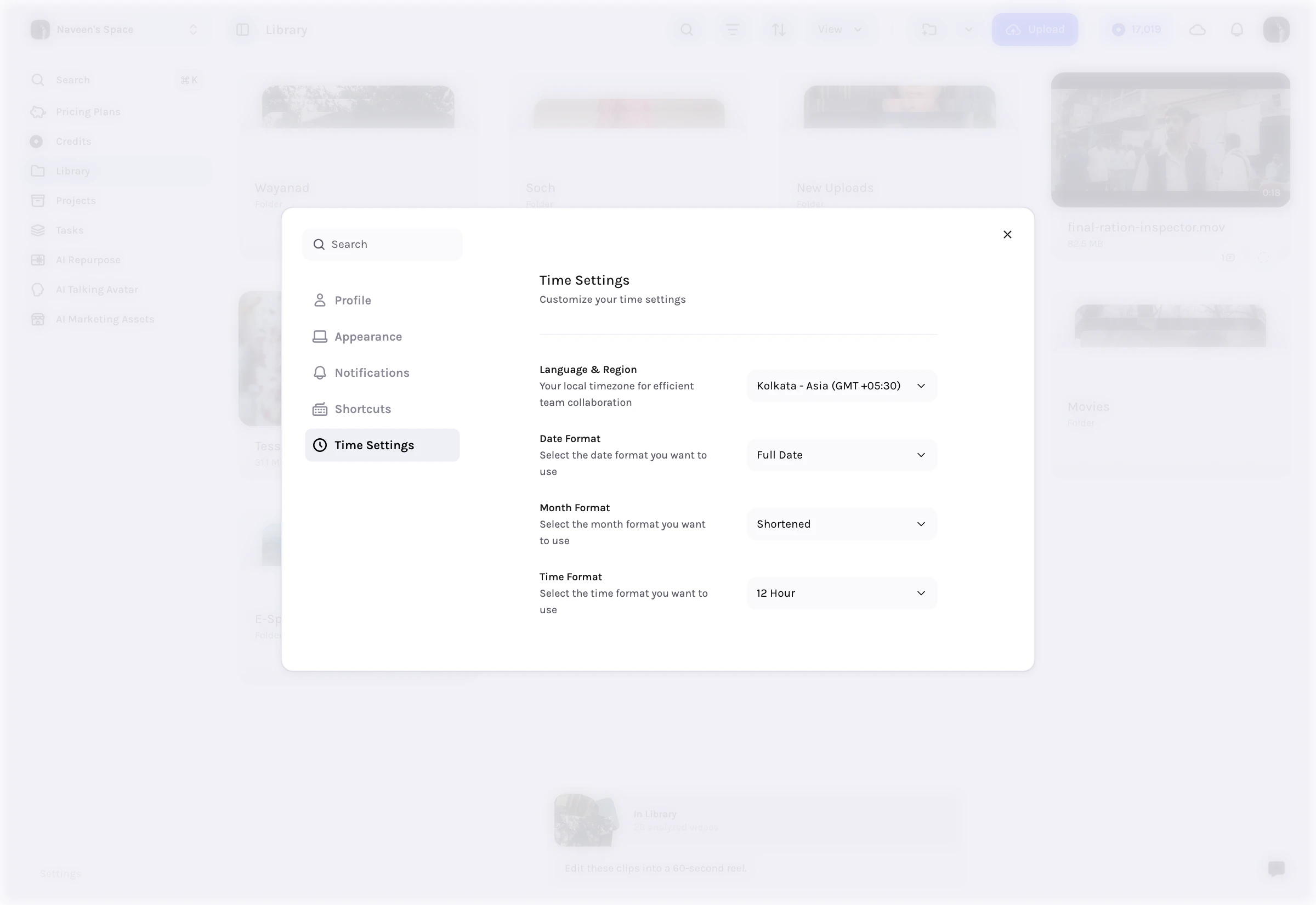 Available controls include:
* **Language & Region** timezone
* **Date format**
* **Month format**
* **Time format**
This matters in collaborative environments because you can keep your own local formatting while still working with global teams.
***
## Preferences Vs Workspace Settings
Use **Preferences** when the change should only affect you.
Use **Workspace Settings** when the change should affect the whole workspace.
Examples:
* Change your avatar: **Preferences**
* Rename the workspace: **Workspace Settings**
* Switch your theme: **Preferences**
* Turn on file statuses for the whole Library: **Workspace Settings**
***
## Next steps
See the shared configuration controls that affect everyone in a workspace.
Available controls include:
* **Language & Region** timezone
* **Date format**
* **Month format**
* **Time format**
This matters in collaborative environments because you can keep your own local formatting while still working with global teams.
***
## Preferences Vs Workspace Settings
Use **Preferences** when the change should only affect you.
Use **Workspace Settings** when the change should affect the whole workspace.
Examples:
* Change your avatar: **Preferences**
* Rename the workspace: **Workspace Settings**
* Switch your theme: **Preferences**
* Turn on file statuses for the whole Library: **Workspace Settings**
***
## Next steps
See the shared configuration controls that affect everyone in a workspace.