> ## Documentation Index
> Fetch the complete documentation index at: https://docs.tessact.ai/llms.txt
> Use this file to discover all available pages before exploring further.
# Zapier Integration
> Trigger downstream automation in Zapier whenever Tessact events fire through outbound webhooks.
Connect Tessact to **Zapier** so your Library activity can launch automations across more than 6,000 apps. The 13 October 2025 release introduced outbound webhooks, letting you push structured payloads into Zapier every time Tessact detects a key event in your workspace.
Zapier uses Tessact's **Trigger webhook** action. Once you save an action in **Settings → Actions**, any matching event sends a POST request to the Zap webhook URL you supply.
***
## Why connect Tessact to Zapier?
* **Close the loop on asset reviews** — Notify the right reviewers in Slack or Teams as soon as status changes land in Tessact.
* **Sync metadata everywhere** — Update spreadsheets, Airtable bases, or project trackers with the latest asset details without manual exports.
* **Kick off downstream automation** — Launch editing jobs, send invoices, or open support tickets the moment AI analysis completes.
* **Stay real-time** — Events post to Zapier immediately, keeping your operational systems in sync with Tessact.
***
## Prerequisites
* Tessact workspace access with permission to manage **Settings → Actions**
* Zapier account with access to **Webhooks by Zapier** (available on all paid plans)
* A target Zap that will receive Tessact events
Decide which Tessact folders and asset events should trigger automation ahead of time. This keeps your Zaps purposeful and avoids noise.
***
## Create the Tessact webhook action
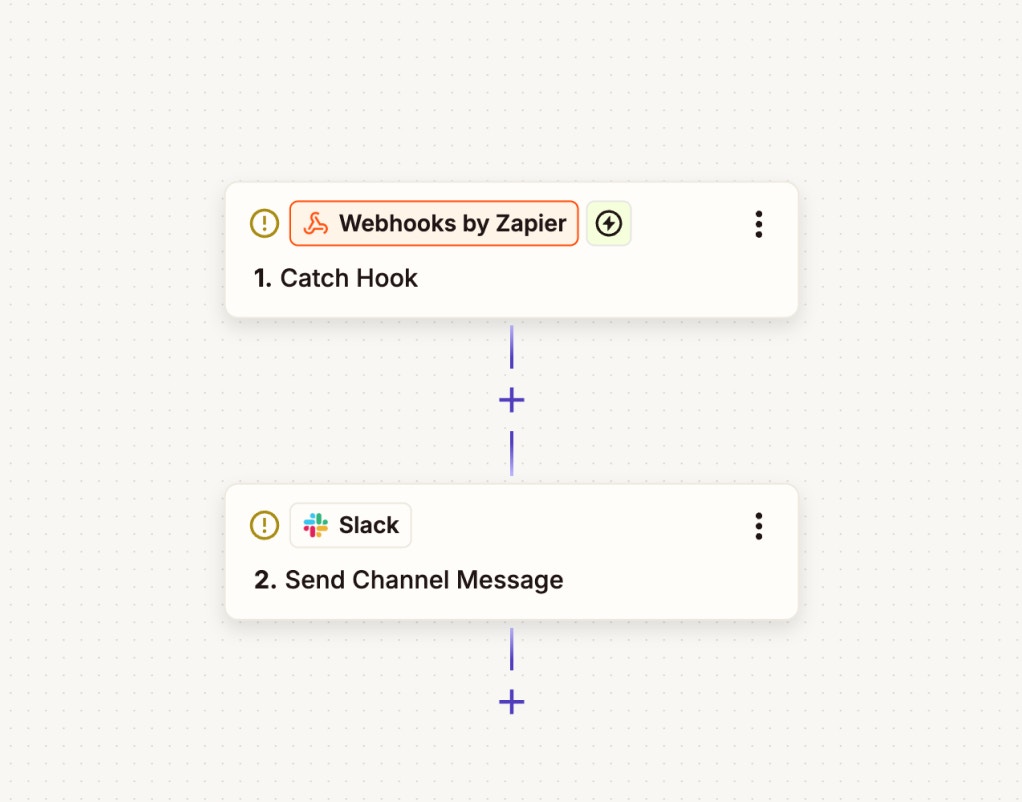
In Zapier, create a new Zap and choose **Webhooks by Zapier → Catch Hook** as the trigger. Copy the unique webhook URL that Zapier provides.
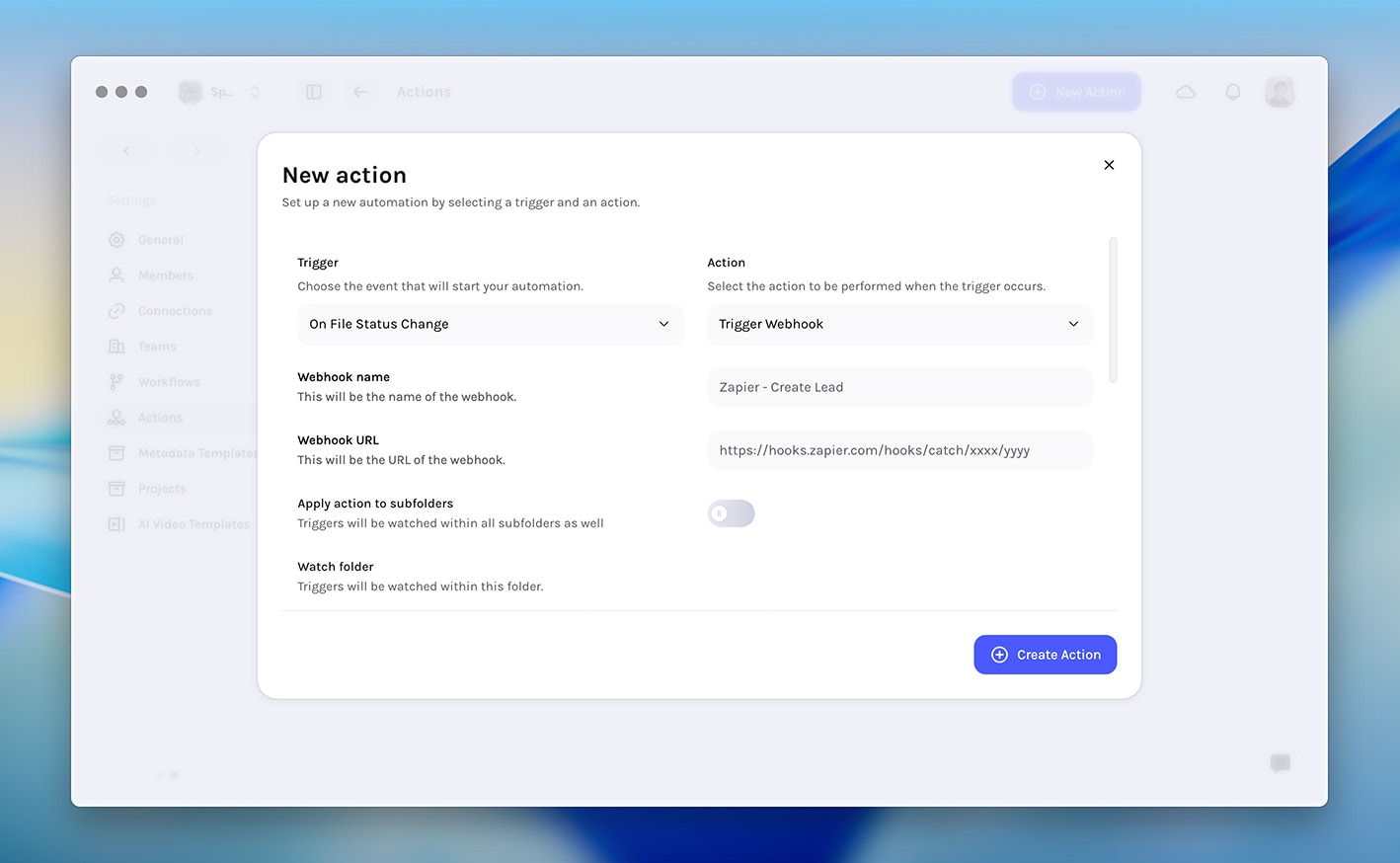
 Navigate to **Settings → Actions** and select **Create New Action** to add an automation.
Pick the Tessact event you want to monitor—for example **File status change** or **File uploaded to folder**.
Set **Action type** to **Trigger webhook**, give the action a name, paste the Zapier webhook URL, choose an optional watch folder scope, and define the JSON payload you want Tessact to send. Save the action to activate it.
Navigate to **Settings → Actions** and select **Create New Action** to add an automation.
Pick the Tessact event you want to monitor—for example **File status change** or **File uploaded to folder**.
Set **Action type** to **Trigger webhook**, give the action a name, paste the Zapier webhook URL, choose an optional watch folder scope, and define the JSON payload you want Tessact to send. Save the action to activate it.
 Only assets or folders affected *after* the webhook action is created will emit events. Historical actions are not replayed.
***
## Supported Tessact triggers
The 13 October release ships with the following event triggers. Configure separate actions if you want distinct payloads or Zap behavior per trigger.
* Comment added to file (includes comment text, user email, video URL)
* File status change
* File uploaded to folder
* File viewed
* File downloaded
* File analyzing started
* File analyzing complete
Additional triggers and complementary actions are on the roadmap. Keep an eye on future release notes for updates.
***
## Designing the payload
Your payload template can contain static values, Tessact variables, or structured JSON. Zapier automatically parses JSON bodies, so you can use nested structures for richer context.
```json payload-template.json theme={null}
{
"event": "{{trigger.name}}",
"assetId": "{{asset.id}}",
"assetName": "{{asset.name}}",
"folder": "{{folder.path}}",
"performedBy": "{{user.email}}",
"timestamp": "{{event.timestamp}}",
"metadataUrl": "{{asset.urls.metadata}}",
"notes": "Sent from Tessact"
}
```
Use Tessact's **Test webhook** button after saving the action. Zapier will capture the sample request so you can map each field to downstream steps.
***
## Build the Zapier workflow
In Zapier, click **Test Trigger** on your Catch Hook step. Perform the corresponding action in Tessact (for example upload a file). Zapier should instantly show the payload.
Add the downstream app step (e.g., Slack, Gmail, Airtable) and map each field from the Tessact payload to the inputs you want to automate.
Insert Zapier **Filters** or **Paths** to branch on status values, specific folders, or user emails before running the action.
Turn the Zap on. Tessact will now POST to Zapier whenever the trigger condition is met.
***
## Example use cases
* **Editorial QA** — When an editor comments on a video, create a corresponding task in Asana with the clip URL attached.
* **Delivery tracking** — After AI analysis completes, send a summary email with download links to the distribution team.
* **Rights management** — On file downloads, log the activity in Airtable and notify legal for high-value titles.
* **Localization workflow** — Fire a webhook when status changes to "Ready for Dubbing", triggering a Zap that creates jobs in a translation platform.
***
## Troubleshooting tips
* **No payload in Zapier:** Ensure the action is enabled and the Tessact event actually happened after it was saved. Use the test button to emit sample data.
* **Unexpected payload fields:** Review your JSON template—invalid syntax causes Tessact to send a plain string instead of JSON. Validate with an online linter first.
* **Multiple notifications:** Use Zapier filters or split actions per folder if the trigger is too broad.
* **Permission errors:** Confirm your Tessact role can access the chosen watch folder and perform the action you are testing.
Once the Zap is live, Tessact and Zapier stay in sync automatically—no additional maintenance required unless you change the webhook URL or payload schema.
Only assets or folders affected *after* the webhook action is created will emit events. Historical actions are not replayed.
***
## Supported Tessact triggers
The 13 October release ships with the following event triggers. Configure separate actions if you want distinct payloads or Zap behavior per trigger.
* Comment added to file (includes comment text, user email, video URL)
* File status change
* File uploaded to folder
* File viewed
* File downloaded
* File analyzing started
* File analyzing complete
Additional triggers and complementary actions are on the roadmap. Keep an eye on future release notes for updates.
***
## Designing the payload
Your payload template can contain static values, Tessact variables, or structured JSON. Zapier automatically parses JSON bodies, so you can use nested structures for richer context.
```json payload-template.json theme={null}
{
"event": "{{trigger.name}}",
"assetId": "{{asset.id}}",
"assetName": "{{asset.name}}",
"folder": "{{folder.path}}",
"performedBy": "{{user.email}}",
"timestamp": "{{event.timestamp}}",
"metadataUrl": "{{asset.urls.metadata}}",
"notes": "Sent from Tessact"
}
```
Use Tessact's **Test webhook** button after saving the action. Zapier will capture the sample request so you can map each field to downstream steps.
***
## Build the Zapier workflow
In Zapier, click **Test Trigger** on your Catch Hook step. Perform the corresponding action in Tessact (for example upload a file). Zapier should instantly show the payload.
Add the downstream app step (e.g., Slack, Gmail, Airtable) and map each field from the Tessact payload to the inputs you want to automate.
Insert Zapier **Filters** or **Paths** to branch on status values, specific folders, or user emails before running the action.
Turn the Zap on. Tessact will now POST to Zapier whenever the trigger condition is met.
***
## Example use cases
* **Editorial QA** — When an editor comments on a video, create a corresponding task in Asana with the clip URL attached.
* **Delivery tracking** — After AI analysis completes, send a summary email with download links to the distribution team.
* **Rights management** — On file downloads, log the activity in Airtable and notify legal for high-value titles.
* **Localization workflow** — Fire a webhook when status changes to "Ready for Dubbing", triggering a Zap that creates jobs in a translation platform.
***
## Troubleshooting tips
* **No payload in Zapier:** Ensure the action is enabled and the Tessact event actually happened after it was saved. Use the test button to emit sample data.
* **Unexpected payload fields:** Review your JSON template—invalid syntax causes Tessact to send a plain string instead of JSON. Validate with an online linter first.
* **Multiple notifications:** Use Zapier filters or split actions per folder if the trigger is too broad.
* **Permission errors:** Confirm your Tessact role can access the chosen watch folder and perform the action you are testing.
Once the Zap is live, Tessact and Zapier stay in sync automatically—no additional maintenance required unless you change the webhook URL or payload schema.