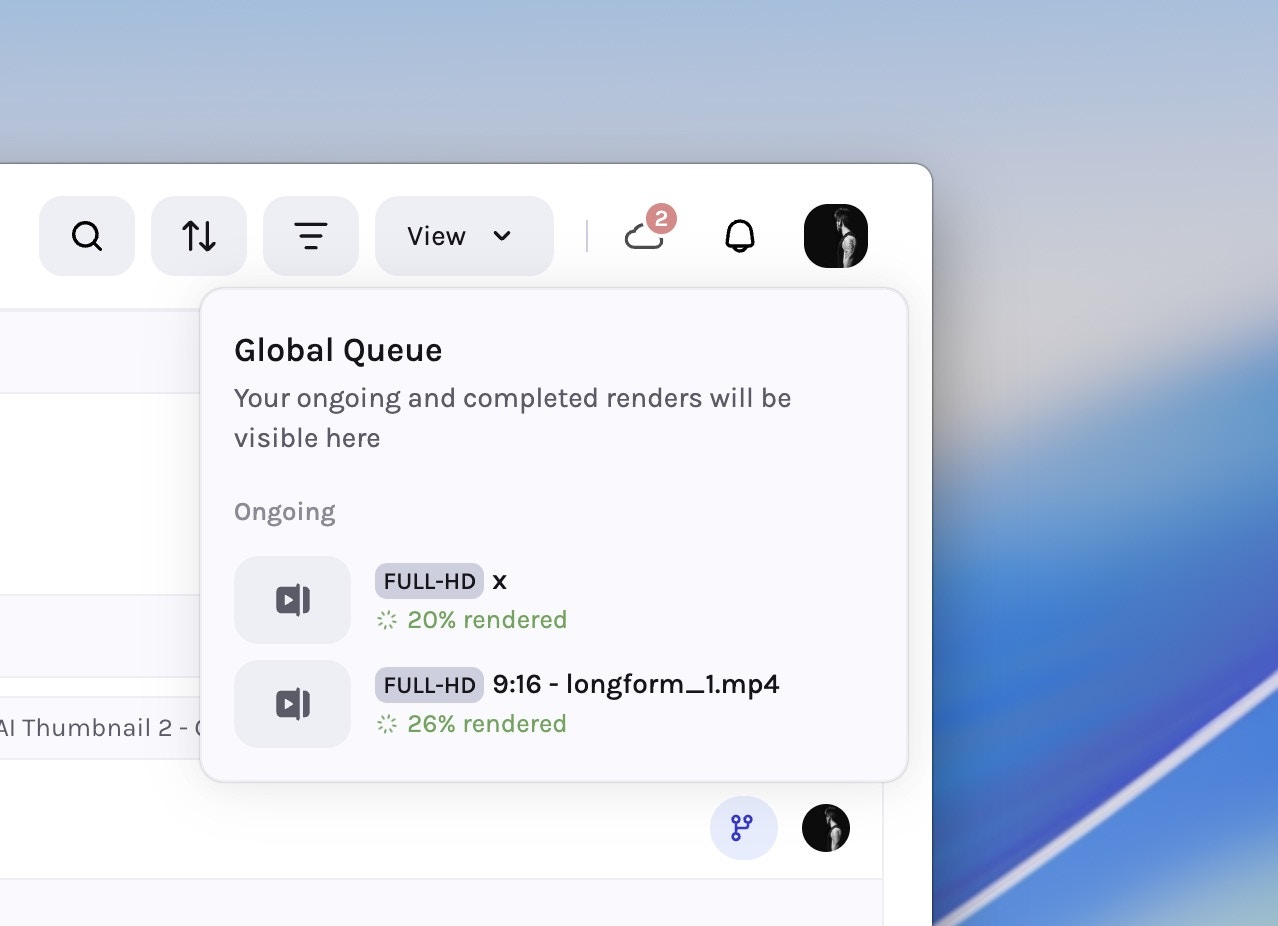
This release adds audio analysis, a global render queue, editor templates, dynamic text, automatic video scaling prompts, and a clearer workflow step experience.
Create reusable templates for intros, outros, overlays, or brand elements. Build once; apply to any draft or remix.
AI Video Templates differ from templates in other tools in that they are understood and applied intelligently by Tessact AI.
1
Go to AI Video Templates
Go to Settings → AI Video Templates and create a new template.
2
Assemble the template
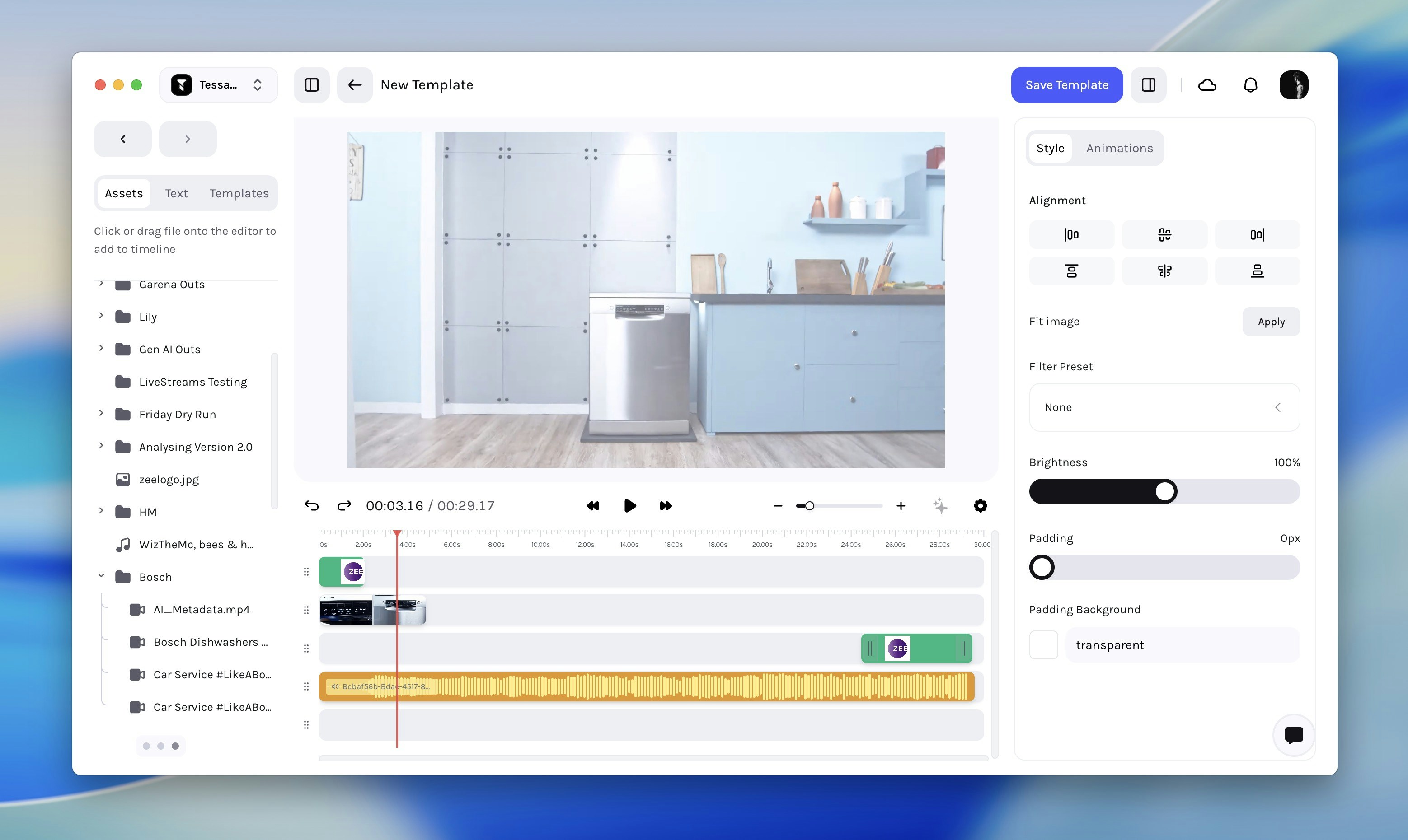
In the editor that opens, add assets from the left panel, arrange them on the timeline, and position them on the canvas. Add dynamic text where needed.
Creating an AI video template
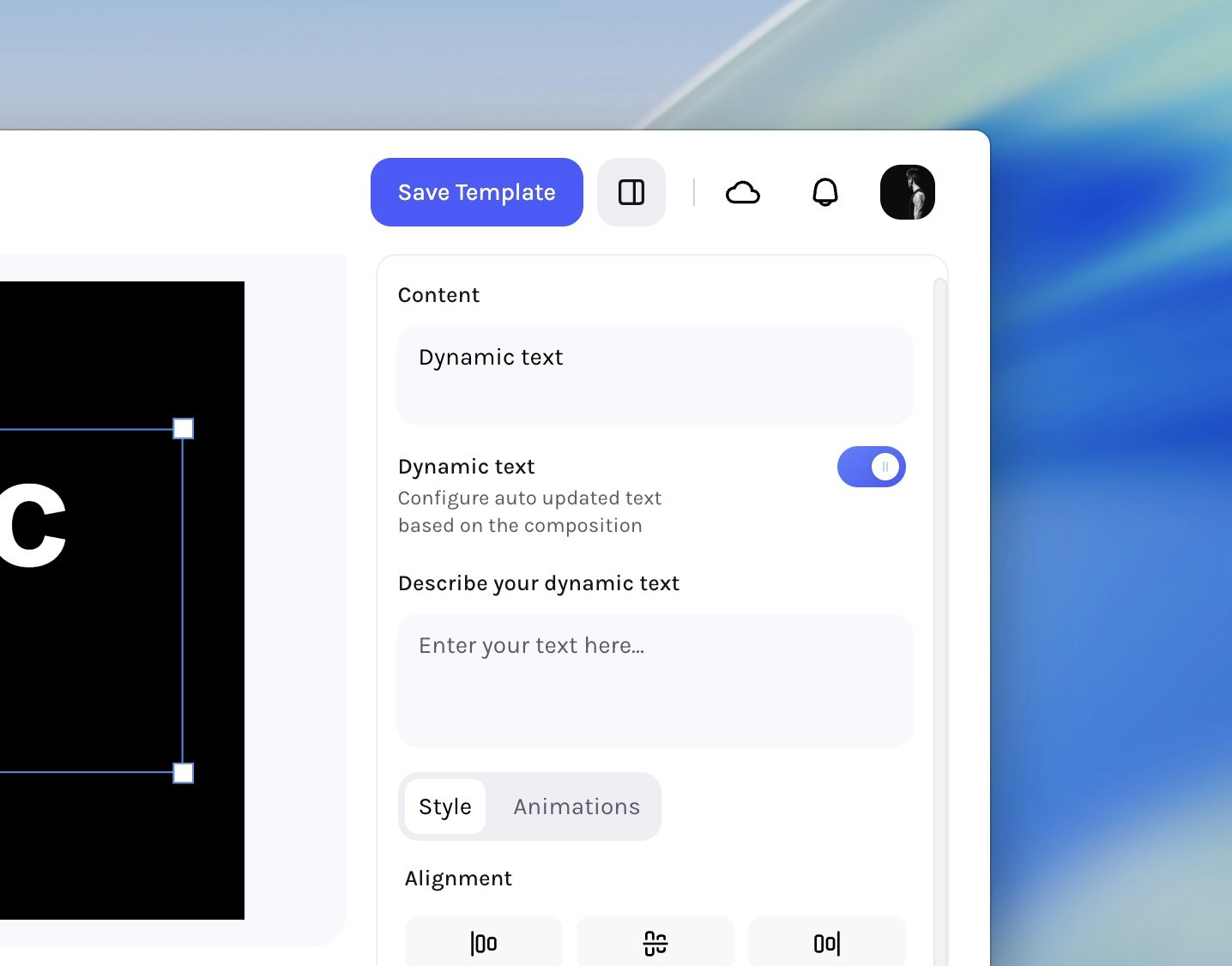
You can use smart text to automatically populate text fields based on the prompt and the content of the video that the template is applied to.
3
Save the template
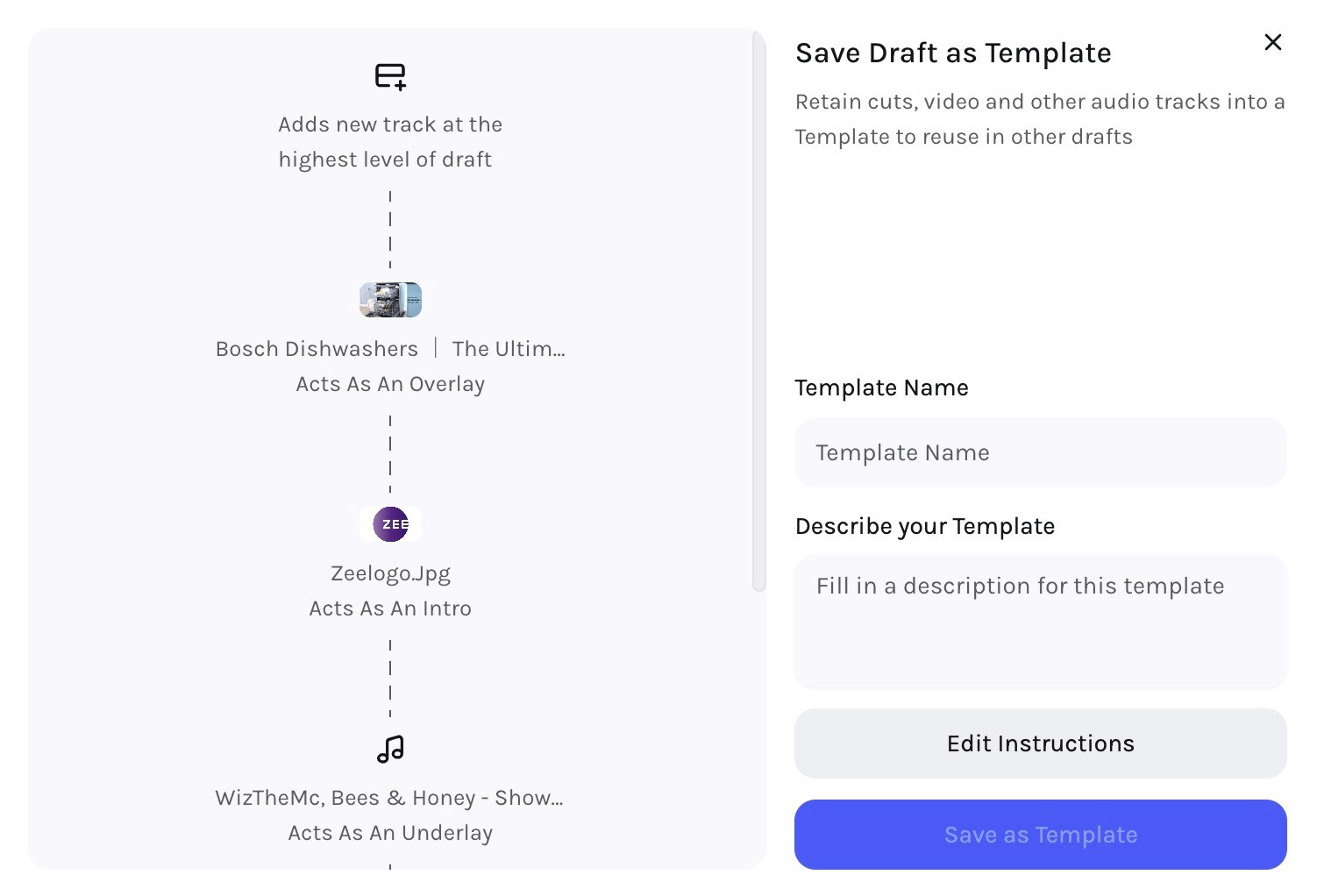
Click Save Template. In the modal, enter a name, description, and edit template instructions if needed.
Saving the template
You can edit instructions to make the template behave differently when applied using natural language.
4
Apply the template
Open any draft in the editor and select the new template in the list of AI Video Templates on the left sidebar Templates tab.
Auto‑populate text fields based on the prompt and draft content. Inside templates, dynamic text adapts to each asset for consistent, on‑brand outputs.Enable Dynamic text on any Text Layer (added by pressing T on the timeline) on the Properties panel on the right side. Once Dynamic Text is enabled, the content of that Text Layer will be automatically populated based on the prompt and draft content.
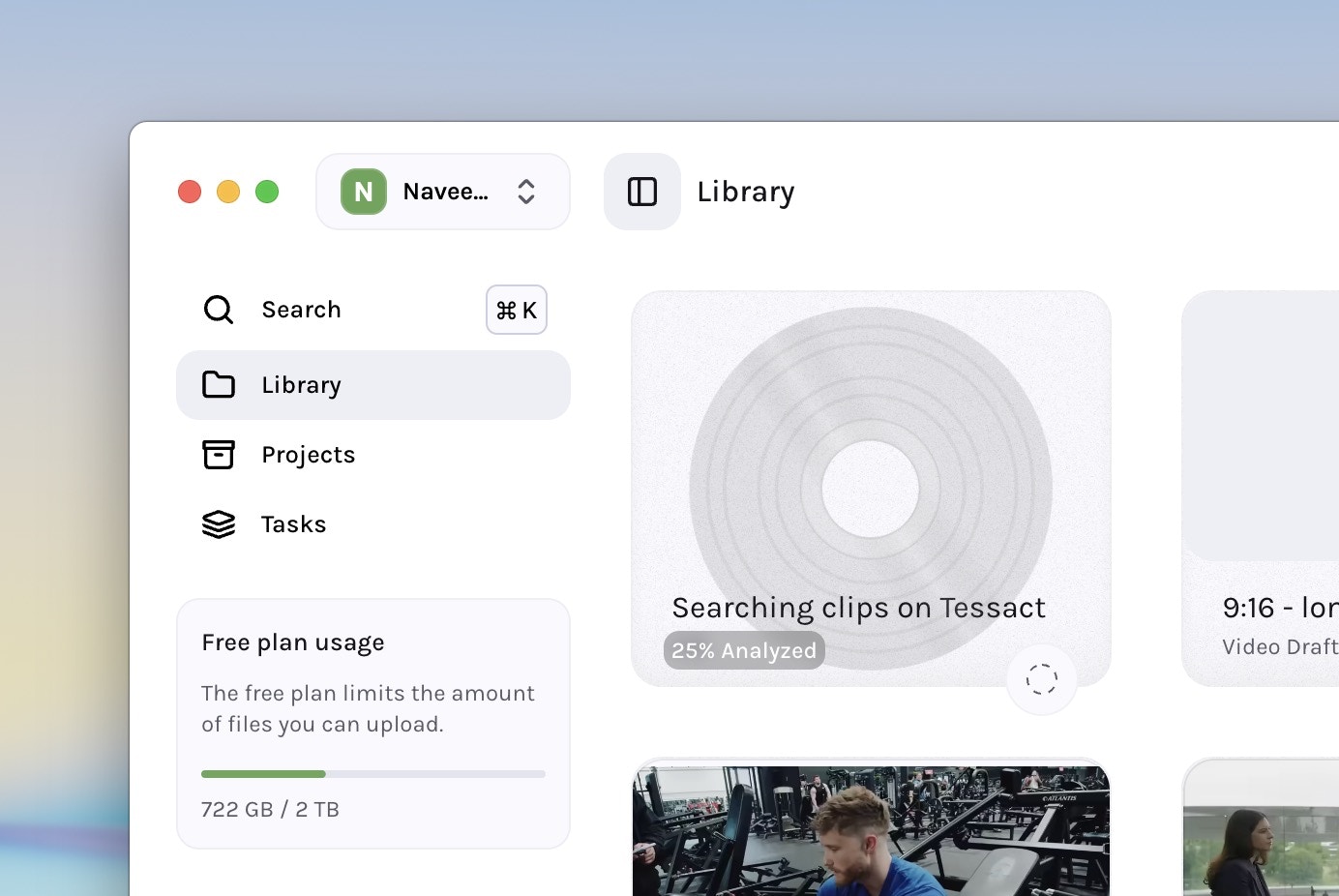
Tessact AI can now analyse audio‑only files to get contextual understanding that enables downstream use-cases like AI Metadata Autofill, and subtitle localisation.