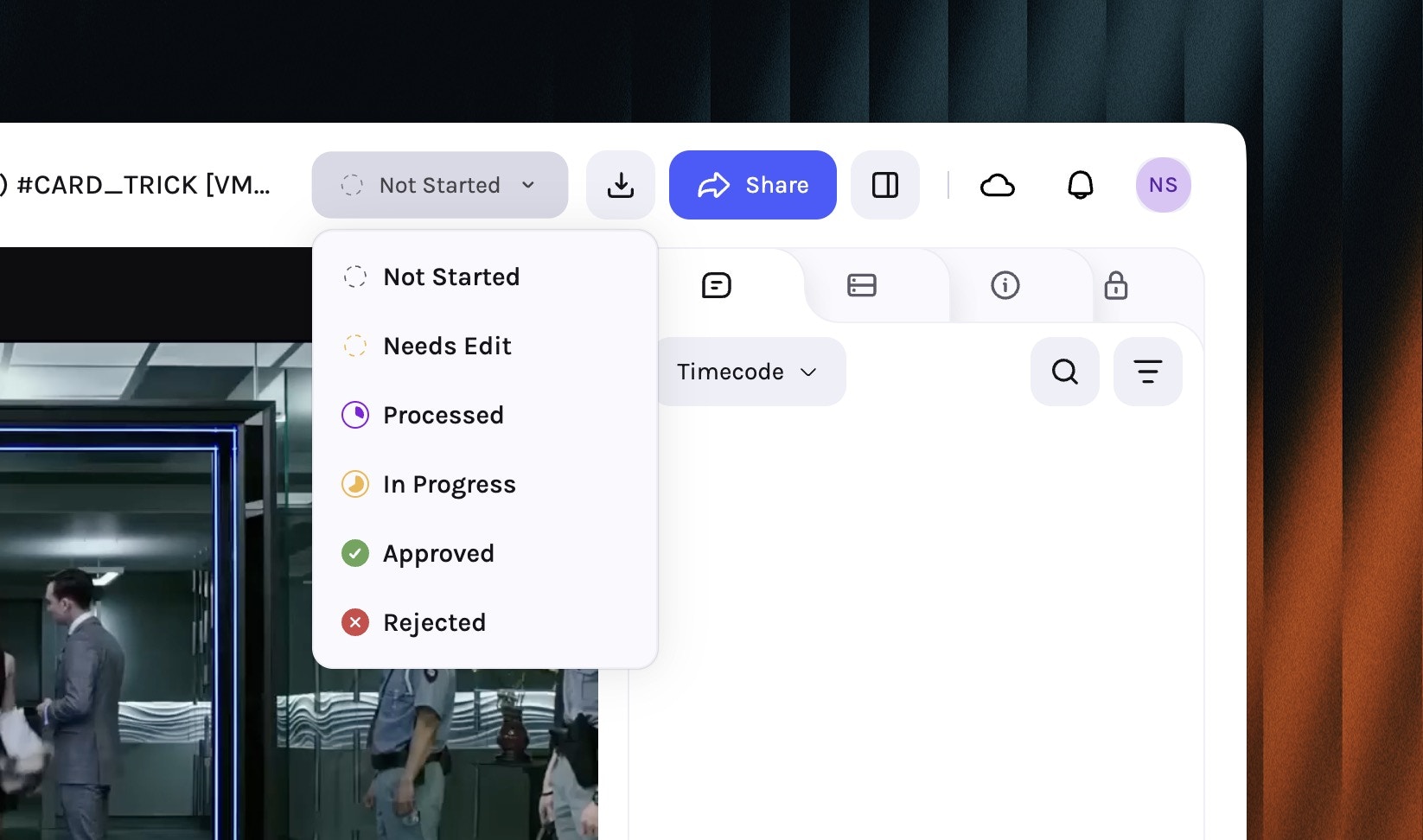
This release introduces Custom statuses in Library, allowing you to create and manage custom statuses for your assets. It also adds the ability to download transcripts for your assets, and improves the stability of the platform.
You can now create and manage custom statuses for your assets in the Library. This allows you to track the progress of your assets and to manage them more effectively.
Custom statuses in Library
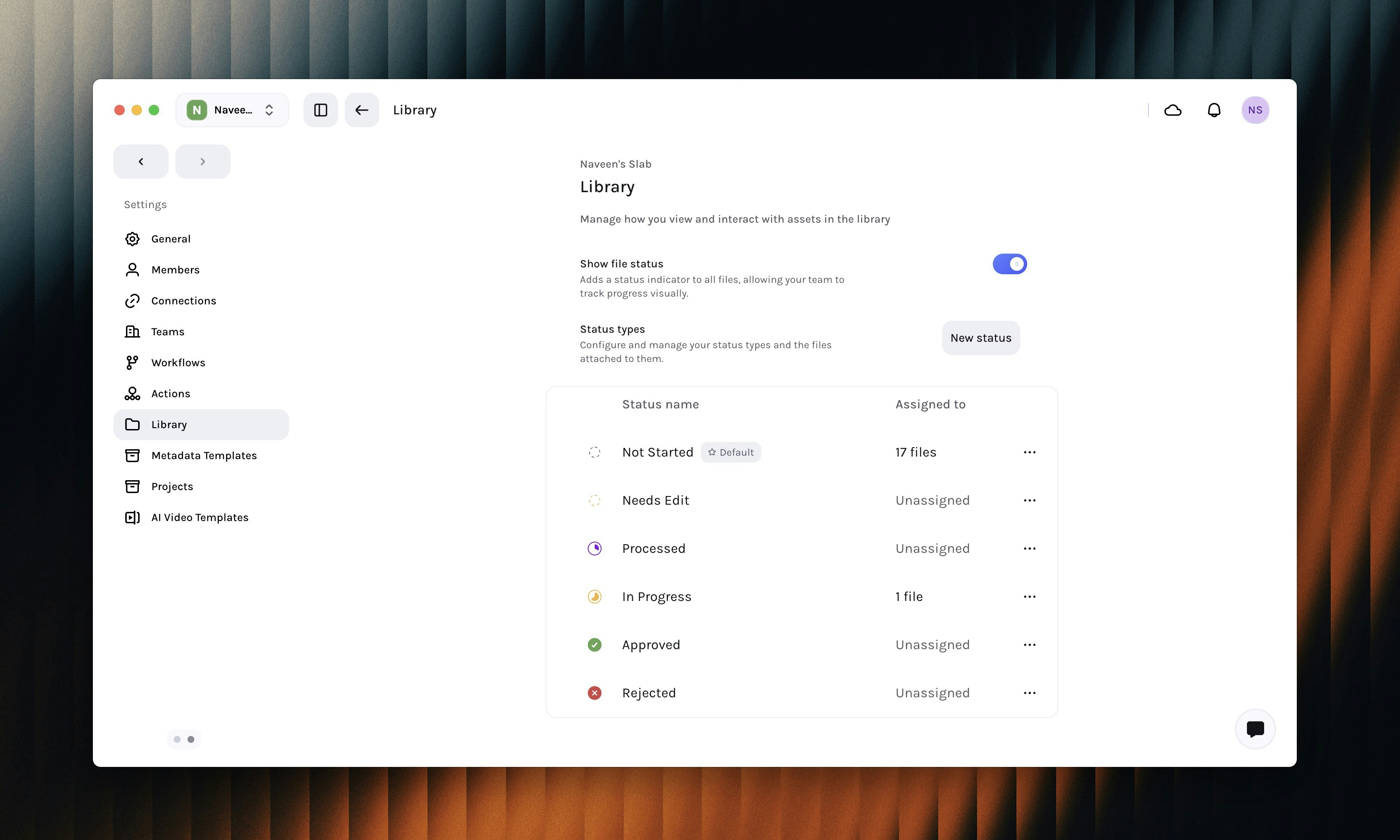
To set up custom statuses, go to Settings → Library and under Statuses you can create a new status by clicking on the New Status button.
1
Go to Settings → Library
Navigate to Settings → Library in your workspace.
Configuring custom statuses in Library
2
Create a new status
Under the Status Types section Click on the New Status button to create a new status.
3
Configure the status
Configure the status by entering a name, icon, and color.
Creating a new status
Enable Set as default to make this status the default status for new assets.
4
Save the status
Click on the Create status button to save the status.
You can also edit a status by clicking on the three-dot button next to the status. Statuses can also be re-ordered using the drag handle to the left of the status name.
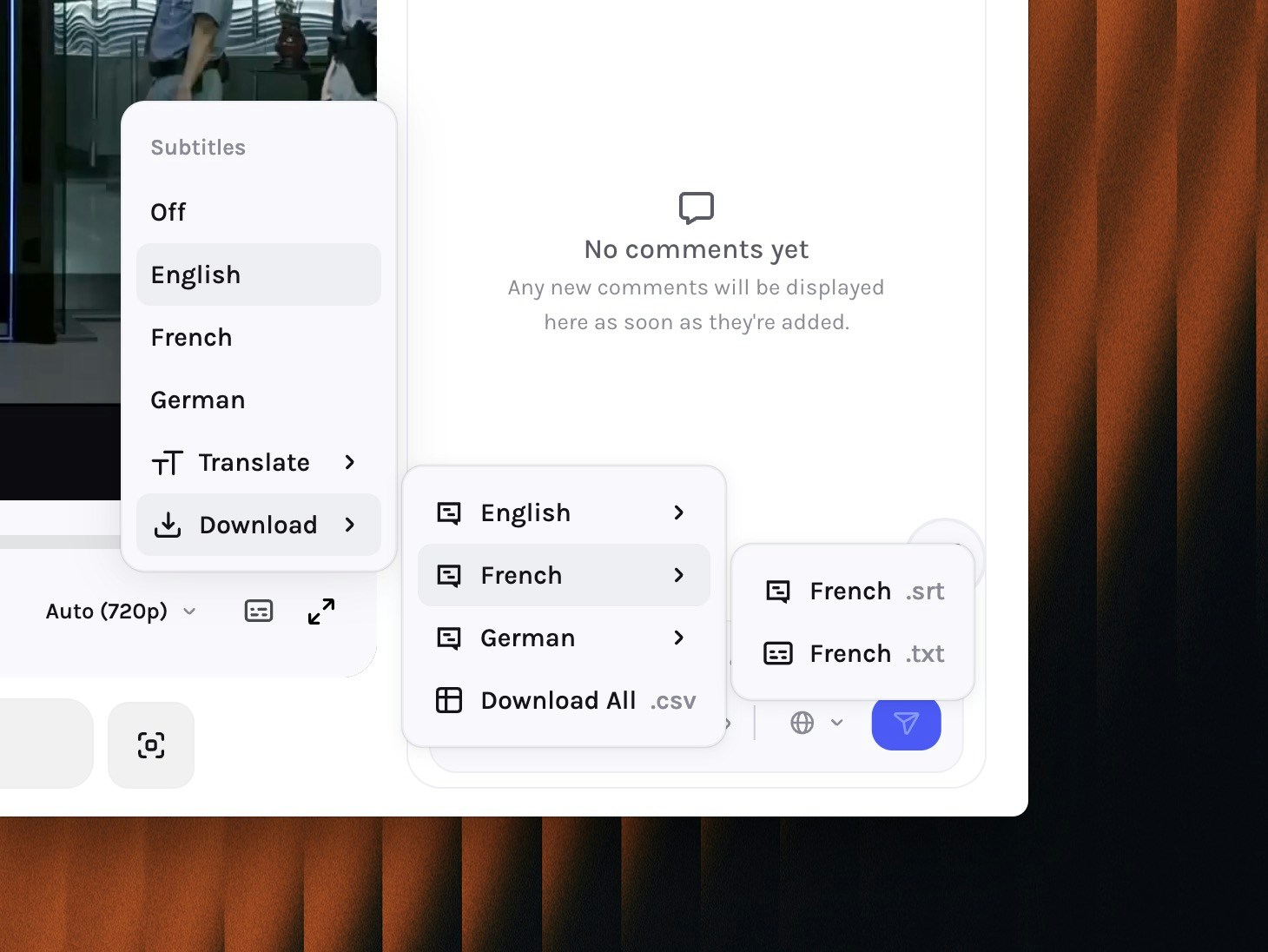
You can now download transcripts for your assets in the Library in multiple languages. This allows you to use the transcripts for your downstream use-cases.