This release improves precision editing, subtitle workflows, and permission controls. It also delivers smoother rendering and more consistent playback across devices.
Subtitles are now fully editable in the editor—no external tools or re‑uploads. Fix transcription errors, refine phrasing, or localise content directly. Updates save instantly and are embedded on render.
1
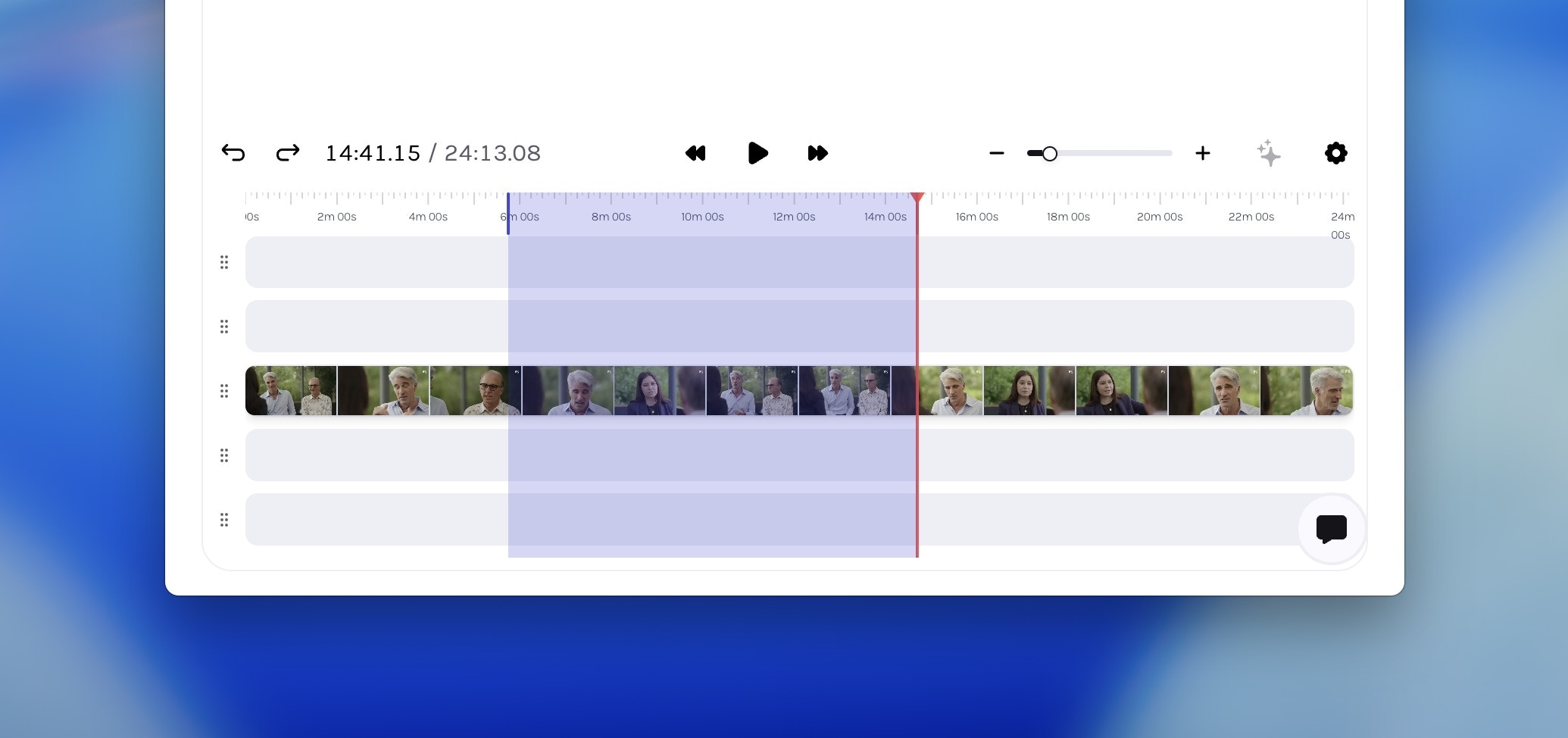
Select a clip on the timeline
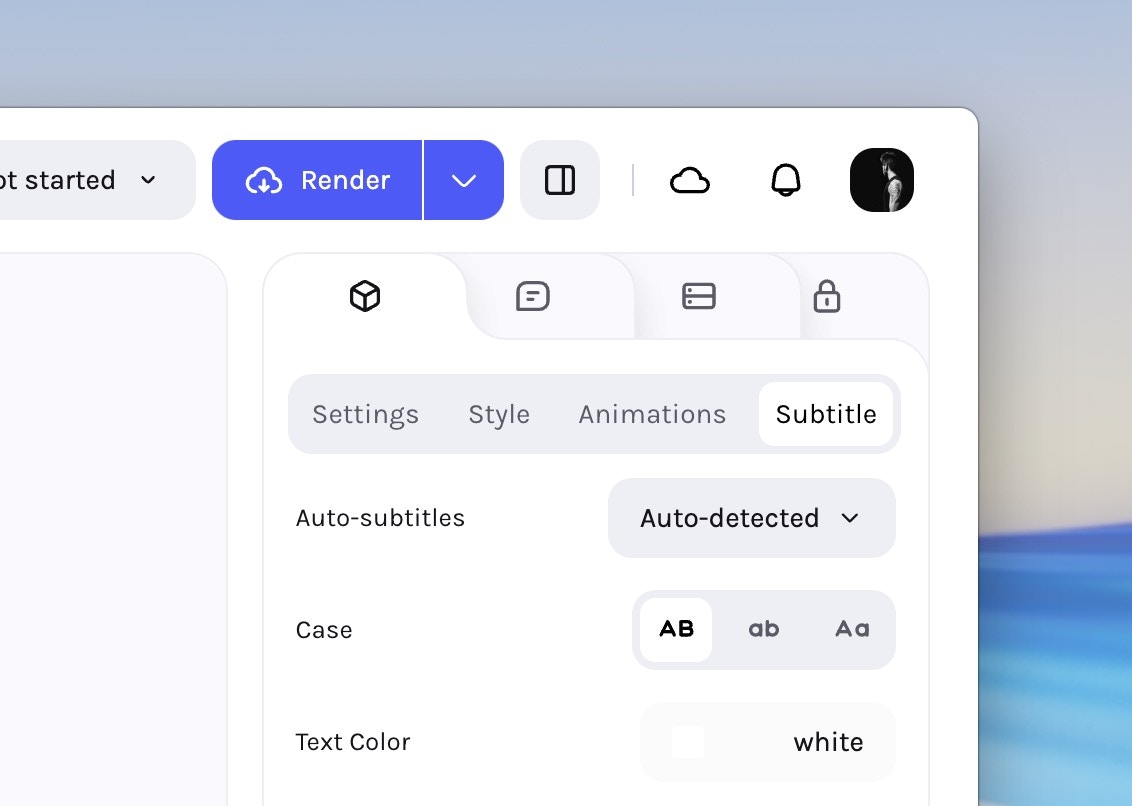
Select a clip on the timeline and open the Properties panel, go to the
Subtitles tab. Generate auto-subtitles if not already enabled.
Subtitles tab in the Properties panel
2
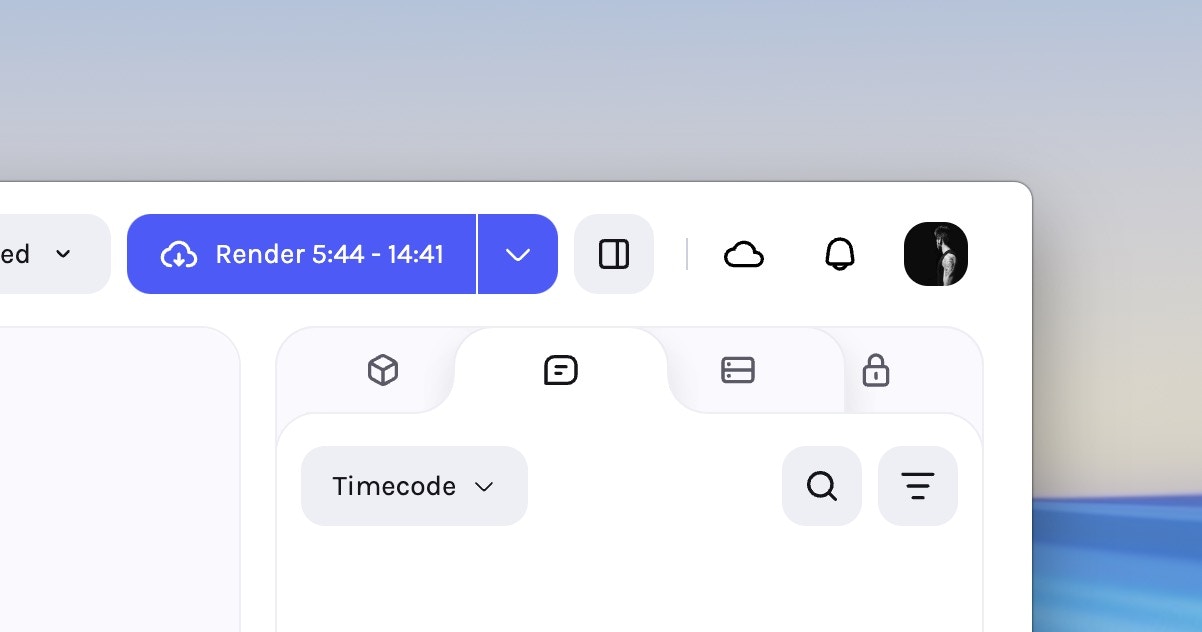
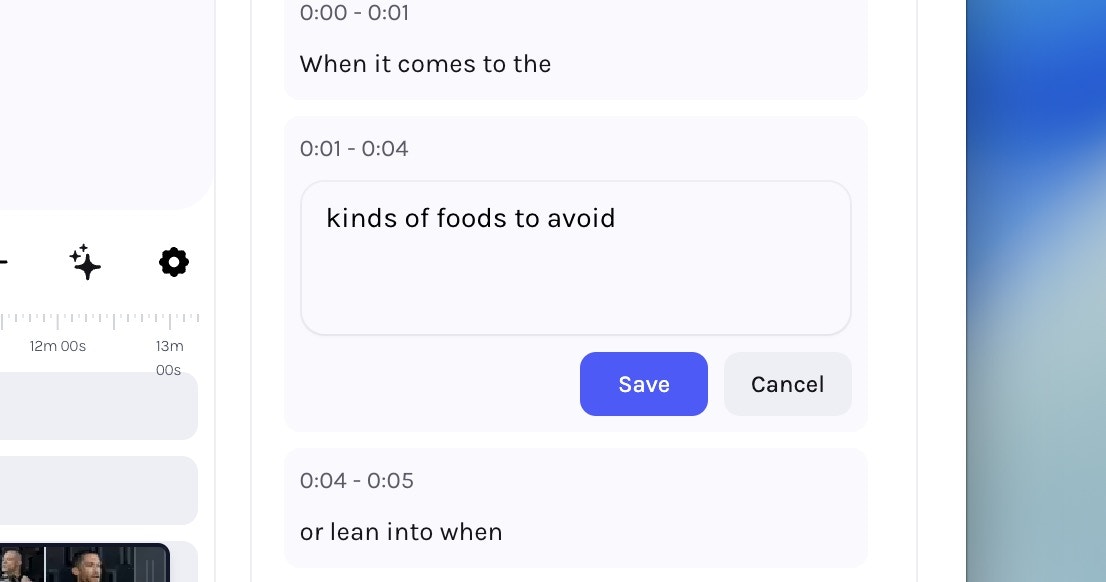
Scroll down to edit captions
Scroll down to see time-stamped captions that you can click on to edit.
Time-stamped captions in the Properties panel
3
Render with updates
Save your changes to apply updated subtitles to your draft. This will
reflect in any renders as well.
Read‑only metadata permissions — Metadata fields now respect user‑level permissions, making selected fields visible but uneditable for restricted users.
Numeric font‑size tooltips — Subtitle font sizes now display numeric values for precise adjustment.
Metadata export improvements — Template exports now include prompt columns in CSV files for clearer downstream data entry and automation.