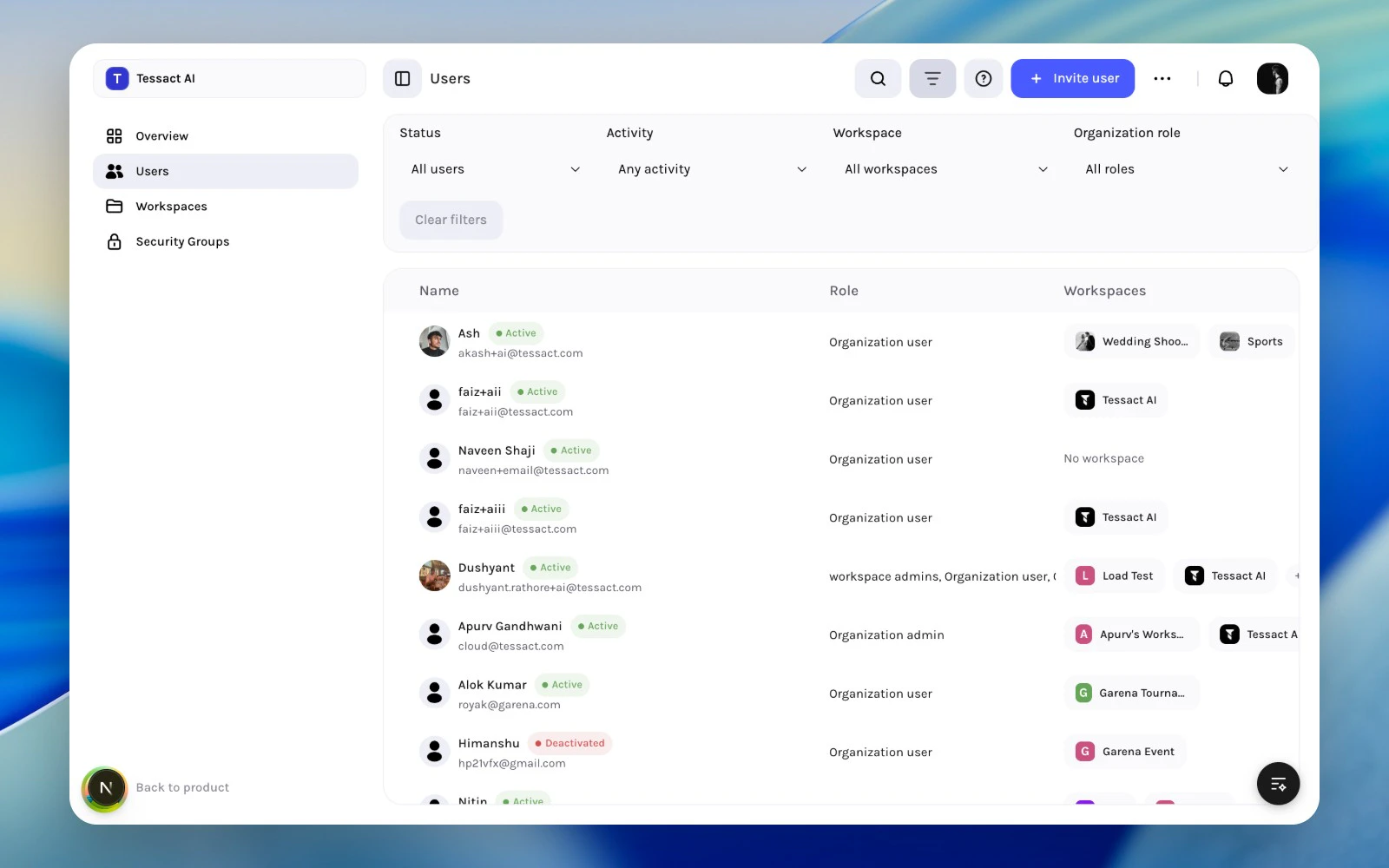
The Users directory is the main admin surface for the user lifecycle. It combines search, filters, bulk actions, row-level actions, and a user details sheet so admins can manage access without jumping between multiple settings pages.
Users directory with filters and bulk actions available
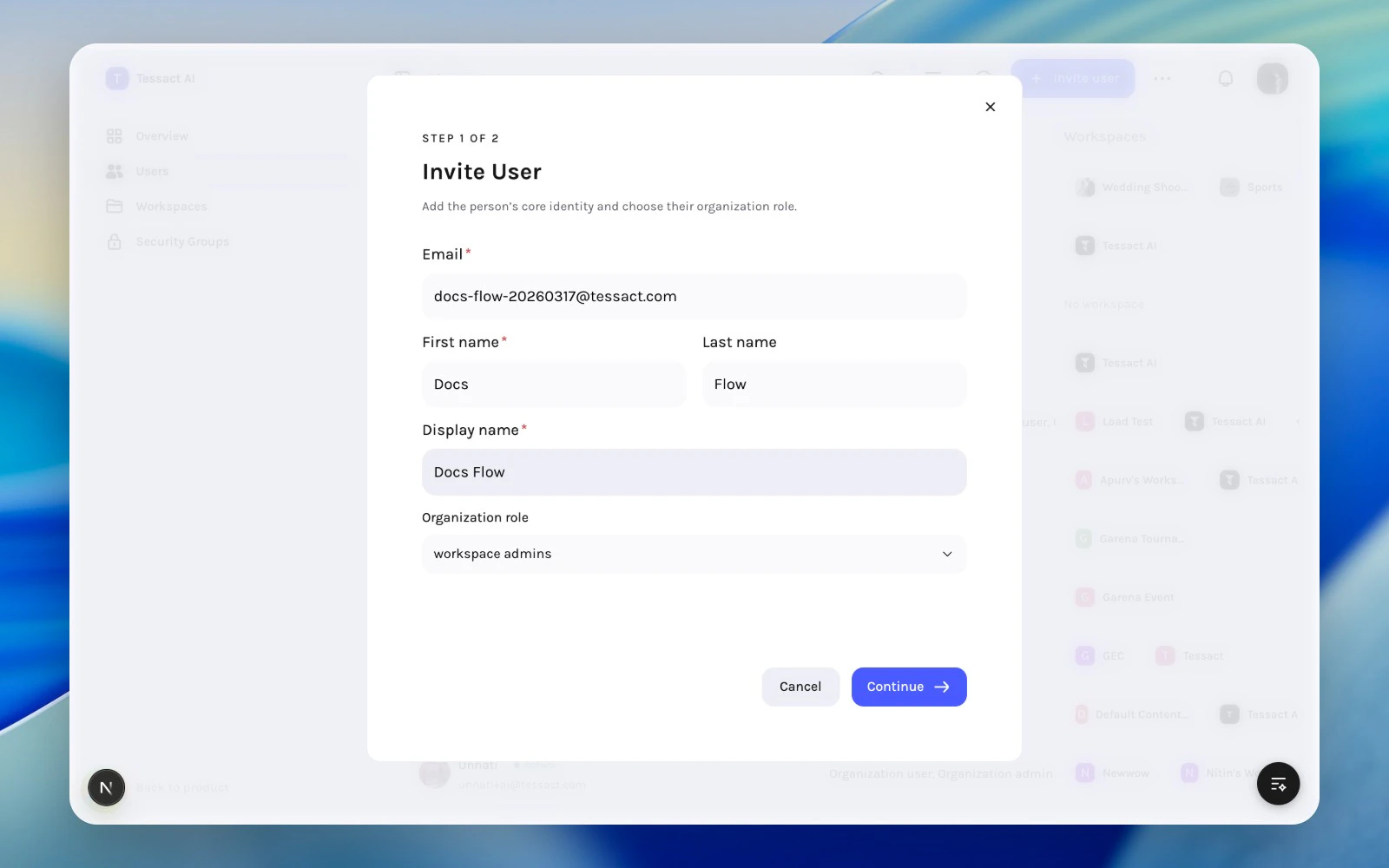
Use Invite user from the action bar to add someone to the organization.The invite flow captures:
email
first name
last name
display name
organization role
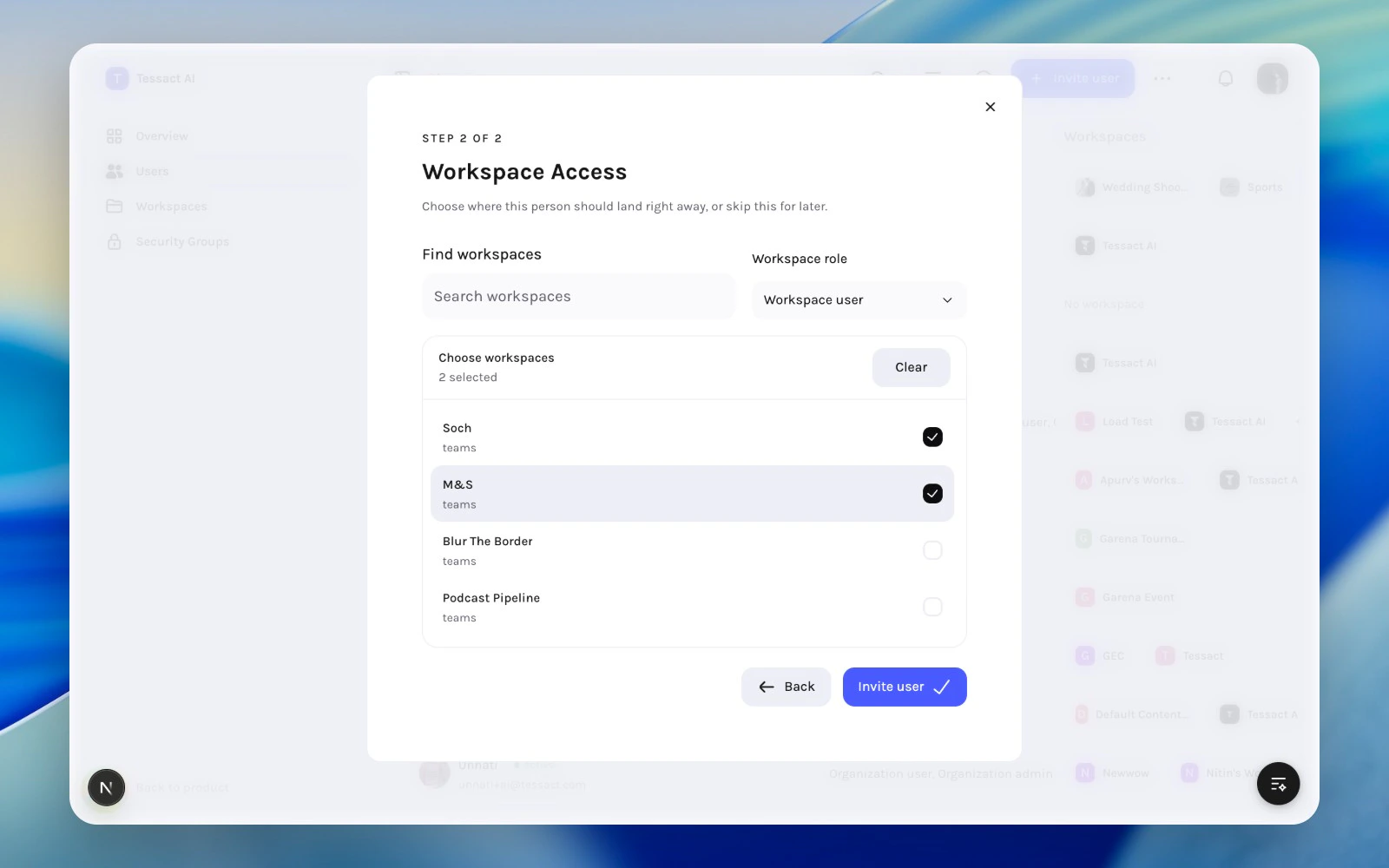
After that, Tessact can also assign the person to one or more workspaces during the same flow. Workspace assignment is optional, which is useful when onboarding and access approval happen in separate steps.
If you are not ready to decide workspace access yet, invite the user first and handle workspace membership later from the directory.
1
Open the invite flow from Users
Go to Admin → Users and use Invite user from the top action bar. This keeps onboarding anchored in the same directory where you will later review activity, role, and workspace access.
2
Fill identity details and choose an organization role
Add the person’s email, first name, last name, display name, and initial organization role.
Step 1 of the invite flow with identity fields and org role
3
Continue to workspace access
Use the second step only if the person should land in one or more workspaces immediately. Choose the target workspaces and the shared workspace role for this invite.
Step 2 of the invite flow with workspace selection
4
Invite now or defer workspace assignment
Submit the invite when the role and workspace choices are correct. If access approval is still pending, skip workspace assignment and add memberships later from the directory.
The directory is organized around four high-signal columns:
Column
What it shows
Name
Identity and email
Role
Current organization role
Workspaces
Where the user already has access
Last active
Whether the account is still being used
These columns are enough for most admin decisions: who the person is, how much power they have, where they can work, and whether the account is still active in practice.
Tessact supports status changes from both row actions and bulk actions.
Use Deactivate user when a person should temporarily or permanently lose access.
Use Activate user when returning access to an existing account.
This is preferable to deleting and recreating accounts because it preserves the identity record and keeps future audits clearer.
Deactivation changes whether a person can use the product, but it does not automatically redesign your workspace access model. Review memberships and role assignments too.
Selecting a row opens a details sheet. Use it when the table summary is not enough and you need to verify a specific person’s profile or access context before changing anything.This is especially useful when:
a user appears in several workspaces
role assignment is unclear
support requests are tied to the wrong display name or identity data