

Overview
The Members tab is the workspace-level access review surface. It lets admins answer:- who belongs in this workspace now
- what workspace role each person holds
- whether anyone should be added or removed
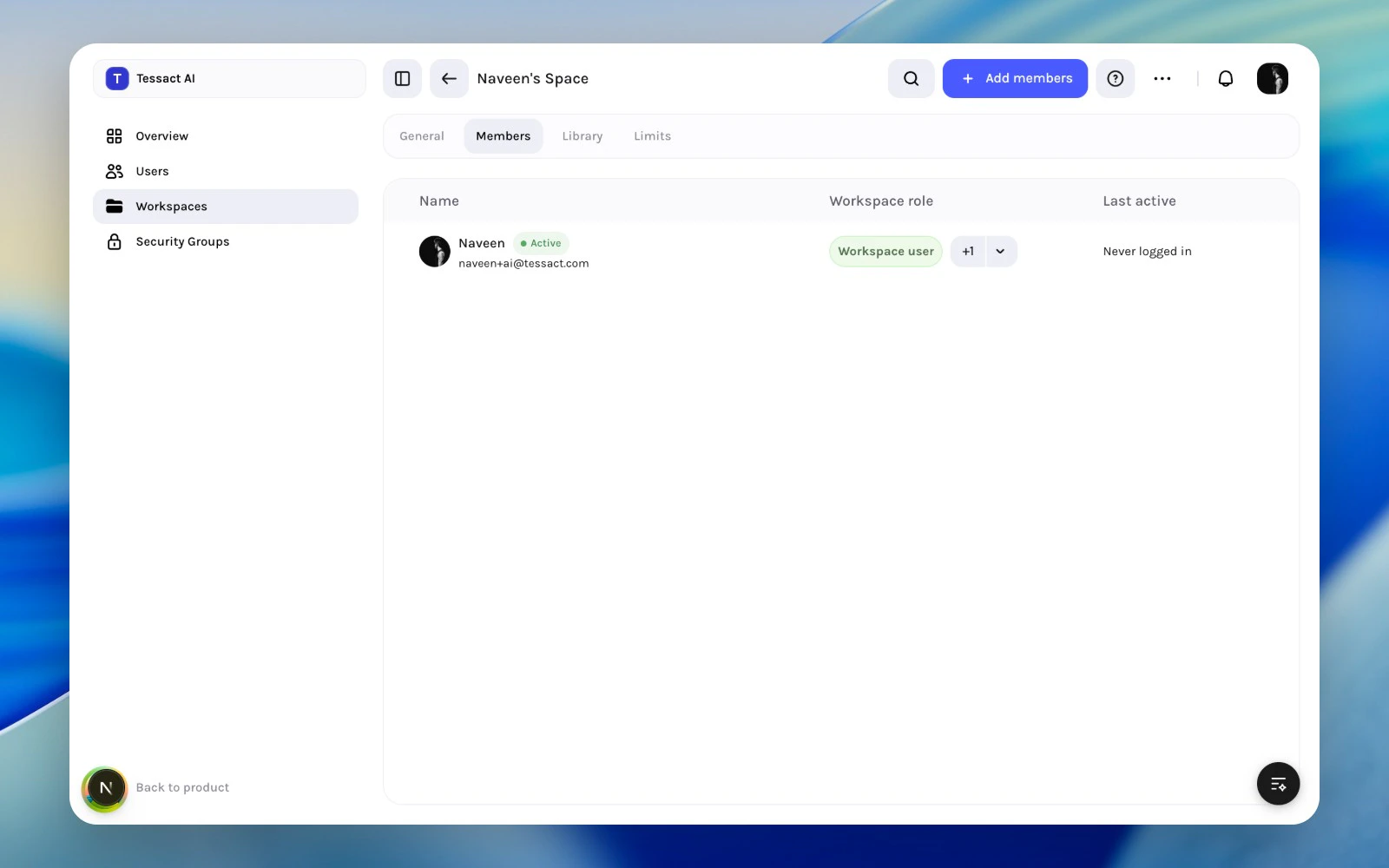
Workspace members table with role and activity columns
What The Members Table Shows
This is enough context for most workspace access decisions.
Guide: Add Members To A Workspace
1
Open the workspace and go to Members
Start from the workspace you want to review, then open the Members tab.
2
Use Add members for new workspace access
Click Add members in the action bar, search the organization directory, and apply one workspace role to the selected batch.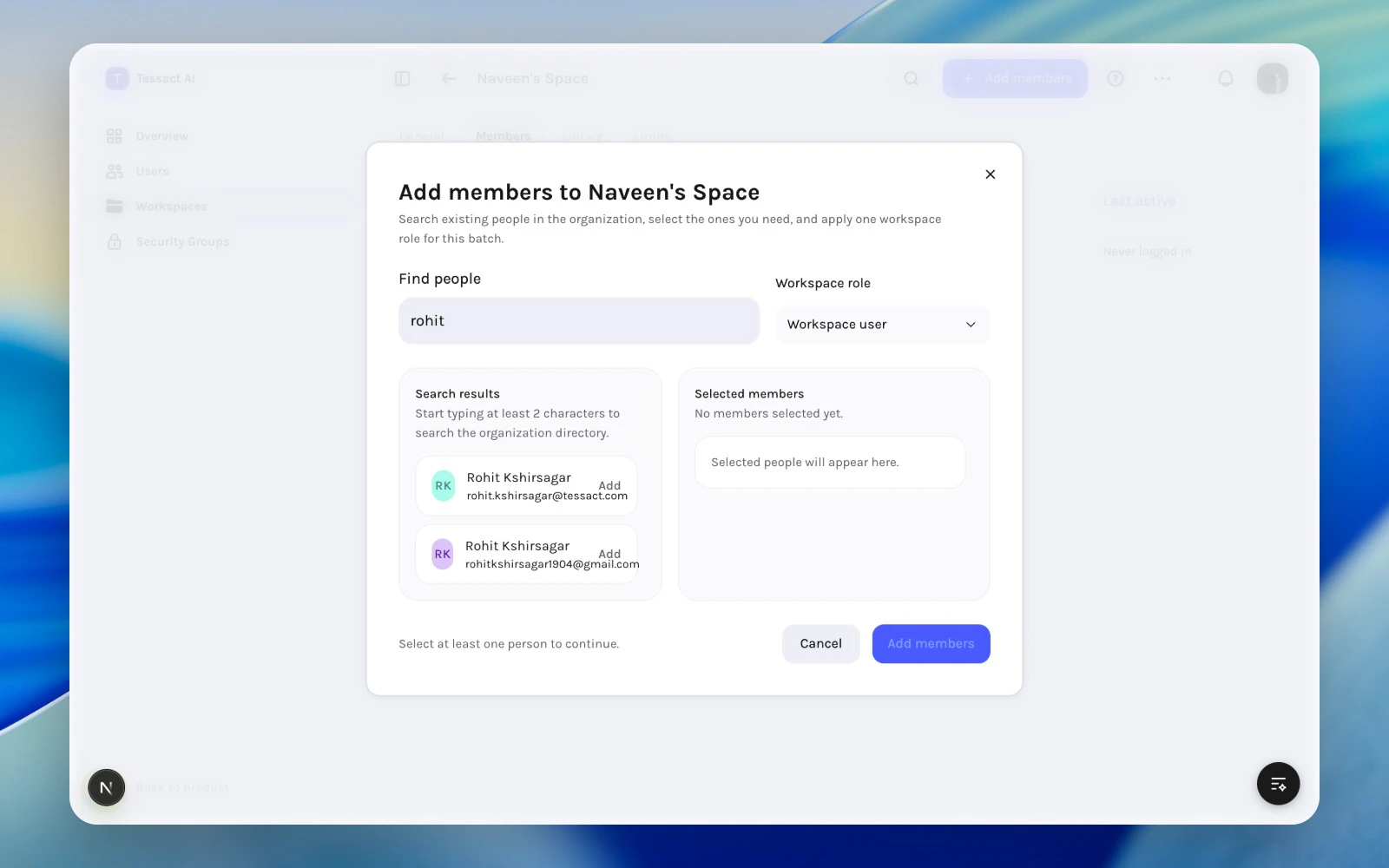
Add-members flow inside a workspace
3
Review the table after the change
Confirm that the new members appear with the expected workspace role and that the member list still reflects a real operating team.
What To Review Regularly
- members who no longer work in the workspace’s active initiatives
- members with broader roles than they need
- dormant users who still hold access
- workspaces where the member list is much larger than expected
Best Practices
- Review membership at the workspace level when the question is local to one workspace.
- Keep the member list narrow and operational.
- Pair role review with activity review so access stays grounded in real usage.
- Export the member list before large cleanup passes if you want a simple audit trail.
Next Steps
Workspace role assignments
See when each workspace role should be used.
Removing users safely
Handle member removal without breaking ownership or active work.