

Overview
Workspace roles answer one question: what should this person be allowed to do inside this workspace? The Members tab is where admins review those assignments in context.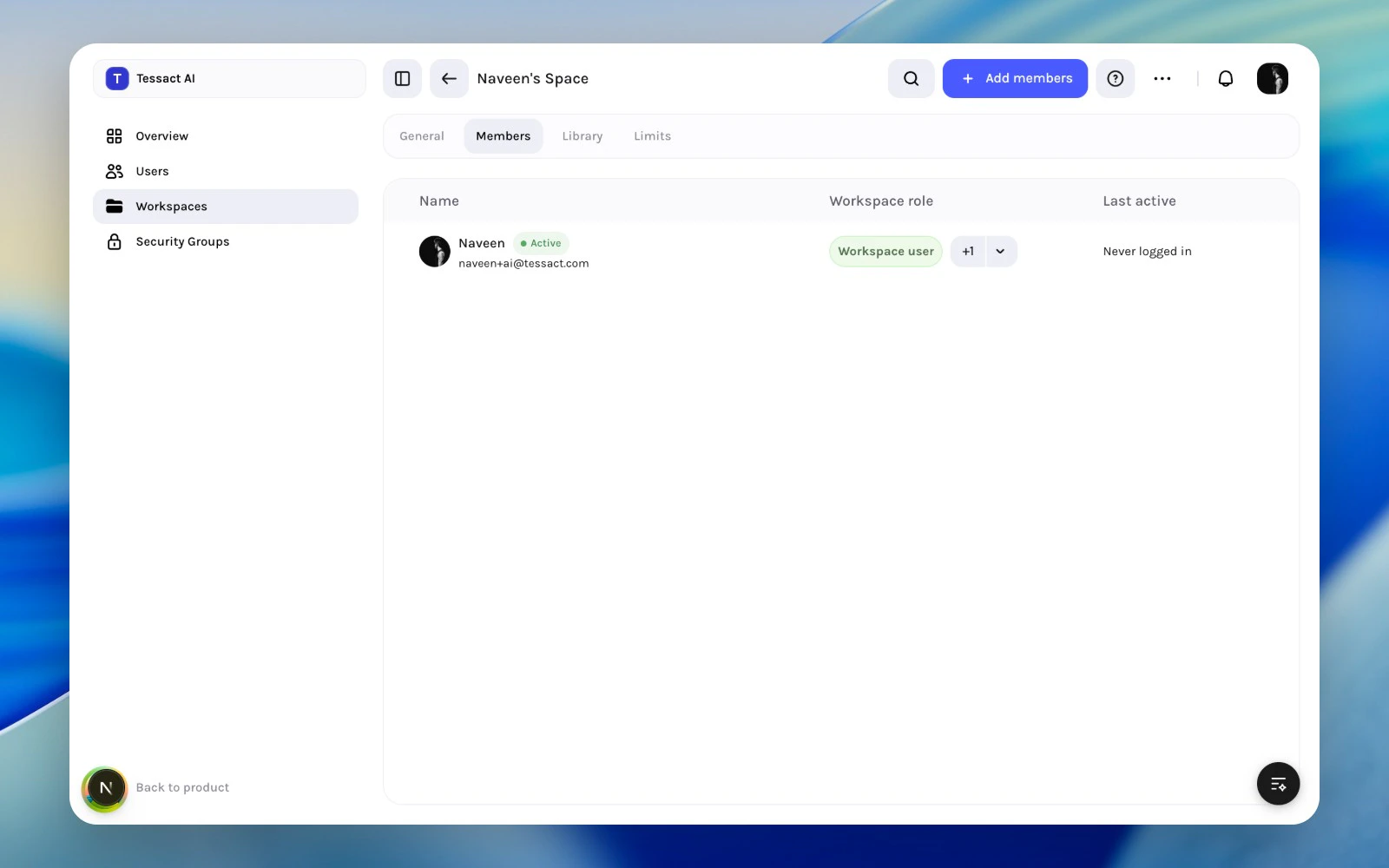
Workspace members table with the workspace-role column visible
Role Assignment Principles
Use workspace roles to express workspace-specific responsibility, not org-wide authority.- give the lowest role that still matches the real job
- review roles when someone changes function inside the workspace
- avoid using workspace roles to compensate for unclear org roles
When To Change A Workspace Role
Change the role when:- a member becomes an active workspace operator
- a reviewer or collaborator no longer needs elevated access
- a temporary assignment ends
- a cleanup pass shows that role breadth no longer matches usage
Guide: Keep Workspace Roles Clean
1
Start from the Members tab
Review the role column alongside name and activity so the assignment stays tied to actual workspace usage.
2
Use add-member flows to set the initial role well
When adding members, choose the correct workspace role at the point of entry instead of adding first and fixing later.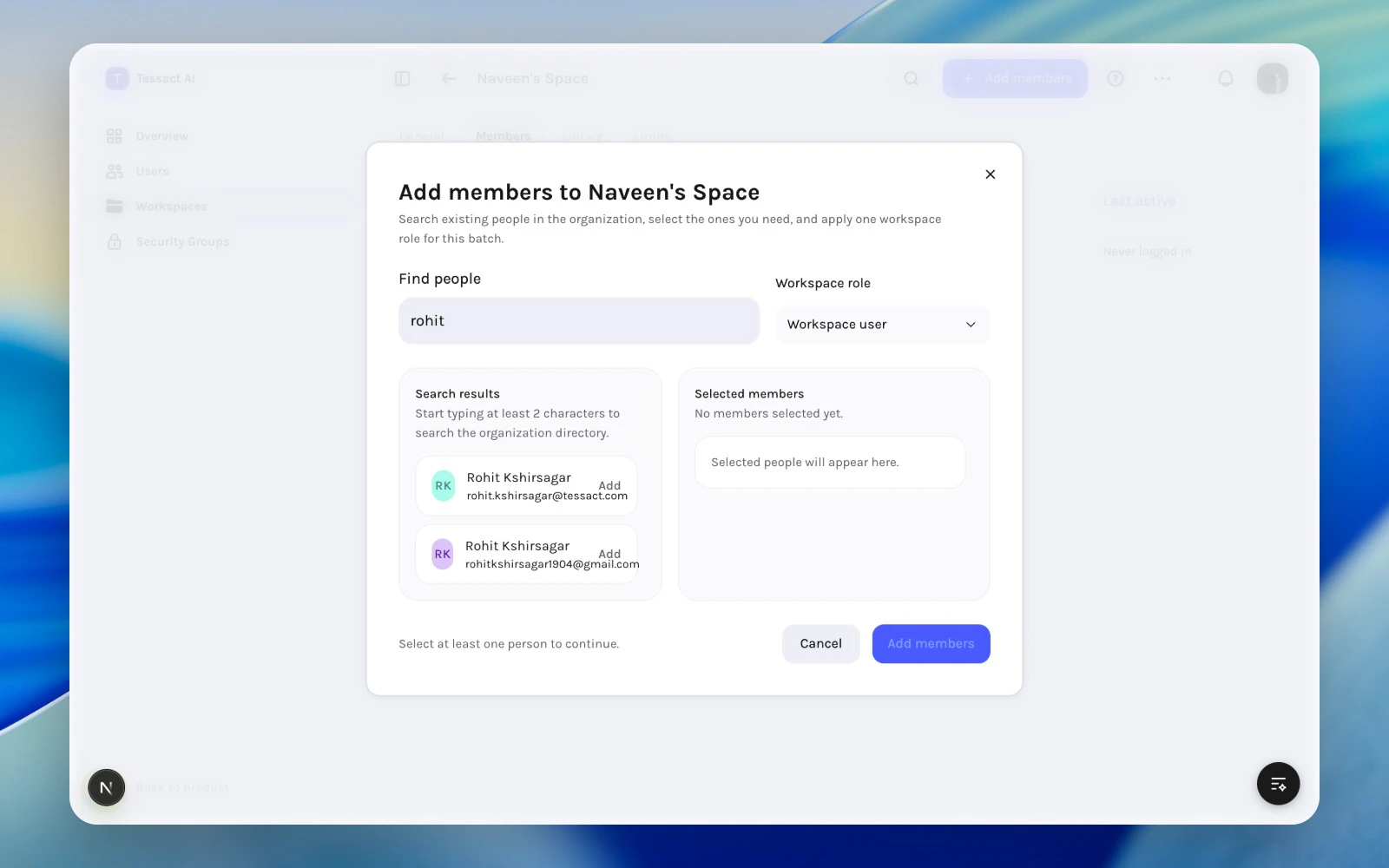
Add-members modal with workspace-role selection
3
Revisit elevated roles during access reviews
Roles should be one of the first things you revisit when a member looks dormant, overprovisioned, or no longer central to the workspace.
Best Practices
- Keep elevated roles rare and reviewable.
- Align workspace role changes with real task ownership changes.
- Recheck roles whenever you review dormant access.
- Prefer role clarity over convenience.
Next Steps
Workspace membership reviews
Return to the broader access review model inside a workspace.
Removing users safely
Use removal when the user should not stay in the workspace at all.