

Overview
AI Search finds moments by meaning, not by filename. Describe what you remember (a scene, a shot, a spoken line, a person, a mood) and Tessact returns the matching moments from across your library, each with a thumbnail, a time range, and a one-click path into the asset or the Editor.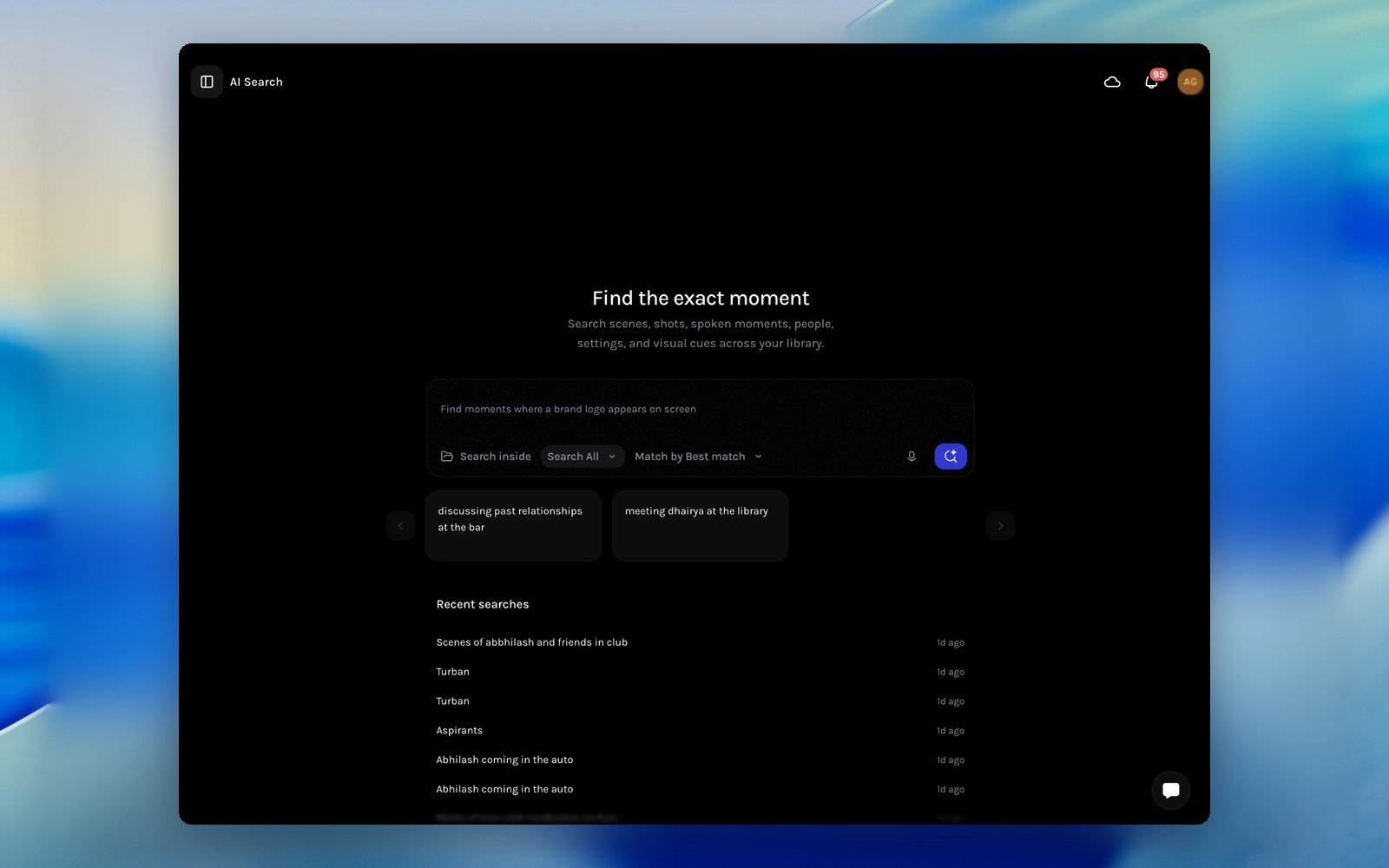
The AI Search landing page
- One search surface: a single query runs across video, image, audio, and document assets in the workspace.
- Moments, not files: video results are shots, scenes, and spoken spans with usable in and out points, ready to preview or send to the Editor.
- Multilingual dialogue: spoken-word search works across languages, including Hindi and Hinglish.
- Understands intent: the query is interpreted before it is matched; AI Search even adjusts loose wording and tells you when it did.
Open AI Search
Select AI Search at the very top of the left sidebar, above your Productivity links. You can also start from the Library: expand the search field in the action bar, type a query, and press Enter; the search runs scoped to the folder you were in.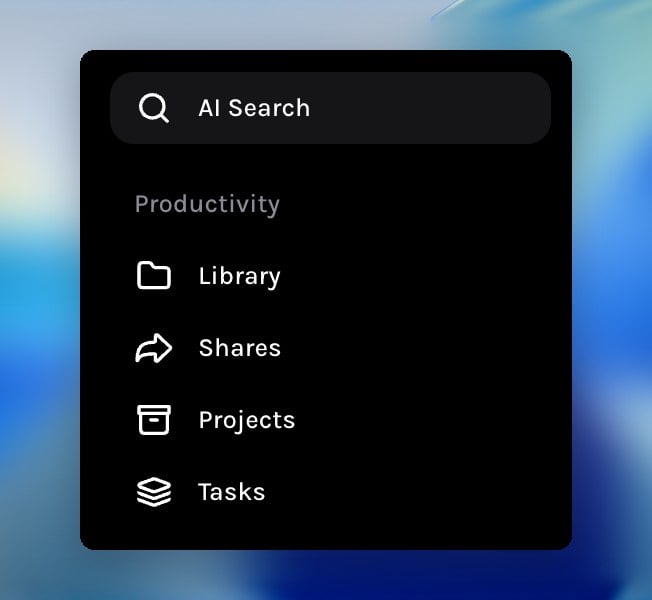
AI Search sits at the top of the sidebar
Run a search
Describe the moment
Narrow the search (optional)
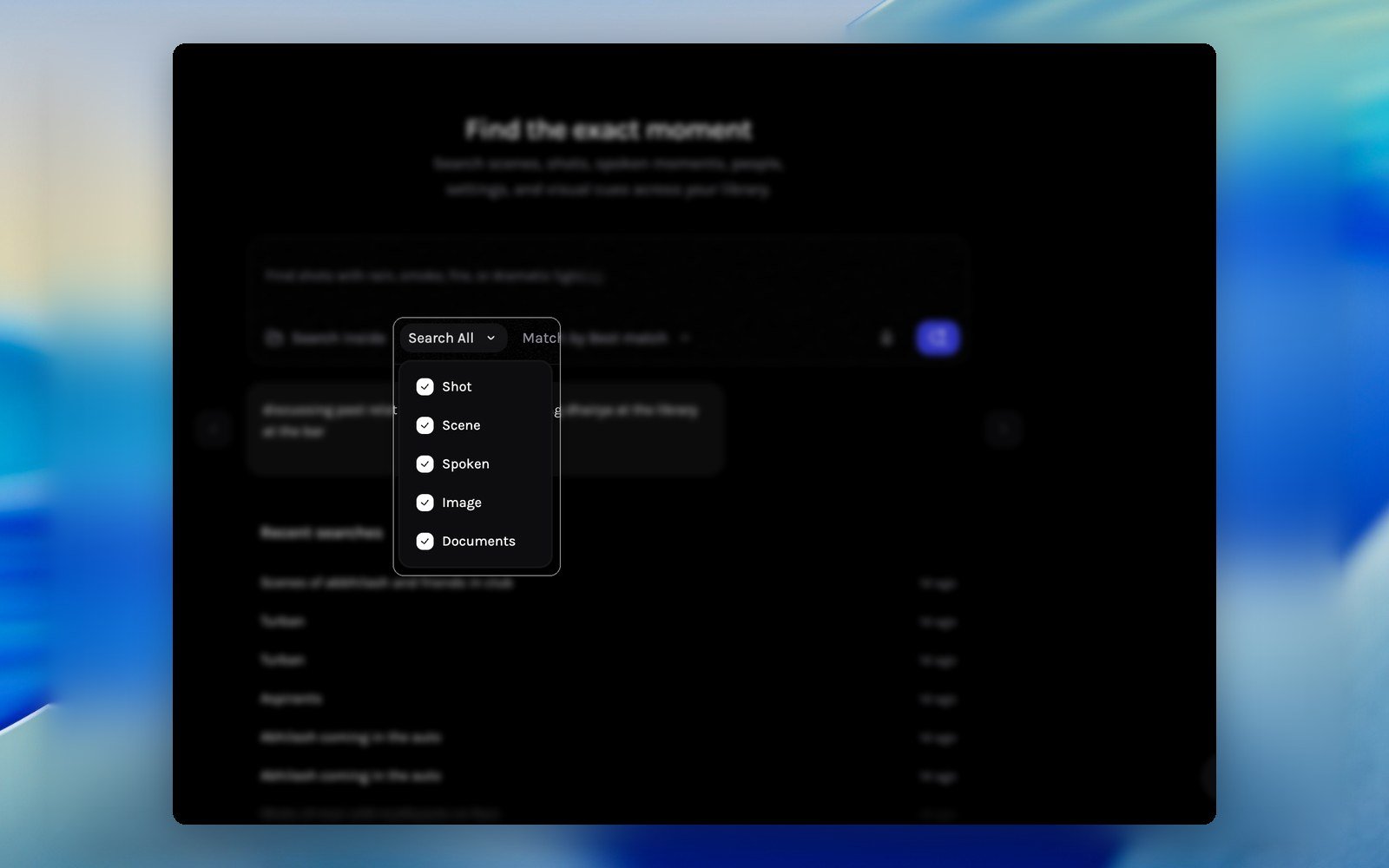
Search All chooses which result types come back
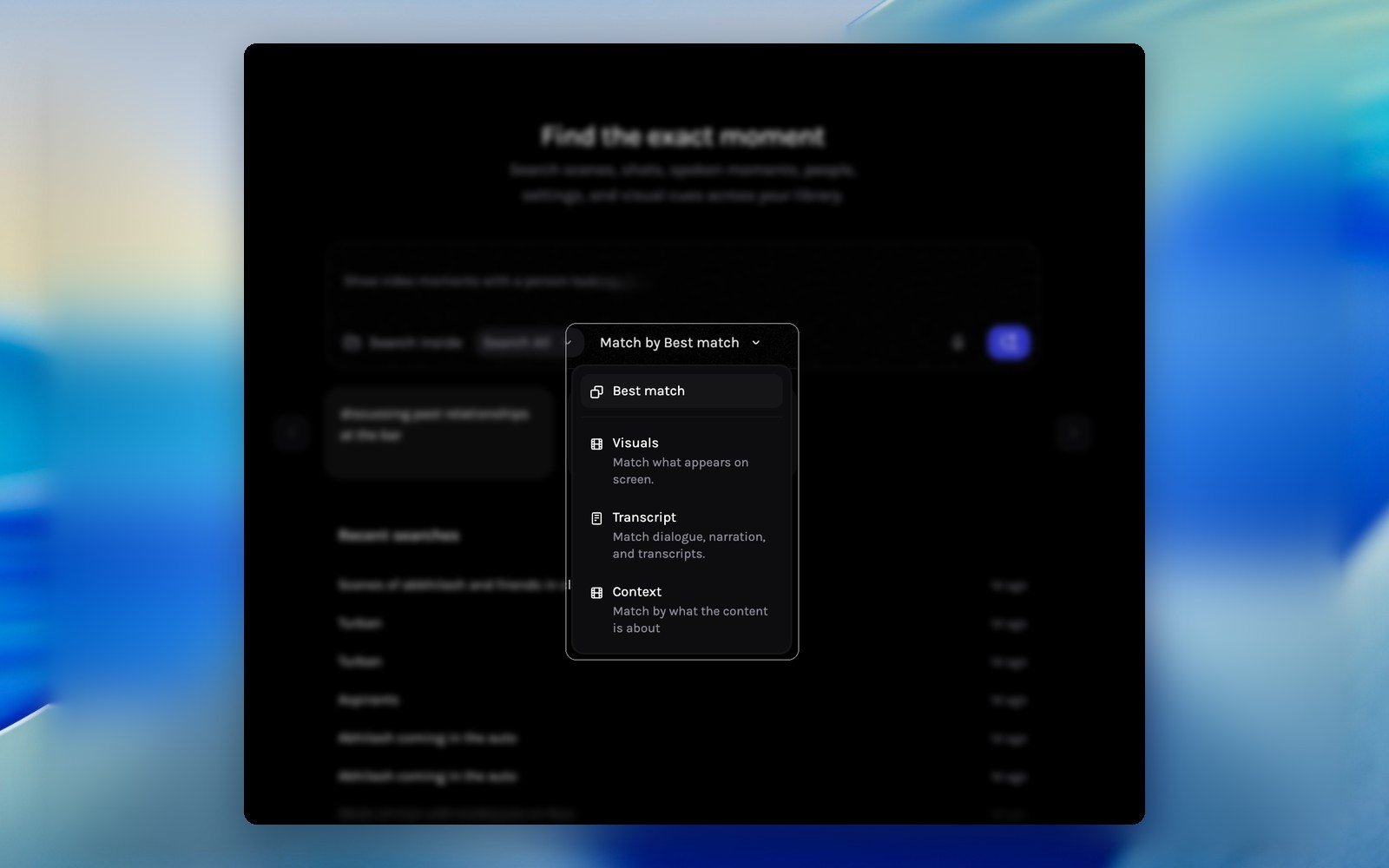
Match by lets you steer between visual, transcript, and contextual matching
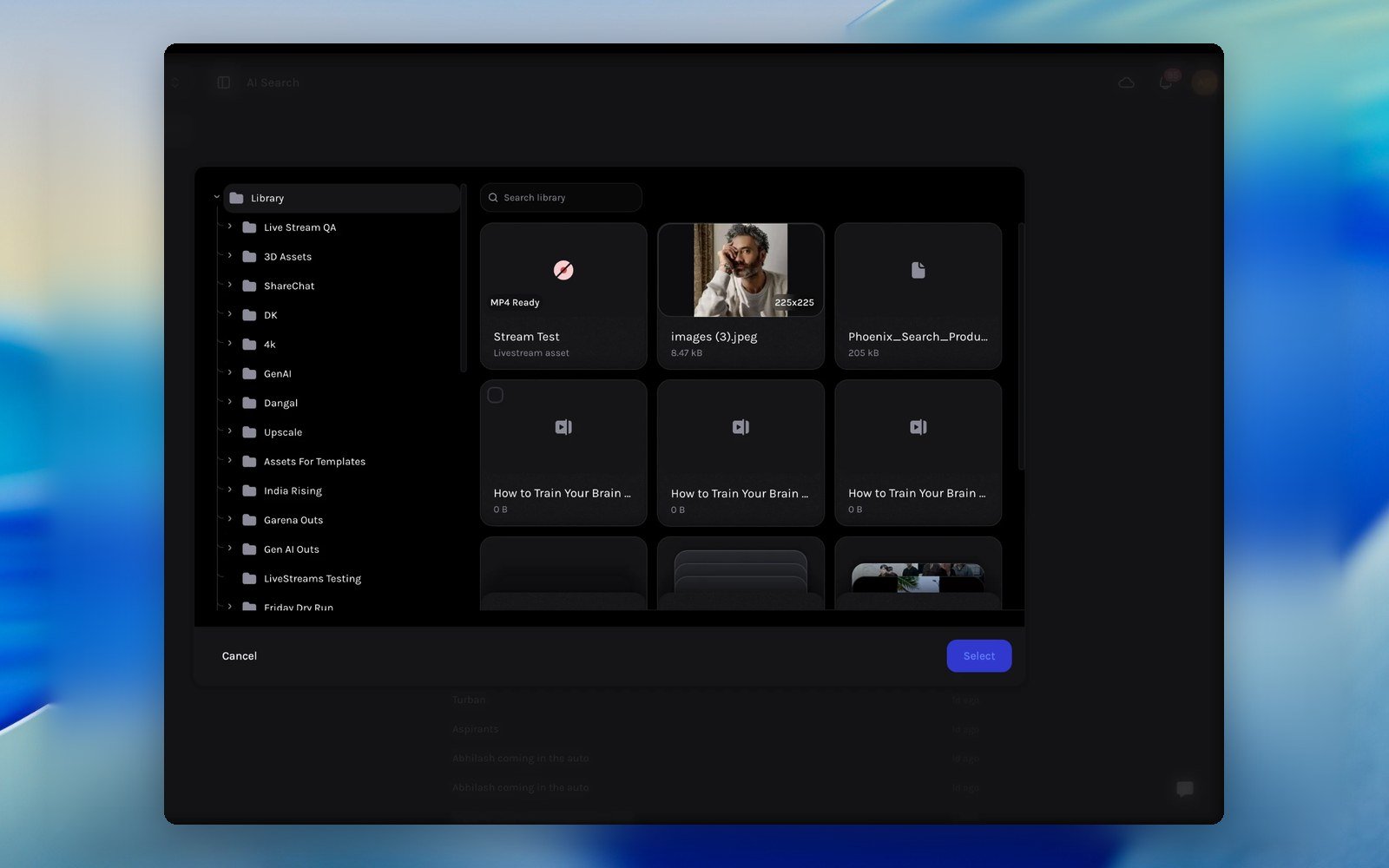
Search inside scopes the query to any folder or file in the Library
Review the AI Results

The AI Results header: type filters, result count, and the query adjustment note
What can you search for?
If you can describe it, you can find it. During analysis Tessact indexes what is visible, what is said, how it is filmed, and what it all means, so every one of these query styles works. Steal these and adapt them to your library:- People & emotions
- Places & time
- Actions & story beats
- Camera language
- Spoken words
- Text, brands & documents
Abhilash apologises to Guri for their falling outtwo friends arguing until one walks outa sincere conversation between old friends at nightcrowd celebrating and hugging
medium shot of three friends debating the exam at a tea stall at night mixes framing, people, action, setting, and time in one query.
Work with the results
Every result card carries the evidence you need to judge it at a glance: a thumbnail of the exact moment (document results preview their matching pages), a type badge such as Scene, the clip duration, a descriptive title, and a short summary of what happens. Hovering a card reveals its quick actions: Add selection to start collecting clips, and an expand control that jumps straight into the full preview.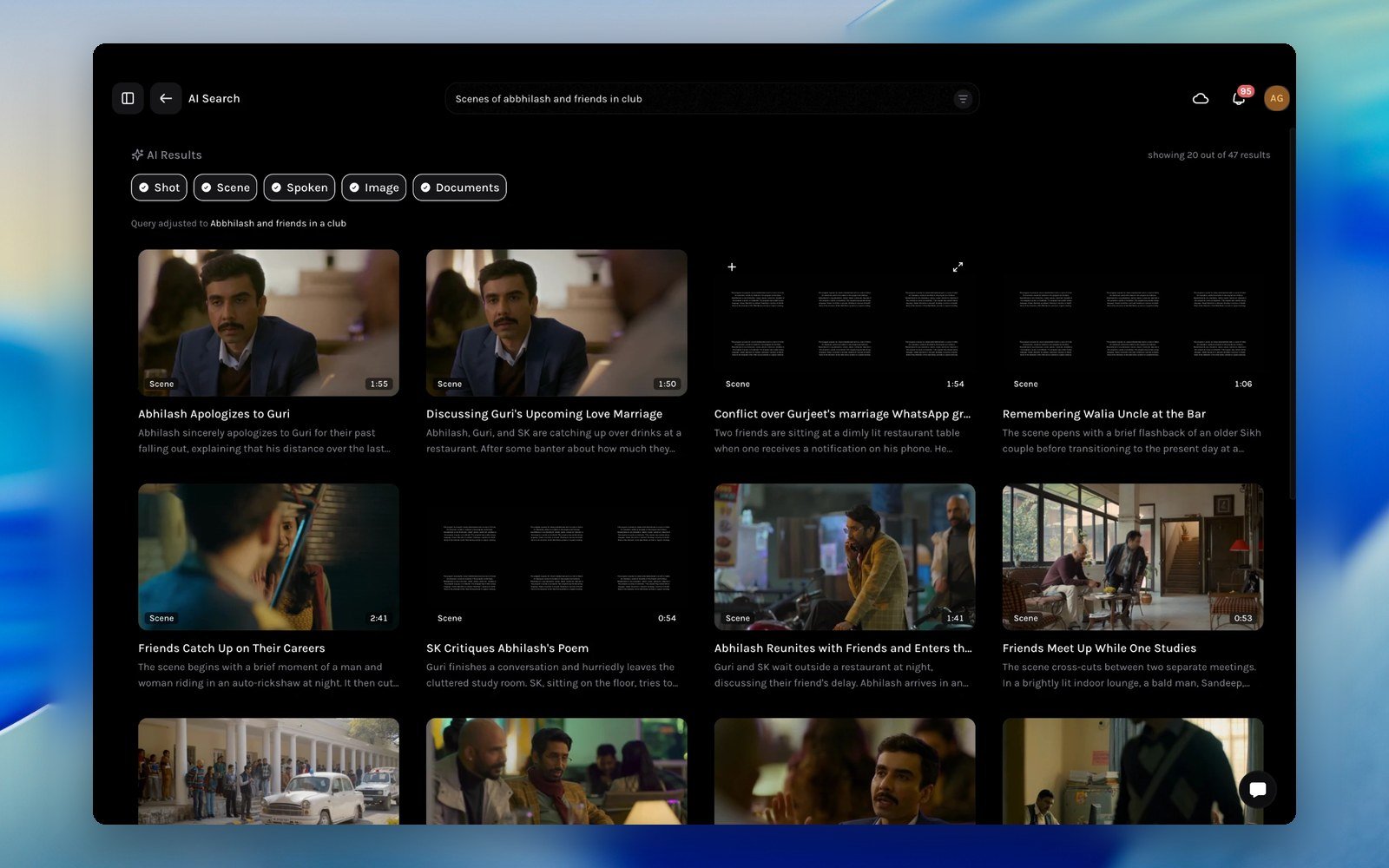
AI Results for a natural-language query: scene and document moments with titles, durations, and summaries
Preview a result
Select a card to open it full screen. The matched segment plays immediately, the header names the source (show, episode, and file), and the moment’s full profile sits beside the player.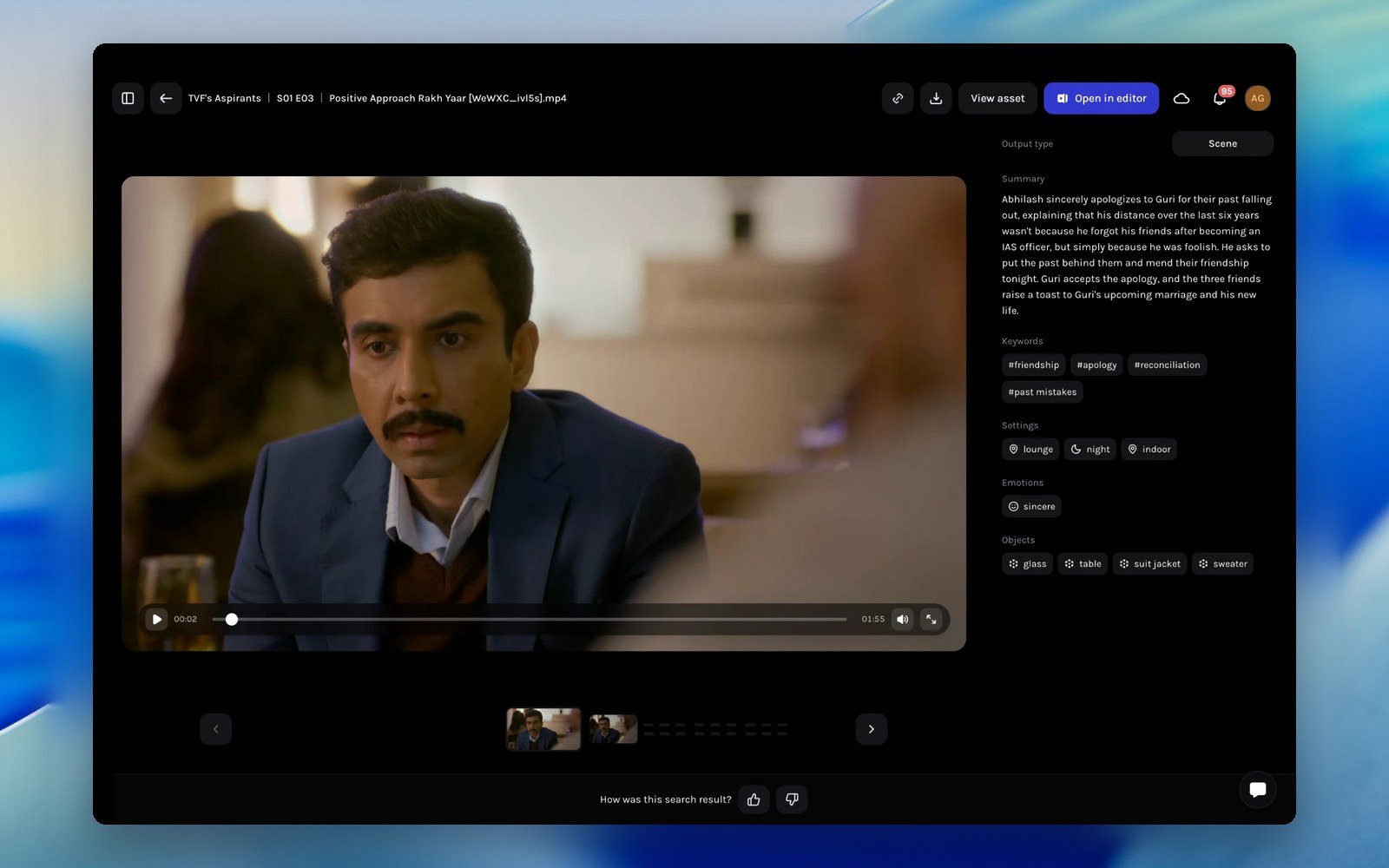
The result preview: the matched scene plays beside its full profile
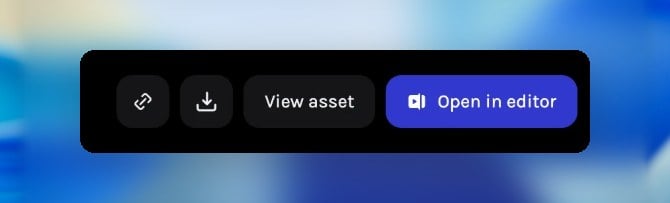
Result actions: copy link, download, view the asset, or open it in the editor
The moment’s profile
The panel beside the player explains why this moment matched and what is in it, section by section:- Output type: what kind of result you are looking at, such as Scene.
- Summary: an AI-written account of what actually happens in the clip, detailed enough to judge without scrubbing.
- Keywords: thematic tags like #friendship or #reconciliation for quick topical context.
- Settings: where and when the moment takes place, such as lounge, night, indoor.
- Emotions: the mood detected in the moment, such as sincere.
- Objects: notable items visible in frame, such as glass, table, suit jacket.
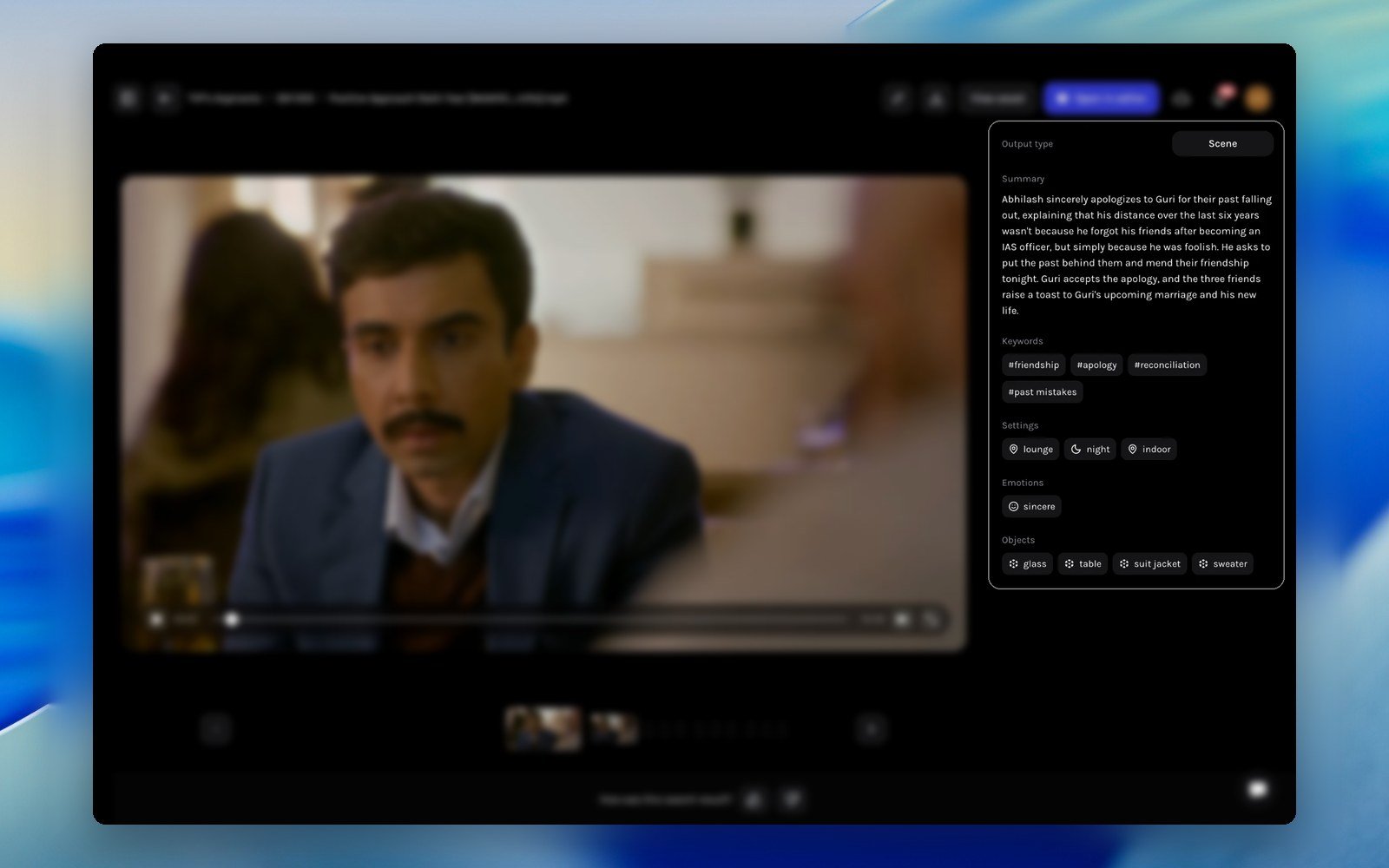
Every result carries its own profile: summary, keywords, settings, emotions, and objects
Compare and give feedback
The strip along the bottom keeps the rest of your results one click away: use the thumbnail rail or the arrow buttons to flip between matches without leaving the preview. Next to it, How was this search result? takes a quick thumbs up or down; feedback tunes ranking for your workspace over time.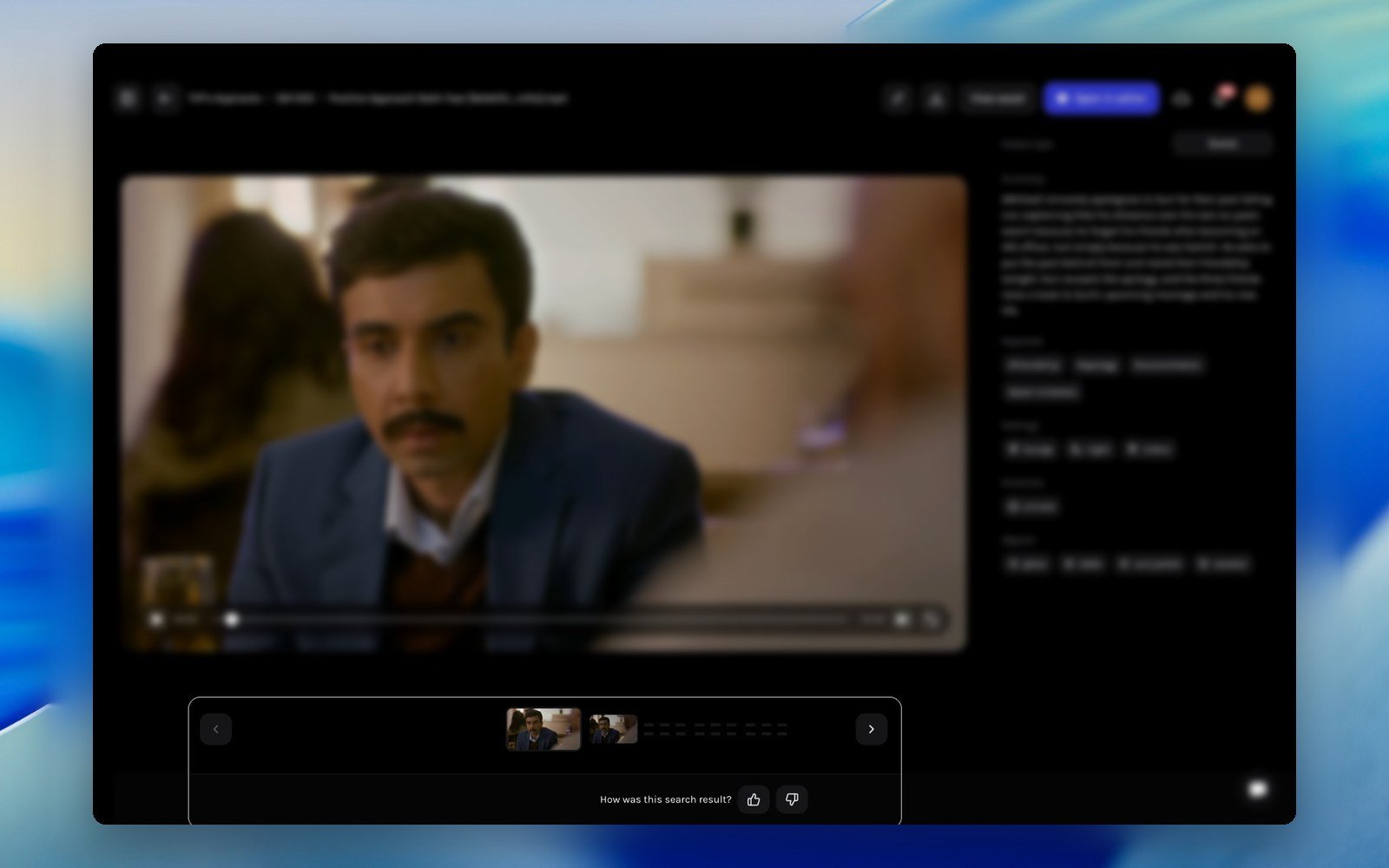
Flip through results on the rail, and rate the match when you land on the right one
From search to edit, in one move
This is the flow editors love: describe the moments you need, tick them off the results, and land in the Editor with every clip already on hand. No hunting through bins, no exporting and re-importing.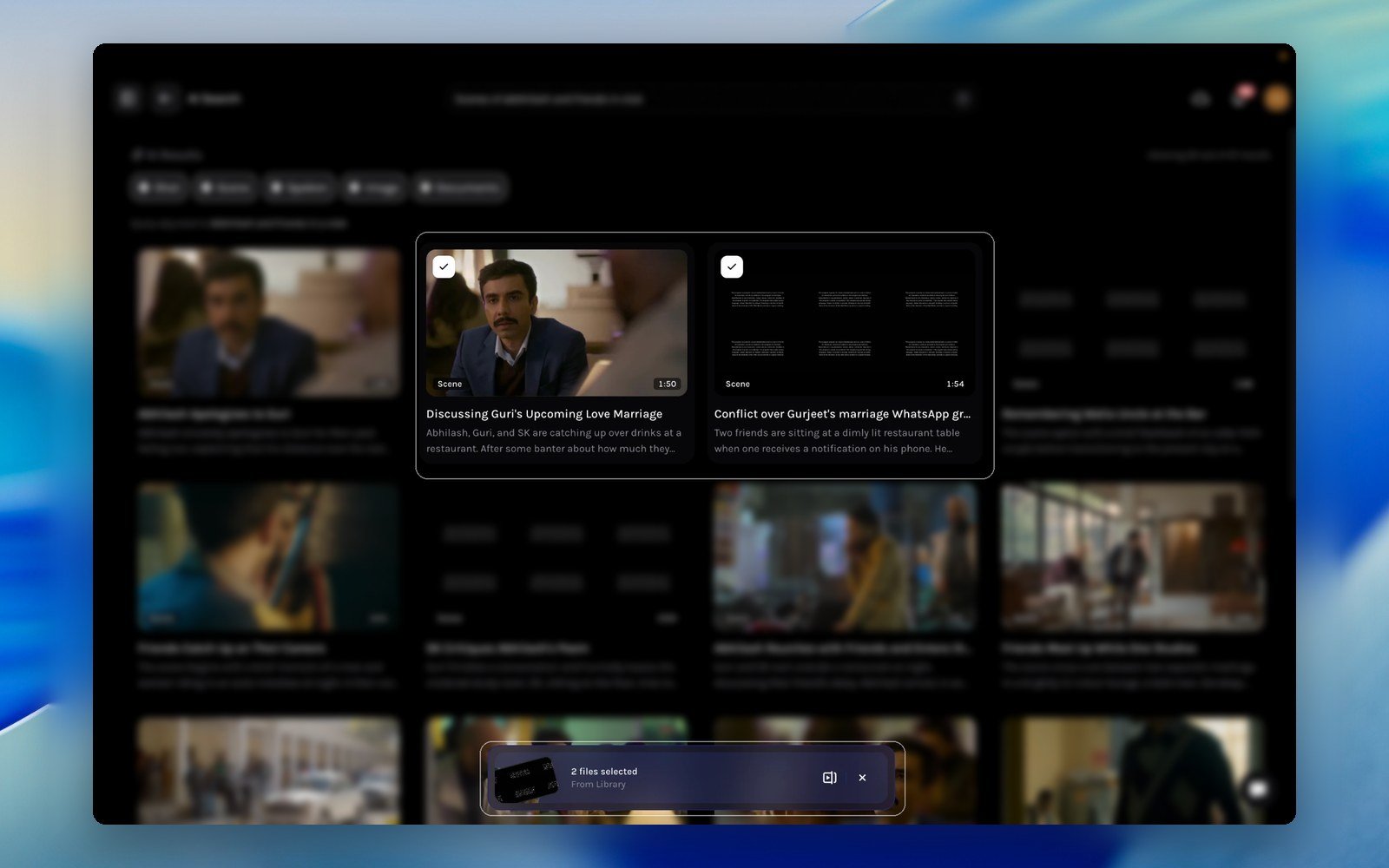
Pick moments from the results; the selection bar keeps count
Add clips to your selection
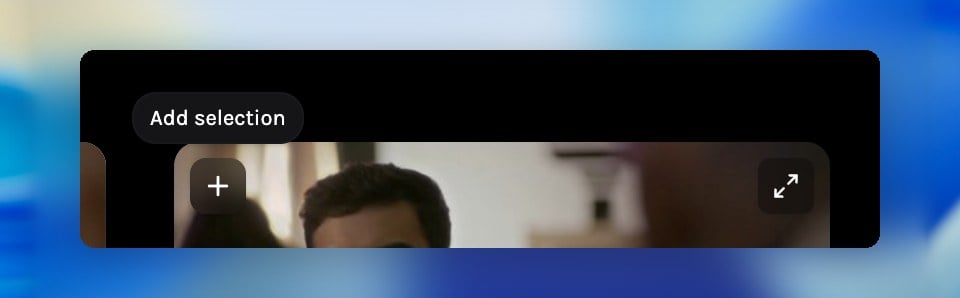
Hovering a card reveals Add selection
Review the selection bar
Edit the selected clips
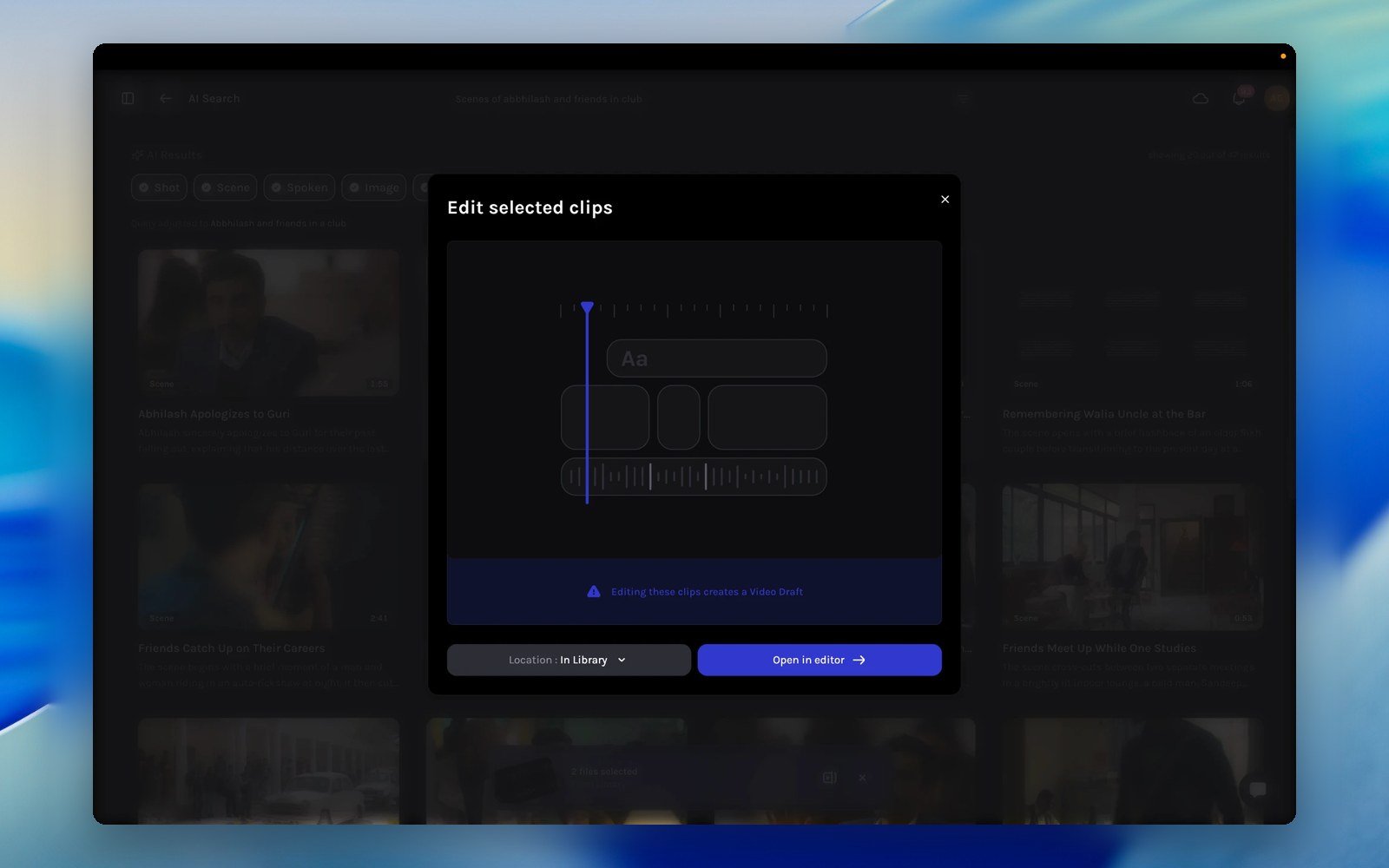
Edit selected clips: pick a location and open the draft in the editor
Start cutting
Refine your query
- Refine one axis at a time: add a time of day, switch Match by, or drop one adjective; small changes keep results interpretable.
- Broaden when empty: remove the least essential qualifier, reset Search All, and widen the Search inside scope before rewriting the whole query.
- Trust the adjustment note: if Query adjusted to appears, the rewritten phrasing is a good starting point for your next refinement.