

Overview
The Library tab controls whether file statuses are visible in the workspace and how the status catalog is designed.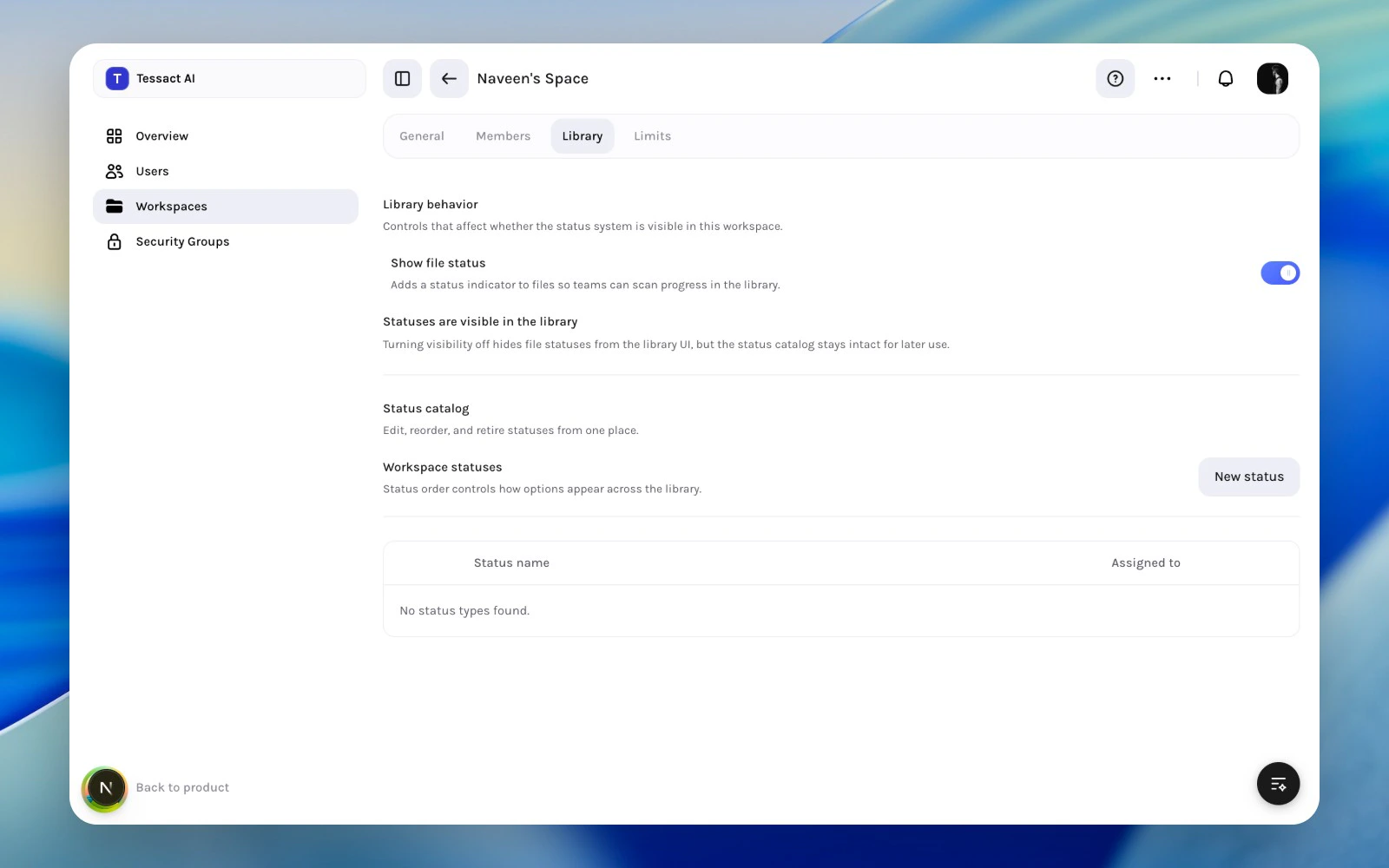
Workspace library settings and status catalog
What The Library Section Controls
- whether Show file status is enabled
- which status types exist
- the order in which statuses appear
- the default status for new uploads
Guide: Create A Clean Status Catalog
1
Enable status visibility
Turn on Show file status if teams should see progress directly in the library.
2
Create the status types the workspace actually needs
Use New status to define the label, icon, color, and optional default behavior.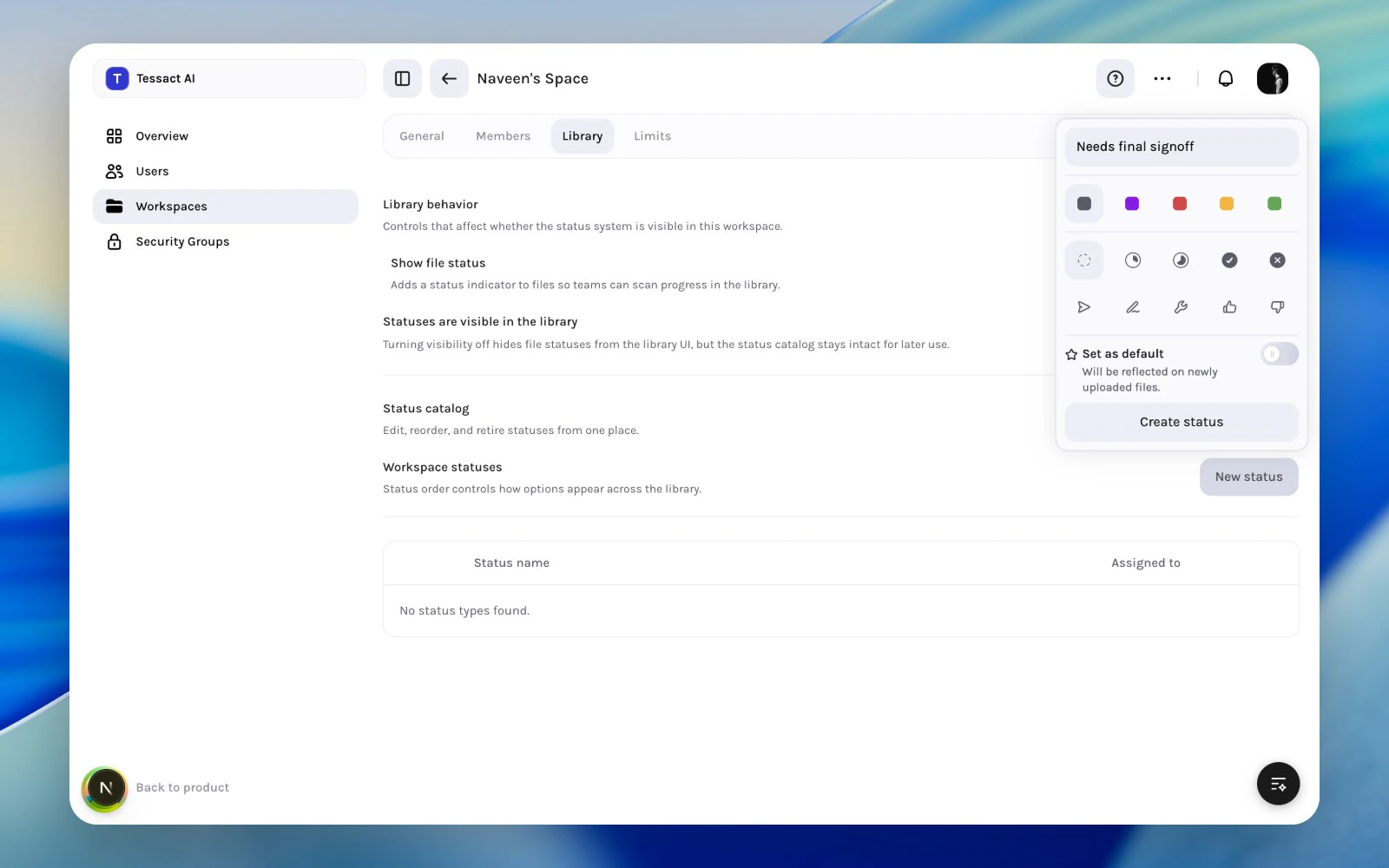
New-status flow inside the workspace library settings
3
Keep the catalog readable
Use a small set of durable statuses rather than many overlapping labels that teams will ignore.
Good Status Design Looks Like
- names that imply action or state clearly
- a small enough catalog that people can scan it quickly
- color and icon choices that help, not distract
- a sensible default for newly uploaded files
Best Practices
- Build the catalog around real handoffs in the workspace.
- Keep status names short and operational.
- Retire statuses that are no longer meaningful.
- Review status design whenever the workspace workflow changes.
Next Steps
Rolling out file statuses
Use a rollout checklist before making statuses part of team process.
Status systems and limits
See where library design fits in the wider workspace policy model.