

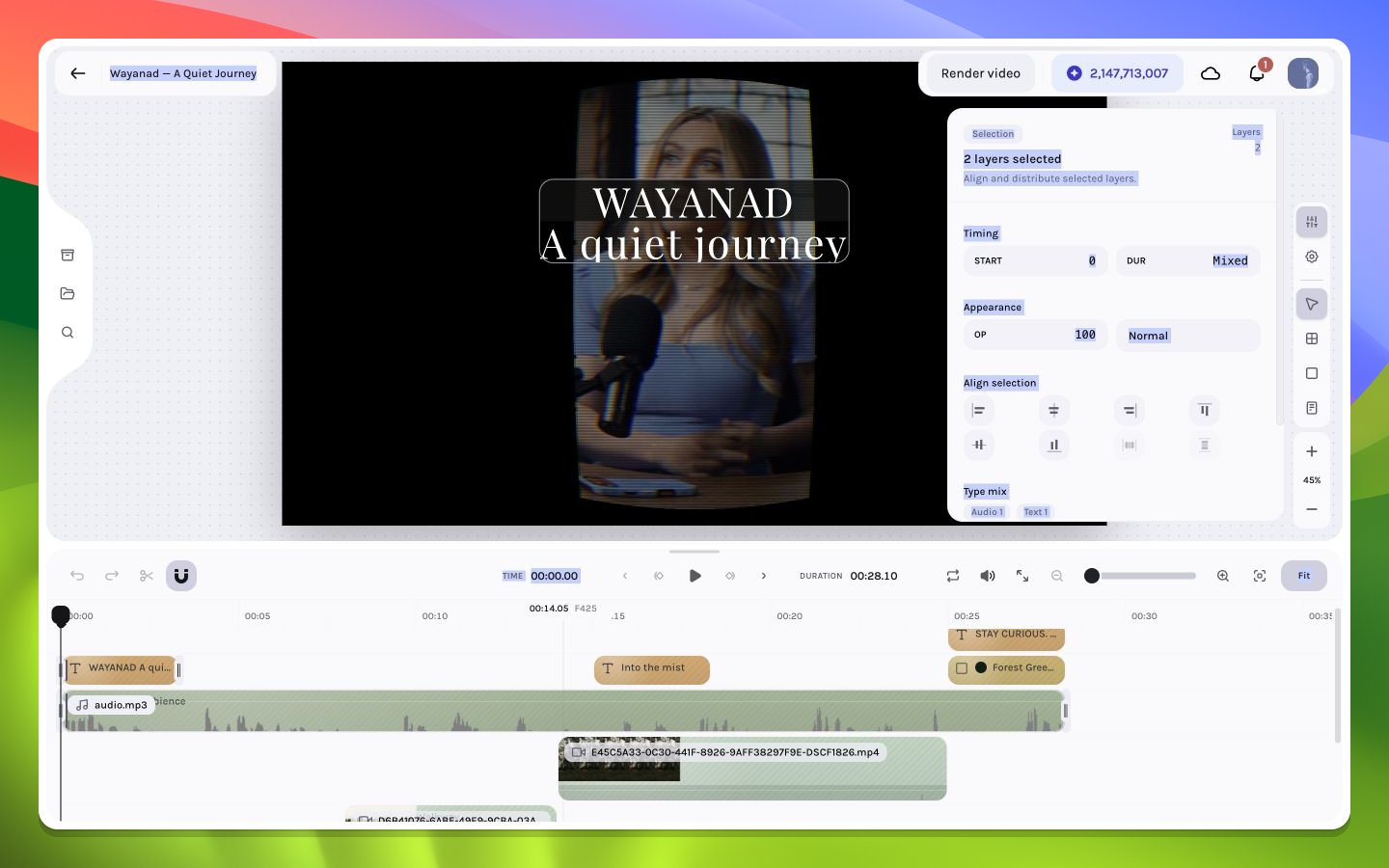
Shared controls for a mixed multi-selection
Align a single layer
With one top-level layer selected, alignment targets the composition: left, horizontal center, right, top, vertical center, or bottom. A child layer can instead align within its parent content box. Read the inspector’s alignment scope label before applying the command.Align a selection
With multiple layers selected, alignment uses the selection’s collective bounds. The furthest edge or computed center becomes the reference, and eligible layers move relative to it. This makes icon rows, title stacks, and lower thirds consistent without manually calculating every coordinate.Distribute spacing
With at least three eligible visual layers, distribute horizontally or vertically to preserve the two outer anchors and space the intermediate layers evenly. UseOption/Alt+Shift+H for horizontal distribution and Option/Alt+Shift+V for vertical distribution. Distribution changes positions, not layer order or timing.
Understand layer order
Visual layers are painted in a deterministic order. Moving a layer forward or backward changes which pixels cover which; it does not change timing. The timeline’s vertical ordering and the canvas result should be read together. The timeline context menu’s Bring to front / Send to back targets the right-clicked item even when a larger selection exists. Keyboard commandsCmd/Ctrl+Shift+] and Cmd/Ctrl+Shift+[ operate on the applicable current selection. Confirm the target before reordering an overlapped stack.