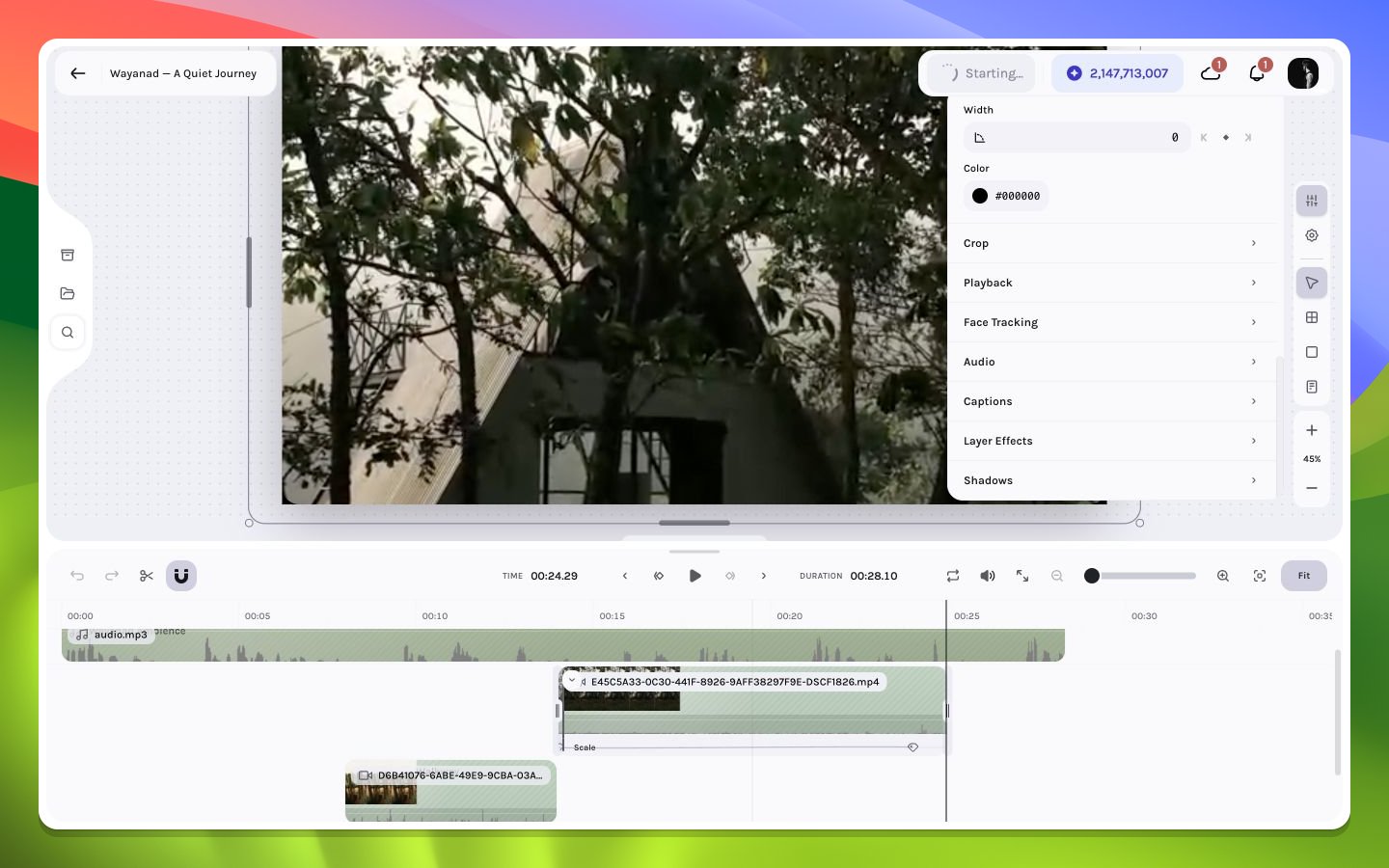
Preflight the draft, start an H.264 render, and download the finished MP4.
Rendering turns the current timeline into an H.264 video. The result follows the draft exactly: layer timing, visibility, animation, captions, effects, and audio all contribute to the finished file. A short preflight catches most avoidable problems before you start.
Open Canvas settings and verify the aspect ratio, width, height, frame rate, and duration. These settings determine the output; resizing the browser or zooming the editor does not change them.
2
Check the first and final frames
Move the playhead to the beginning and end. Confirm the video does not start on black unintentionally, and that the final meaningful layer reaches the intended endpoint without an accidental empty tail.
3
Review every edit boundary
Play across each cut, transition, title entrance, caption boundary, speed change, and audio fade. Frame-step around any point that flashes, jumps, or clicks.
4
Verify visible and audible layers
Review hidden and muted track controls, opacity, volume, and layer order. Make sure a temporary review state has not become part of the final composition.
5
Check media and captions
Scrub through the full timeline and look for placeholders, missing thumbnails, incomplete captions, text wrapping changes, or media that has not finished loading. Correct these before rendering.
6
Start the render
Select Render in the floating top bar. Keep the editor tab open while Starting… or a render percentage is visible.
The top-bar action changes from Render video to Starting…, then displays the rendered percentage. When rendering completes, the browser begins downloading the MP4 and the action returns to Render video.
Keep the editor tab open until the download begins. Refreshing, closing, or navigating away during a render can interrupt the progress shown in the editor and may prevent the automatic download.
If the percentage pauses briefly, leave the tab open and wait. Do not start another render while the current one is still starting or progressing. For a longer pause, an error, or a missing download, use render troubleshooting.
The MP4 includes the composition inside the canvas: visible layers, their timeline timing and stacking order, crop and layout, animation, captions, effects, shadows, opacity, and enabled audio. Editor controls such as the playhead, selection outlines, panels, guides, and canvas zoom are never part of the video.Before sharing the result, watch the downloaded file from beginning to end. Check the opening and closing frames, fast motion, small text, caption timing, transitions, and audio on the device or platform where the video will be delivered.Continue to Render progress for status details or H.264 output for format and quality guidance.