

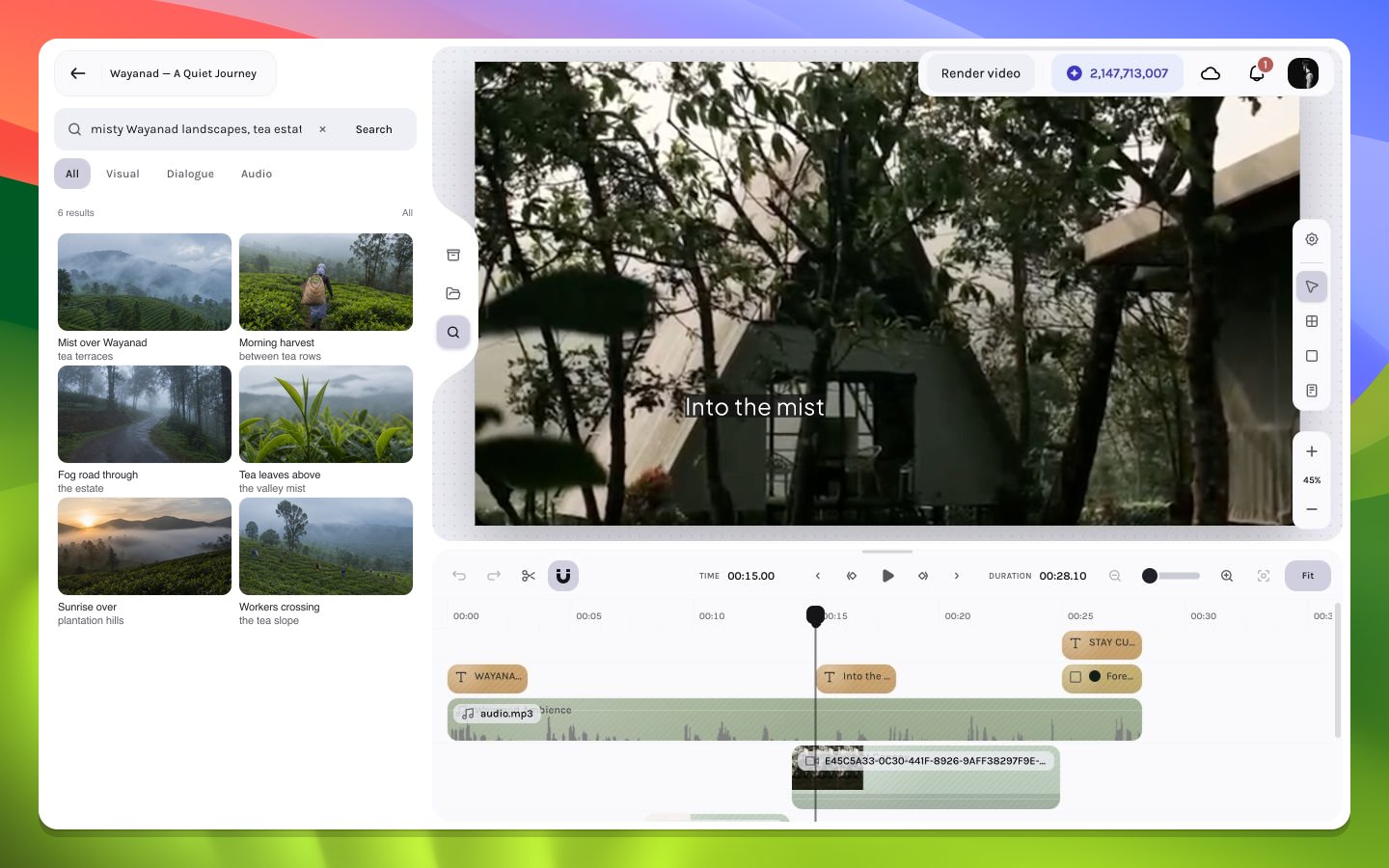
AI Search showing six landscape and tea-estate matches
Find and add a moment
1
Open AI Search
Select AI Search in the left rail. The search field receives focus so you can type without first clicking into it.
2
Describe the desired content
Enter
misty landscapes, tea estates. Use visible or audible details that could identify the source moment; you do not need to know its filename.3
Choose the search intent
Keep All for a broad first pass, or select Visual, Dialogue, or Audio before submitting. The filter changes the request sent to search, not merely which completed cards are hidden.
4
Run the query
Press Enter or select Search. The panel shows a searching state, then reports the result count and active filter above the grid.
5
Inspect a promising card
Select a thumbnail or focus the card and press Enter or Space to open its full preview. Hovering or focusing a card also reveals Add to timeline and Open preview controls.
6
Place the result
Use Add range or Add asset in the preview, press A, select the card’s add control, or drag the card to the canvas or timeline. Confirm the new layer at its intended time before continuing.
Panel keyboard controls
Choose the right filter
Filters participate in retrieval and ranking. If a query has already completed, changing the filter reruns the same query with the new intent.
Begin with All to discover the available result mix. Switch to Visual when you want the strongest emphasis on terrain, mist, plantation rows, workers, or time of day.
Read the result grid
The compact two-column grid is designed for fast scanning. Each card contains an aspect-ratio-aware thumbnail and a title of up to two lines. The panel intentionally avoids dense badges so the imagery and title remain the primary comparison signals. The header above the grid communicates two independent facts:- The left side shows Searching while a request is pending, then the number of results.
- The right side shows the active filter, such as All or Visual.
Card interactions
Video results can expose more than a static poster. Moving across an eligible thumbnail scrubs representative frames. Holding the pointer still briefly can start a muted hover preview that continues until the pointer leaves. Reduced-motion preferences prevent the delayed playback transition.
Preview and refine a result
The full-screen preview does not add anything by itself. It gives the selected result enough space for playback, range inspection, navigation, and an intentional add action. The preview header shows:- The result’s position within the visible result set, such as 2 of 6.
- The source moment range when a valid range exists.
- The result title.
- Add range for a timed segment or Add asset when there is no editable result range.
- Info for the result inspector and Close for returning to the grid.
Preview keyboard controls
Add versus drag
All successful placement paths confirm that the selected result maps to supported workspace media before adding a layer. Choose the interaction based on how precisely you already know the destination.Source time and timeline time are different
A search result can identify a useful interval inside a longer source. That interval is the source range. The location where you add or drop it is the composition placement. For example, a result may represent source seconds12.0–18.0. Dropping it at 00:15.00 on the timeline keeps the 12–18 second source trim but places that trimmed segment at the 15-second composition position. The source timestamps never become timeline coordinates.
Search state model
Use the panel copy—not the presence or absence of thumbnails alone—to determine what happened.Write stronger queries
Semantic search works best when the description names evidence that could appear in a frame, transcript, or audio segment.Build from observable concepts
Combine two or more of these elements:- Subject: tea workers, winding road, tea leaves, mountain ridge.
- Setting: plantation, valley, hillside, mountain region.
- Condition: misty, fog-covered, rain-soaked, sunrise.
- Action: walking between rows, harvesting, fog moving across hills.
- Framing: aerial landscape, macro detail, wide establishing shot.
misty landscapes, tea estates—works because it combines atmosphere, scene scale, and a recognizable environment without depending on a filename.
Refine one axis at a time
If the first pass is too broad:- Keep the same subject and add an action or framing detail.
- Switch from All to Visual without rewriting the query, so you can compare the effect of the filter.
- Add a time-of-day or weather cue.
- Remove adjectives that are not observable in the media.
Verify the insertion
After an add or drop completes, check all four layers of correctness:- Identity: the new layer depicts or contains the intended result.
- Placement: its start frame and track match the add or drop gesture.
- Source range: playback begins and ends on the expected portion of the original resource.
- Presentation: visual dimensions, audio capability, and duration are sensible for the edit.