

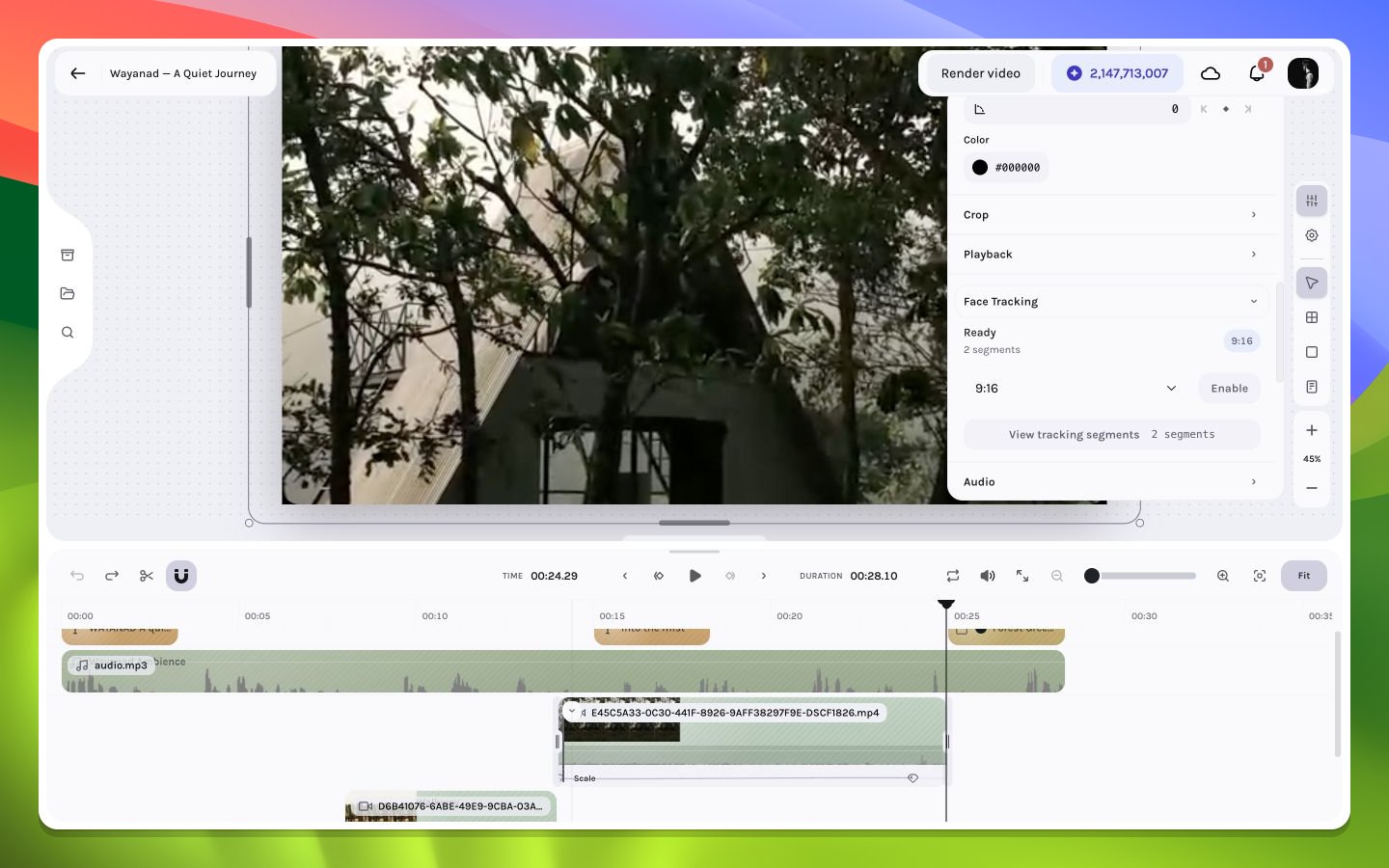
Face tracking ready with two detected segments
Eligibility and status
The section appears in the video inspector, but its controls become available only after the selected video has completed upload and processing. A video that is still uploading or is not available to the processing service is not yet eligible.
The secondary label shows either Scanning selected range or the number of known segments. Detection is service-dependent; the presence of the inspector section does not guarantee a result.
Enable tracked reframing
1
Select the uploaded video
Select exactly one video layer and open Face Tracking. Trim it first if tracking should cover only part of the source.
2
Choose the target aspect ratio
Choose
9:16, 4:5, or 1:1. Changing the ratio starts or reuses analysis for that output geometry.3
Wait for Ready
Do not repeatedly click while the section says Detecting. Enable becomes available only when the response contains at least one time range.
4
Enable and review the whole composition
Enabling creates one undoable state change that applies the target composition dimensions, updates the frame rate when required, fill-fits the selected video, and stores its tracking segments.
5
Frame-step the result
Inspect cuts and segment boundaries. Confirm that translations do not reveal empty canvas and that other layers still align with the new canvas.
Composition side effects
The selected aspect ratio resolves to canonical canvas dimensions. The editor then computes fill dimensions from the source width and height, so the selected video covers the new canvas. It updates the video’s size and position together with the composition dimensions and, when required, its frame rate. This has several practical consequences:- Text, captions, solids, frames, and other media retain their authored geometry and may now sit outside the canvas or need realignment.
- Existing keyframes remain expressed in the composition’s coordinate system and can describe an unintended path after the canvas changes.
- FPS changes affect the seconds represented by frame-indexed timing. Inspect all cuts, keyframes, captions, and end boundaries.
- The selected video is fill-fitted; some source pixels outside the target ratio are necessarily outside the visible canvas.
- Undo can revert the enabling commit, but subsequent edits create additional undo boundaries.
Inspect tracking segments
Choose View tracking segments to inspect each returned interval. A segment reports:
While a new scan is running, the segment viewer can continue showing the last saved result. If no saved or newly detected segments are available, segment inspection is disabled and the workflow reports that tracking is unavailable for the selected range.
Adjust or disable
Adjust opens the reframing workflow for a tracked layer. Submitting revised ranges or another aspect ratio repeats the composition-dimension, FPS, and fill-fit update with the new segment data. Disable removes tracking from the layer in one undoable change. It does not restore the previous canvas dimensions, frame rate, or video geometry automatically. Restore those values manually, or undo immediately if enabling tracking is still the latest relevant history entry.Evaluation model
At each frame, the editor finds the active tracking segment and compares the detected horizontal face position with the canvas center. It then shifts the fill-fitted video horizontally toward that center. The shift is limited to positions that continue covering the canvas, preventing an empty strip from appearing beside the media. Constant segments hold one face position. Bezier segments transition smoothly toward the next position. Before the first segment and after the last, the nearest known position is held; an unmatched gap between segments uses the unshifted framing.For the most predictable result, enable and review tracking while the video is at
1×. Drafts with another frame rate, speed-adjusted clips, cuts, occlusions, or rapid subject movement need close review because the tracked position can drift from the visible subject. Frame-step every segment boundary before export.Failure isolation
If the status remains unavailable or the subject drifts:- Confirm the video has completed upload and processing.
- Try a range with a clearly visible face and fewer cuts or occlusions.
- Confirm the chosen target ratio is appropriate for the source framing.
- Inspect segment start/end values and face positions.
- Disable tracking and compare a manual crop before changing unrelated layers.
- When contacting support, include the draft name, approximate clip range, target aspect ratio, and a screenshot of the result. Share source media only when appropriate for your workspace.