

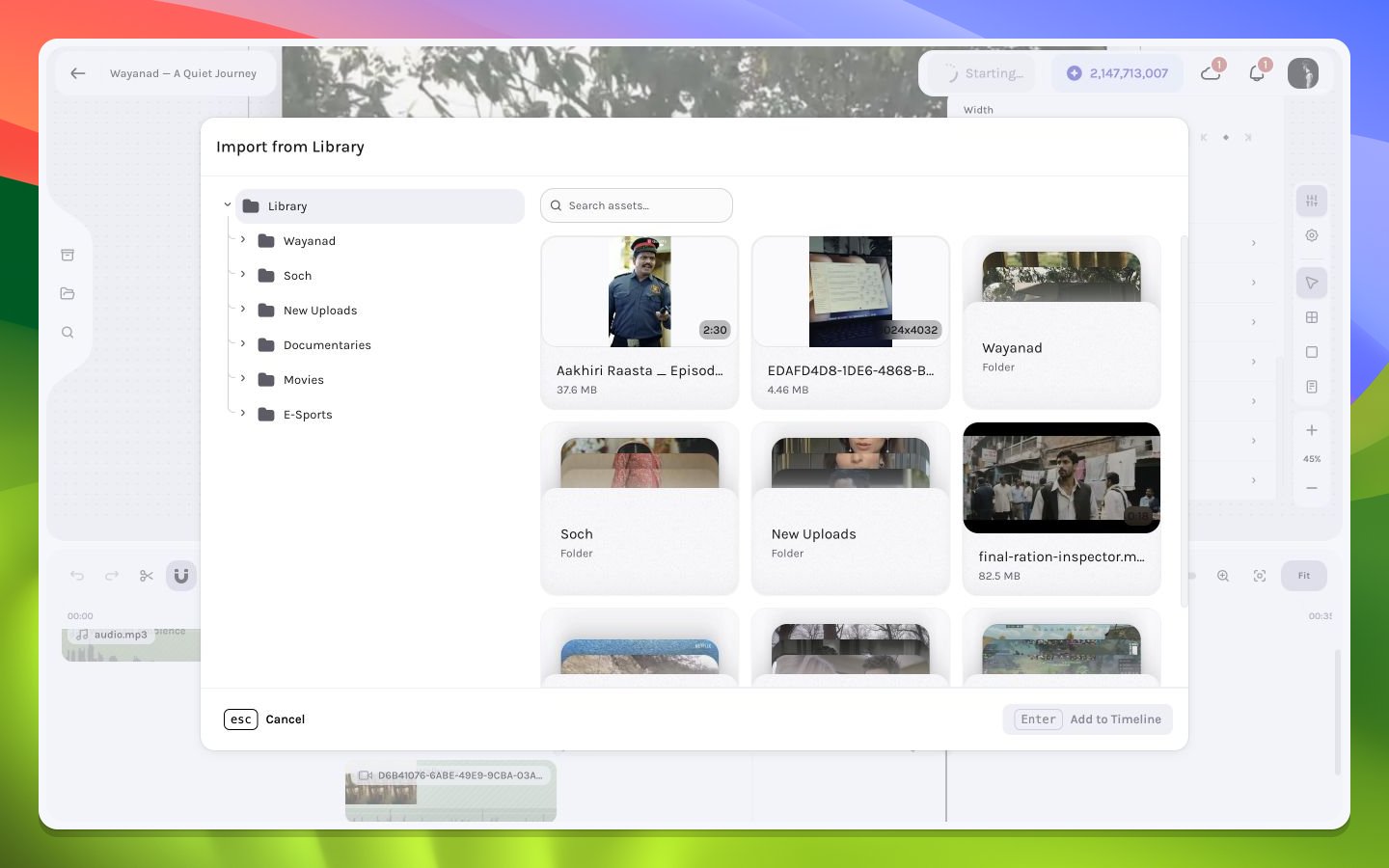
Workspace media available in the editor Library modal
Import workflow
1
Open Library
Choose Library on the left rail. Confirm the workspace that owns the expected assets is active if they are missing.
2
Inspect and select the asset
Use the card thumbnail and visible metadata to distinguish similarly named shots, then toggle the intended card into the selection. Library cards do not open a media preview here, so verify motion and audio after insertion.
3
Place the playhead
Seek to the intended insertion frame. Review nearby stack order and audio overlap.
4
Insert the selection
Select one or more files, then choose the modal’s add action to insert them at the current playhead.
Enter activates it only when that button has ordinary keyboard focus; the modal does not install a global Enter shortcut. Wait for asset details and source access to resolve before repeating the action.5
Verify the new layer
Confirm the timeline interval, canvas pixels or waveform, source duration, and inspector type.
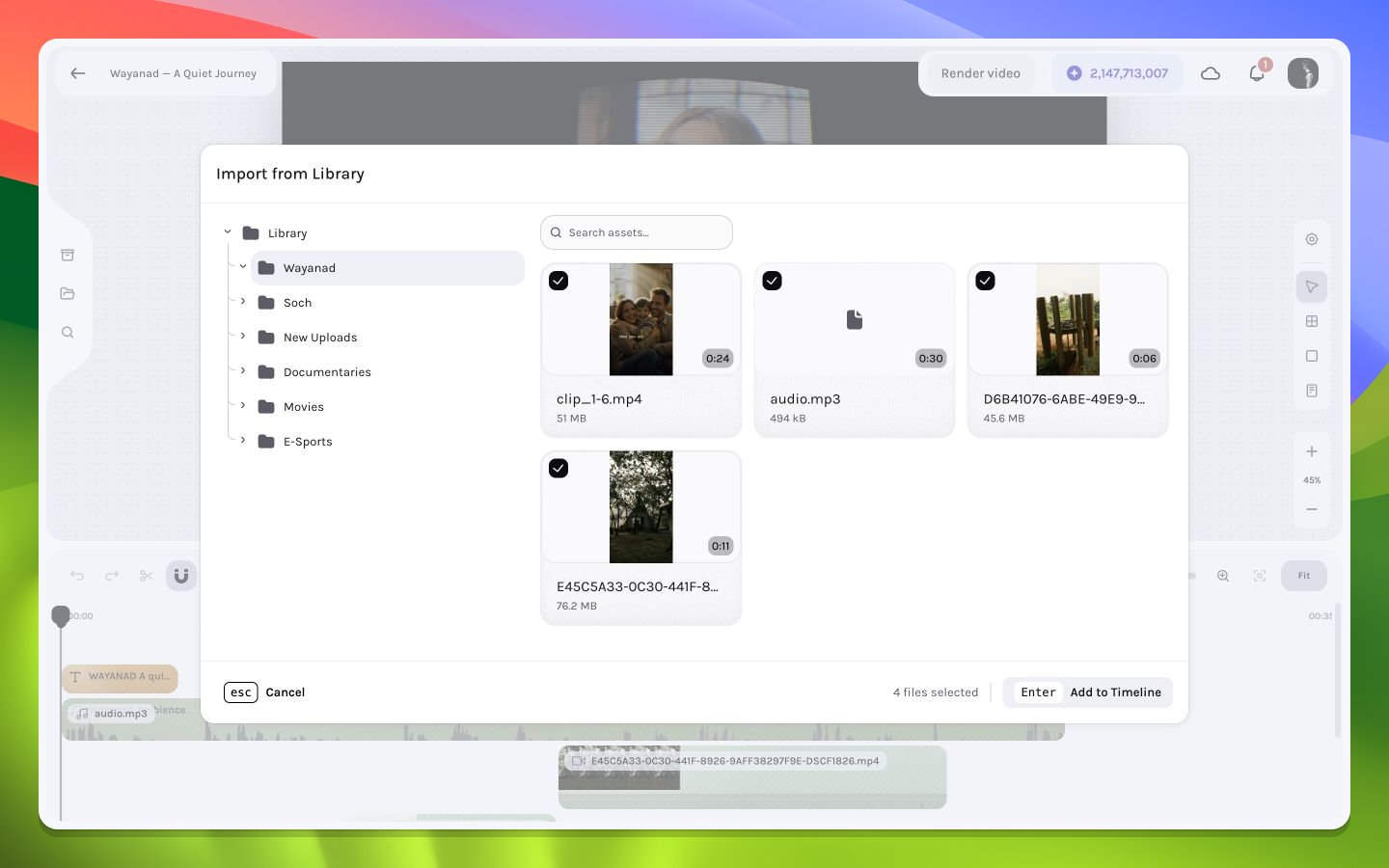
A Library asset selected before insertion