

Preflight checklist
- Confirm composition width, height, frame rate, and derived duration.
- Inspect the first and last visible frames.
- Play across every cut, title, caption change, and fade.
- Restore intended hide and mute states after isolation work.
- Verify remote media loads without expired or temporary-only references.
- Inspect keyframe lanes for points outside newly trimmed ranges.
- Review caption text, timing, maximum lines, and contrast.
- Listen for clicks, clipping, missing audio, and overly long fades.
- Deselect review-only alternatives or remove them if they should not render.
Start the render
1
Finish the final edit gesture
Let autosave synchronize and stop playback.
2
Choose Render video
The job is added to the local render queue and enters a starting state.
3
Keep the session open
The browser invokes the render service and polls progress. Avoid refreshing while the in-memory job is active.
4
Review the completed MP4
When the render finishes, the browser automatically downloads the H.264 MP4. Open that file and watch it end to end in a video player—not only in the editor preview.
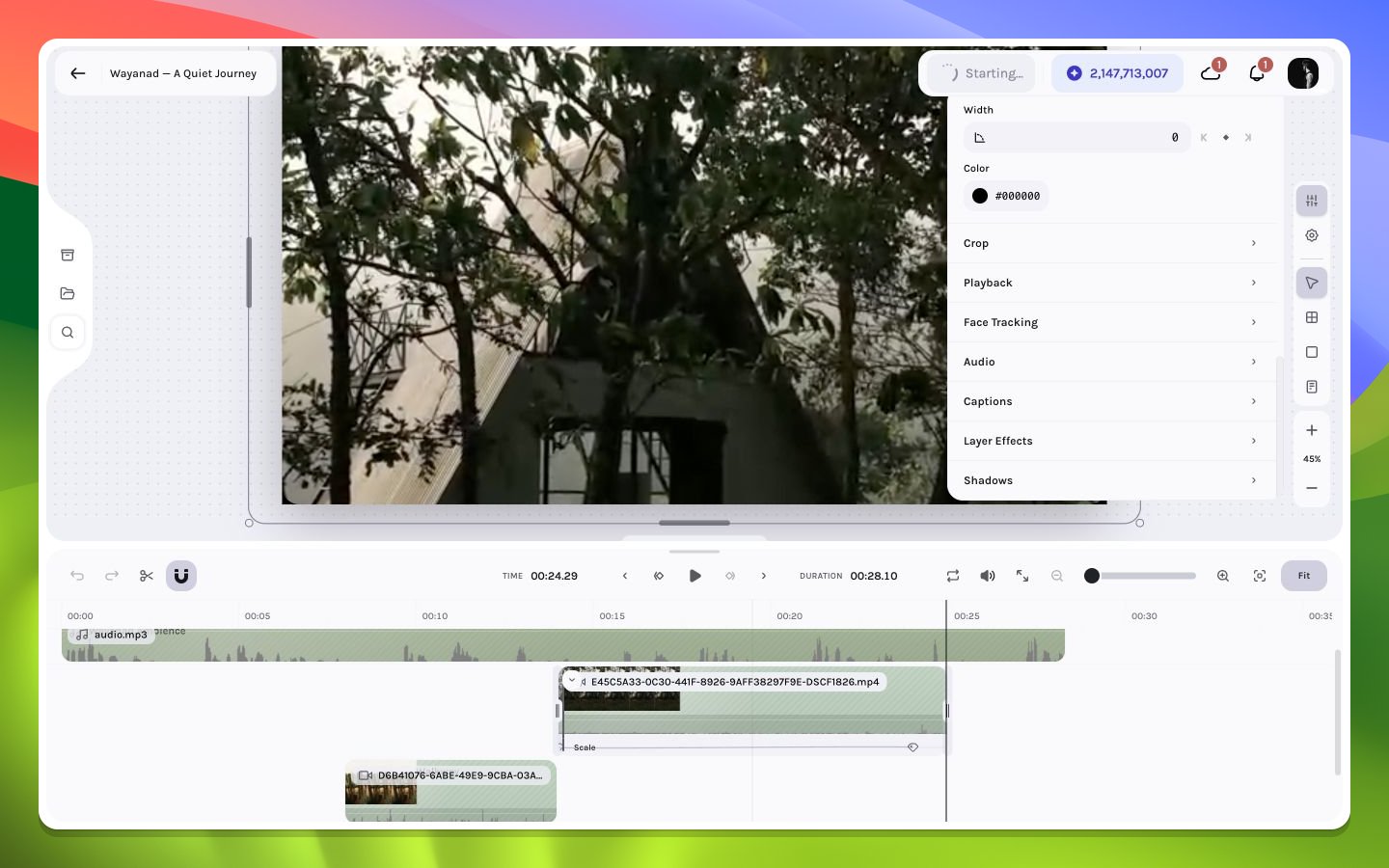
Starting an H.264 render